If you’re playing Free Fire on a Snapdragon-powered phone, you already have an edge: better GPU performance, lower latency, and smoother frame rates. But default sensitivity settings rarely take full advantage of that hardware. This guide is for players with Snapdragon chipsets like 720G, 845, 855, 865, 870, 888, or 8 Gen 1/2 who want to dial in their aim without jitter or input lag.
By the end of this tutorial, you’ll have a custom sensitivity profile that feels snappy, reduces recoil, and lets you hit those clutch headshots. We’ll cover general sensitivity, scope adjustments, and even fine-tune for drag headshot techniques – all optimized for Snapdragon’s high touch-sampling rates and GPU efficiency.
What You’ll Need
- A Snapdragon phone (any model from 600 series upward works)
- Free Fire installed (latest version recommended)
- Access to Training Mode (use it to test settings)
- Optional: a screenshot of your current sensitivity settings if you want to revert
- 5–10 minutes of uninterrupted time
Step 1: Know Your Snapdragon Advantage
Snapdragon processors handle graphics-intensive tasks like Free Fire with less throttling than many competitors. That means your sensitivity inputs register faster and more accurately. But that also means you can afford slightly higher sensitivity values without losing control. Start by opening Free Fire and navigating to Settings > Sensitivity.
Before we change anything, reset your current values to default (there’s a reset button at the top). Now we’ll build a profile that’s known to work well on Snapdragon chips. These numbers are a starting point – tweak them later.
Step 2: Set General and Scope Sensitivities
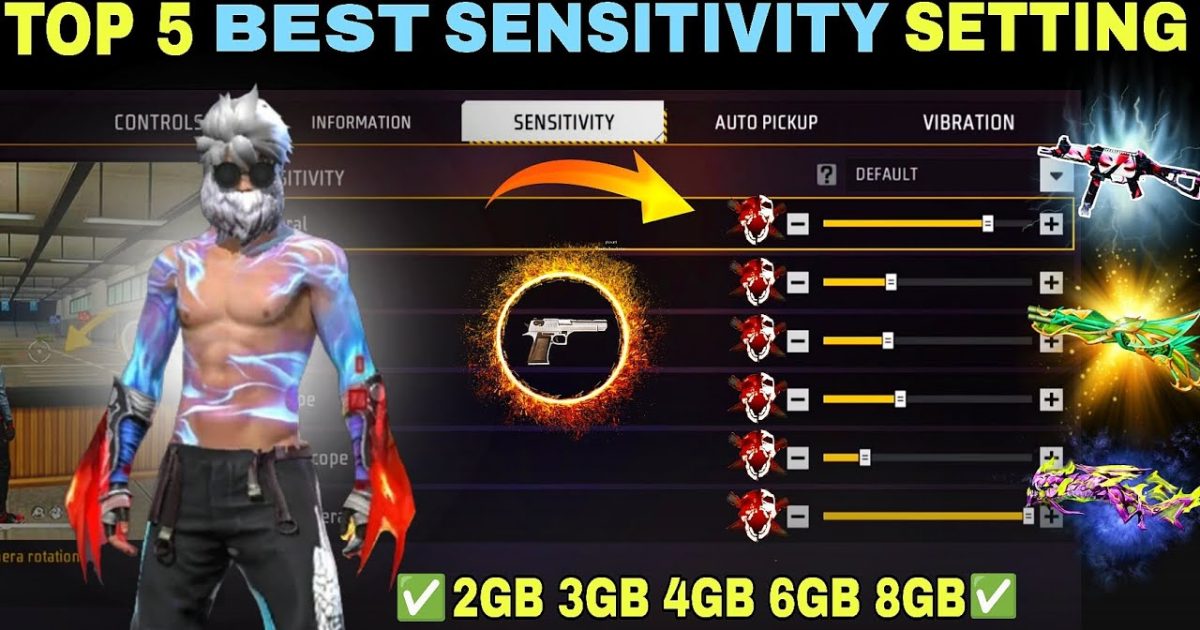
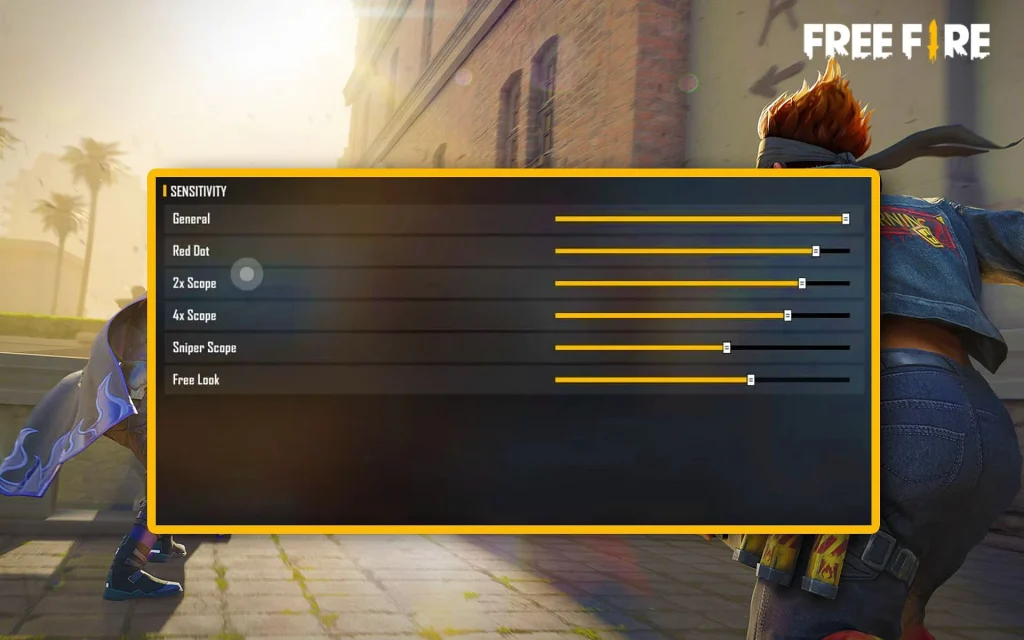
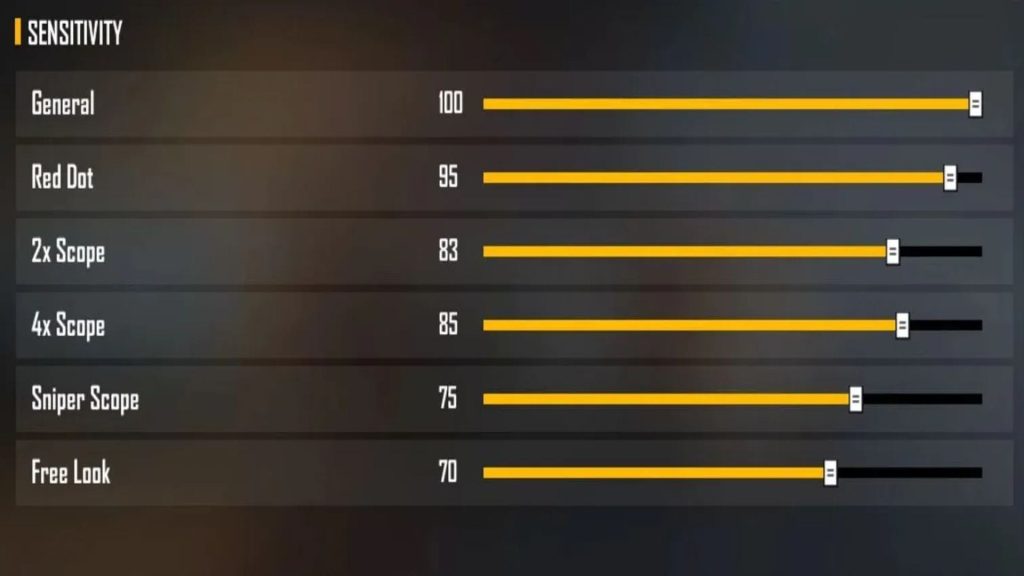
Here are the values I recommend for most Snapdragon phones. They balance fast turning with recoil control.
- General: 90–95 (keeps you agile without overshooting)
- Red Dot: 75–80
- 2x Scope: 65–70
- 4x Scope: 55–60
- Sniper Scope: 45–50
- Free Look: 70
Apply these values and enter Training Mode. Practice flicking between targets. If you feel you’re over-aiming, lower General by 2–3 points. If you can’t track a running enemy, raise it slightly. Snapdragon phones with 120Hz displays can usually handle higher General sensitivity (95–100).
Step 3: Fine-Tune for Drag Headshot
If you want to one-tap enemies with a quick drag headshot, you need a specific setup. The key is keeping Red Dot sensitivity high enough to snap upward but not so high that you overshoot. I use 80 for Red Dot and 90 for General. For a detailed breakdown, check out our dedicated guide on drag headshot sensitivity. On Snapdragon phones, the fast touch response helps a lot here.
Step 4: Use the Copy Code Method to Save and Share
Once you’ve dialed in your settings, don’t lose them! Use the in-game copy code method to save your configuration as text. You can share it with friends or keep it as a backup. This is especially helpful when switching between devices – just paste the code and your sensitivity is ready. For a full walkthrough, see the copy code method article.
Step 5: Test and Adjust in Real Matches
Training Mode is great, but nothing beats real combat. Play a few unranked matches to see how your new sensitivity feels under pressure. Pay attention to recoil control, especially with ARs like the M4A1 or AK. If you’re spraying too high, lower your General or Red Dot by 5 points. If you feel sluggish, raise them. For a systematic approach, check out how to test your sensitivity settings.
Common Pitfalls
- Setting sensitivity too high: Many players think high sensitivity = pro. But on Snapdragon phones, excessive speed causes jittery aim. Stick to the ranges above and only increase by 2–3 points at a time.
- Ignoring touch sampling rate: Snapdragon phones vary in how often they register touches. Low-end Snapdragons (like 600 series) may need slightly lower sensitivity to avoid ghost touches. Test with slow movements first.
- Copying pro settings without testing: What works for a streamer on a Snapdragon 888 may feel terrible on your 720G. Always treat other settings as a baseline, not the final answer.
Where to Next?
Your new sensitivity should already feel smoother than before. If you want to go further, check our latest gaming phone settings for other chipset‑specific tweaks. Also, if you’re on a Realme device, our Realme sensitivity guide gives exact numbers for that brand’s tuning. For those who want to experiment endlessly, try the sensitivity generator to create custom profiles.