You’ve spent hours tweaking your Free Fire sensitivity – General, Red Dot, 2x Scope, the whole deal. Now you want to save that perfect setup so you never lose it, share it with a friend, or load it onto another device. This guide is for anyone who wants to export their Free Fire sensitivity settings quickly and safely. By the end, you’ll know two reliable methods: using the in-game copy feature and the old-school screenshot approach.
Whether you’re switching phones, helping a squadmate, or just backing up your profile, exporting your sensitivity settings means no more guesswork when you need to replicate your aim. Let’s jump in.
What You’ll Need
- Free Fire installed on your device (Android or iOS)
- A note-taking or text app (like Google Keep, Notes, or Notepad)
- Optional: cloud storage (Google Drive, Dropbox) for sharing
Step 1: Open Free Fire and Go to Sensitivity Settings
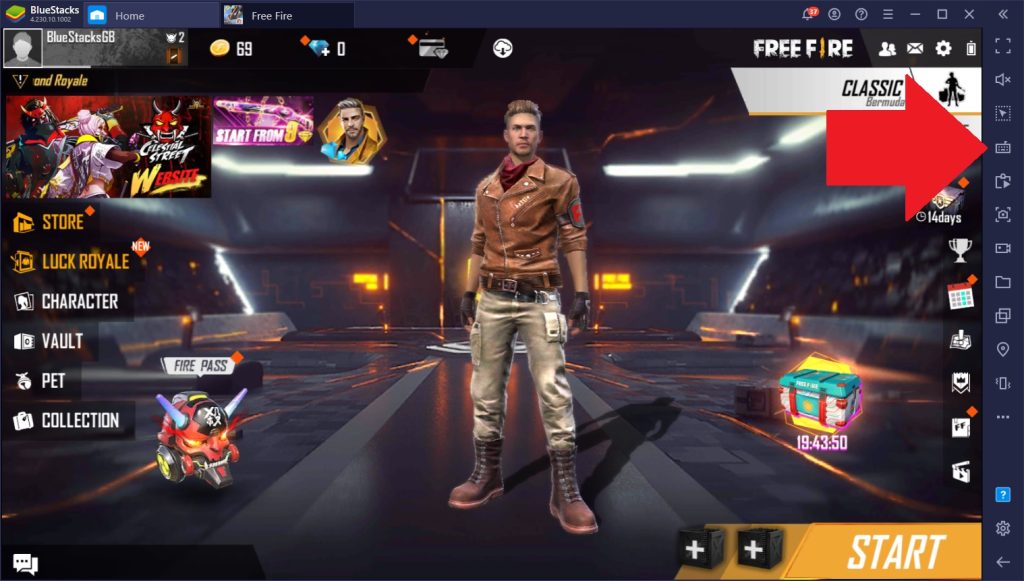
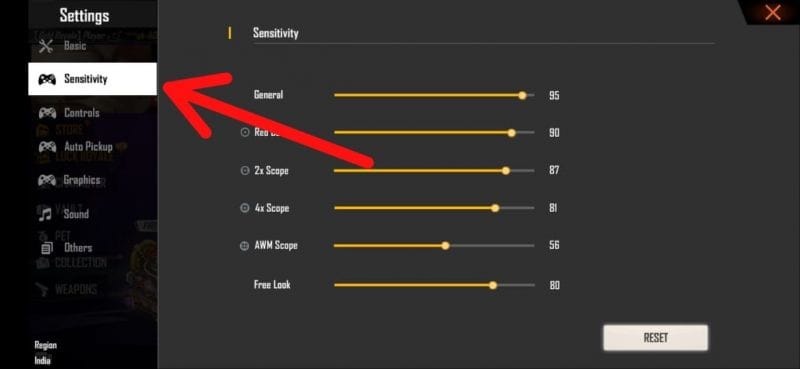
Launch Free Fire and tap the gear icon on the main lobby screen to open Settings. Then tap the ‘Sensitivity’ tab (it’s usually the second one, with a crosshair icon). You’ll see all your sensitivity sliders for different scopes and general movement.
Step 2: Use the In-Game Copy Feature (Recommended)
In the Sensitivity settings screen, look for the ‘Copy’ button at the top right (next to ‘Reset’). Tap it – Free Fire will copy your entire sensitivity profile as text to your clipboard. You’ll see a confirmation toast: ‘Sensitivity copied to clipboard’. This method captures all slider values in one go, no need to screenshot each tab.

Step 3: Paste into a Note or Text File
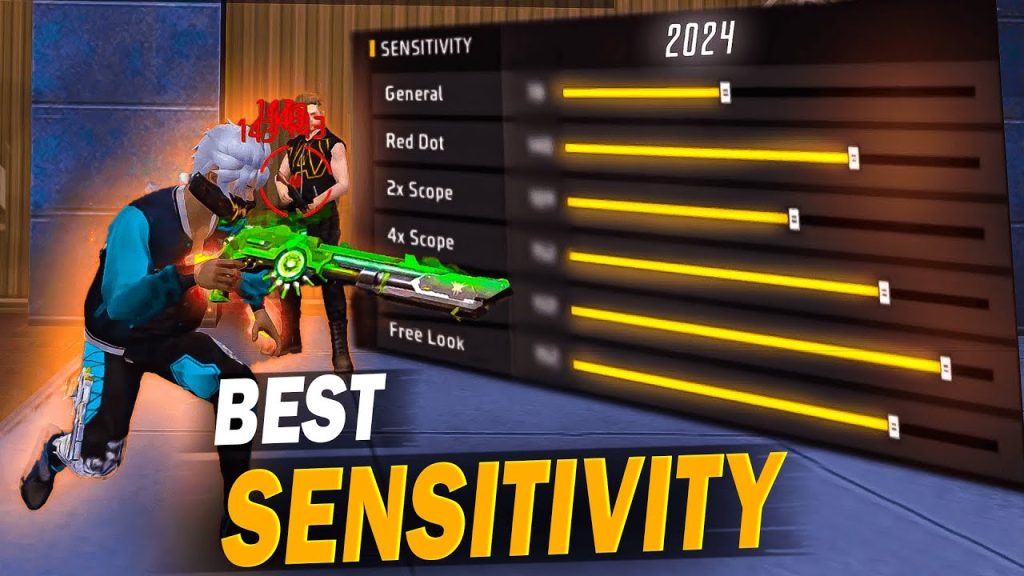
Open your favorite note-taking app. Create a new note and paste the clipboard content. You’ll see a block of text with labels like ‘General: 85’, ‘Red Dot: 90’, etc. Save the note with a clear name, like ‘FF Sensitivity – [date]’.
Step 4: Save or Share Your Exported Settings
Now you can keep the note for backup, or share it. To share, tap the share icon in your note app and send via WhatsApp, email, or any messaging app. If you want to load these settings on another device, simply copy the text from the note on that device, open Free Fire’s Sensitivity screen, and tap ‘Paste’ (the button next to Copy). Your settings will be applied instantly.
Step 5: Alternative Method – Screenshot Each Tab
If your Free Fire version lacks the copy button (very old versions), you can screenshot each sensitivity tab. Go to the Sensitivity screen, take a screenshot (usually Power + Volume Down), then swipe to the next scope tab (Red Dot, 2x, etc.) and screenshot again. Save the screenshots to a folder. This method is useful if you also want a visual reference, but it’s slower and takes more storage.
Common Pitfalls
- **Accidentally hitting Reset** – The Reset button is right next to Copy. One wrong tap and your settings are gone. Always double-check before tapping. If you do reset, and you have a backup note, you can paste to restore.
- **Forgetting to paste before exiting** – After copying, if you close Free Fire before pasting, the clipboard might get overwritten. Paste immediately into a note.
- **Not all tabs copied?** – The copy button captures all scope sliders in one text block, but in rare cases, some versions might miss a tab. Always verify by scrolling through your pasted text. If something’s missing, switch to the screenshot method.
Where to Next
Now that you’ve exported your settings, you can experiment with new profiles without fear of losing your base. Try using a sensitivity settings generator to fine-tune your aim, or test your sensitivity settings in the training ground. If you want to go aggressive, check out aggressive sensitivity settings. For headshot accuracy, the best sensitivity for headshots might be what you need. Also explore hybrid sensitivity settings for a balanced approach, or tweak your red dot sensitivity settings for quicker target acquisition. Happy hunting!
Your sensitivity is personal – export it, share it, but never lose it.
Free Fire Pro Tip



