
If you’re rocking a phone with only 2GB of RAM, you know the struggle: frame drops, stuttery movement, and that annoying lag right when you’re about to land a headshot. But don’t worry — you don’t need a flagship device to compete. With the right Free Fire sensitivity settings, you can minimize lag, keep your aim crisp, and actually enjoy the game. This guide is built specifically for low-end devices, so every step is optimized for smooth performance.
By the end of this tutorial, you’ll have a set of sensitivity values that reduce input delay and improve your reaction time. You’ll also learn how to tweak graphics settings for maximum FPS. No more blaming the phone — let’s make it work for you.
What You’ll Need
- A phone with 2GB RAM (or similar low-end specs)
- Free Fire installed and updated to the latest version
- A stable internet connection (Wi-Fi recommended)
- 5–10 minutes of free time to test and adjust settings
- Optional: Game booster app (like Game Turbo or Phone Cooler)

Step 1: Enable High FPS Mode and Reduce Graphics
Before touching sensitivity, we need to make the game run smoothly. Open Free Fire, tap the gear icon to go to Settings, then head to the Graphics tab. Set Graphics to Smooth, High Frame Rate to High or Max (if available), and turn off Shadows, Dynamic Lighting, and UI Reflections. These are performance killers on 2GB RAM. Lowering the resolution (if your phone allows) also helps. This setup ensures you get a stable 30–45 FPS, which is crucial for sensitivity to feel consistent.

Step 2: Reset Sensitivity to Default
Go to Settings → Sensitivity. Tap the three dots in the top-right corner and select ‘Reset to Default’. This clears any previous tweaks that might have been optimized for high-end phones. Starting fresh lets you build a profile that works with your device’s limitations.

Step 3: Set General and Red Dot Sensitivity
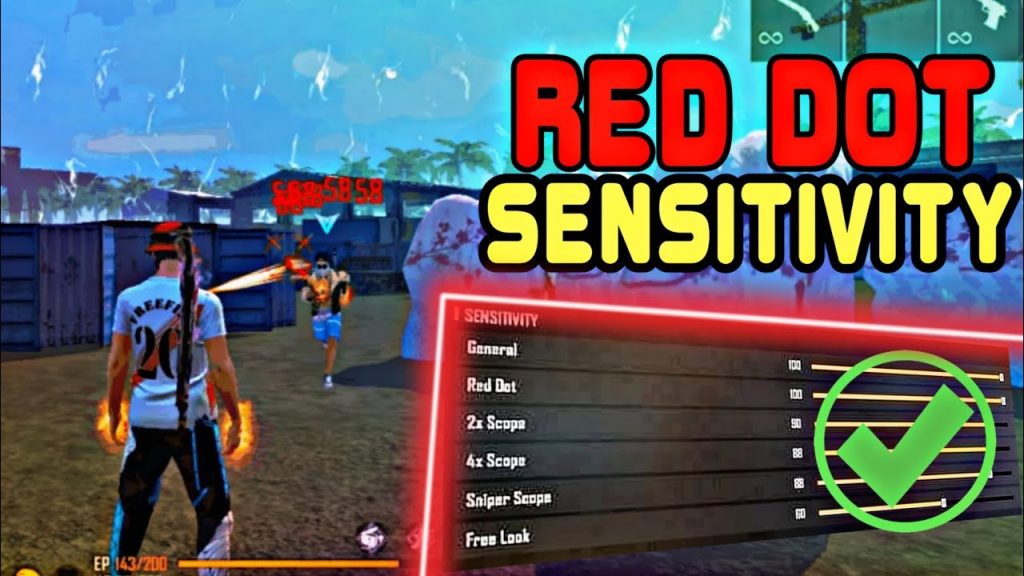
For 2GB RAM, lower sensitivity helps reduce jitter when the game drops frames. Set General sensitivity to 70–80. This controls how fast your view moves while hip-firing. For Red Dot sight, go between 60–70. If you prefer a closer scope, check out our guide on red dot sensitivity for more precision. The idea is to keep it low enough that a small frame drop doesn’t throw your aim off, but high enough to react quickly.
Step 4: Adjust 2x and 4x Scope Sensitivity
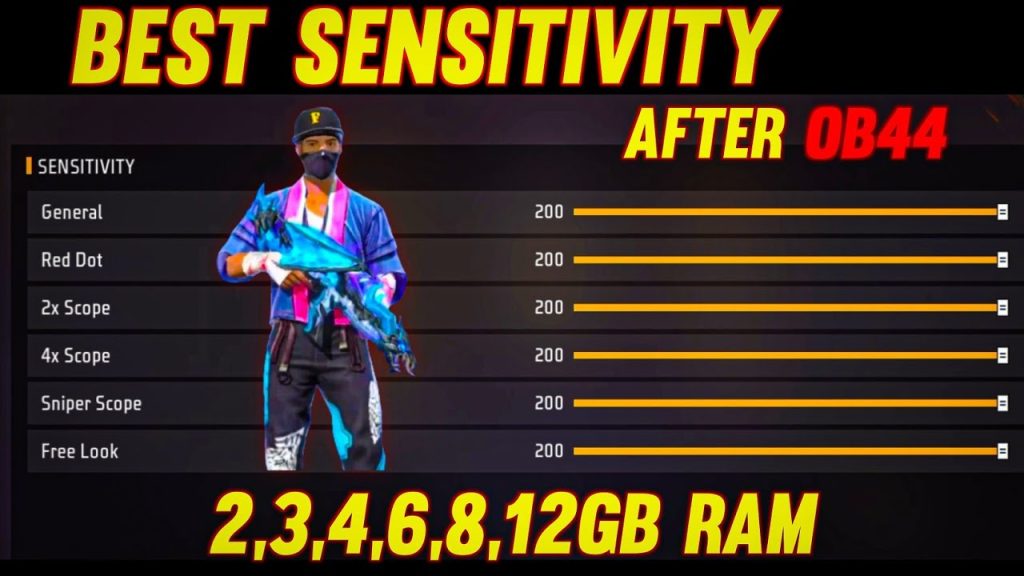
For medium-range fights, set 2x scope sensitivity to 50–60 and 4x to 40–50. Lower values here prevent over-aiming when the game stutters. If you find yourself overshooting targets, decrease by 5. This step is critical because scopes magnify any input lag. For a detailed breakdown, see our article on hybrid sensitivity that balances close and mid-range.
Step 5: Fine-Tune Sniper and Free Look Sensitivity
Sniper scope sensitivity (8x and above) should be around 30–40. High zoom with low FPS can cause severe lag, so keep it low. Free Look sensitivity — used while running or gliding — set to 60–70. This lets you scout without moving your character. For better sniping, refer to our sniper recoil sensitivity guide. Remember, lower values reduce the impact of frame drops.
Step 6: Test in Training Mode
Jump into Training Ground and spend 5 minutes testing your aim. Try tracking moving targets and snapping between them. If your crosshair moves too fast or too slow, adjust by 5 points at a time. Pay attention to how the game feels when there are multiple enemies on screen—if it lags, lower the sensitivity further. Learn more about how to test your sensitivity properly in our dedicated guide.
Step 7: Enable Game Booster and Close Background Apps
Before every match, close all background apps (especially social media and messaging). Use your phone’s built-in game booster or a third-party app to clear RAM and optimize CPU performance. This prevents sudden lag spikes that ruin your aim. Some phones have a ‘Performance’ mode — enable it. For more tips, check our guide on using game booster with Free Fire.
Common Pitfalls
- Copying pro sensitivity blindly: Pros use high-end devices with stable 60+ FPS. Their settings will cause lag on 2GB RAM. Always start low and adjust up if your phone can handle it.
- Ignoring graphics settings: Even perfect sensitivity feels terrible if the game runs at 15 FPS. Prioritize smooth graphics before tweaking sensitivity.
- Skipping the reset: Changing sensitivity without resetting first can leave conflicting values. Always reset to default to build a foundation for your low-end device.
Where to Next
Now that you’ve got a solid base, you can refine your aim further. If you prefer rushing enemies, try our aggressive sensitivity settings. For long-range tracking, our tracking sensitivity guide will help you land more shots. And don’t forget to experiment — every 2GB RAM phone behaves a little differently. Keep tweaking and you’ll find your sweet spot. Happy gaming!



