
Ever spent hours fine-tuning your Free Fire sensitivity, only to lose it all when you switch phones? Or maybe you want the same smooth aim on your tablet and your phone. This guide is for you. By the end, you’ll know exactly how to sync your sensitivity settings across devices—whether you’re using the in-game cloud save, manual export, or even a third-party tool. No more starting from scratch.
We’ll cover the official method first, then a backup plan for those tricky situations. Along the way, I’ll share some pro tips from players who’ve mastered the art of transferring settings. Ready to carry your laser aim everywhere? Let’s dive in.
What You’ll Need
- Two devices (source and target) with Free Fire installed
- A linked account (Facebook, Google, or VK) on both devices
- Stable internet connection on both devices
- Optional: screen recorder or notepad to jot down values
- Optional: a sensitivity optimizer tool if you want to double-check your numbers
Step 1: Prepare Your Current Settings
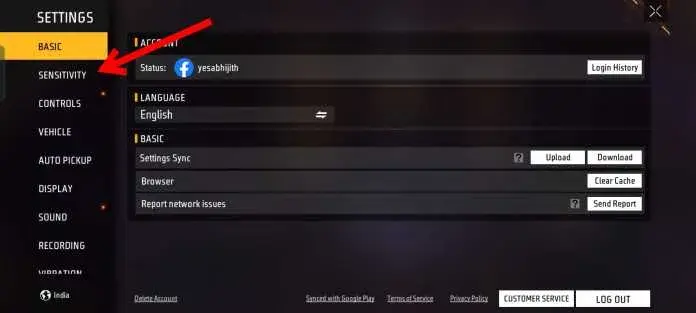
Before you transfer anything, take a snapshot of your current setup. Open Free Fire, go to Settings > Sensitivity, and screenshot each tab (General, Red Dot, 2x Scope, etc.). This is your safety net. Also note your DPI and any external controller settings if you use one. Having a visual reference helps when things go sideways.
Step 2: Export Your Settings via Cloud Save (Official Method)
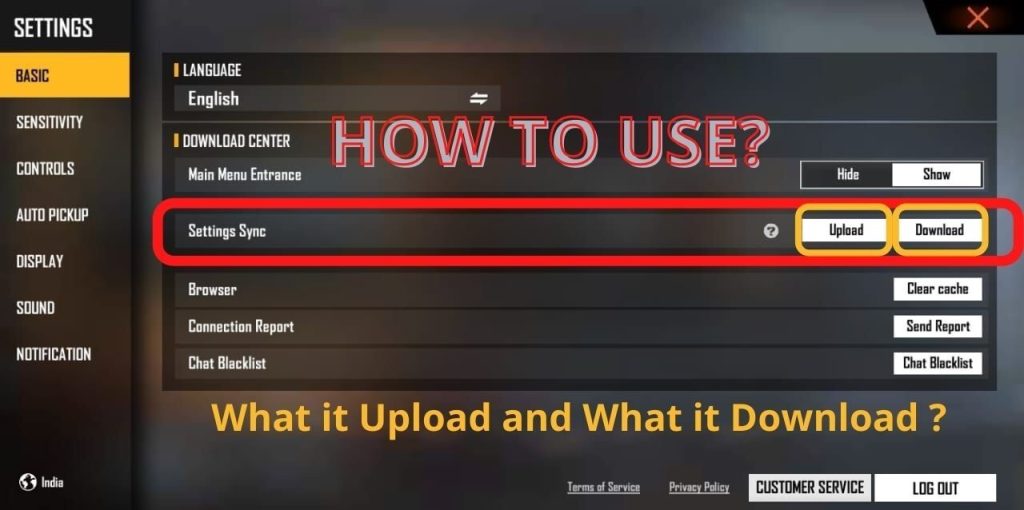
Free Fire’s cloud save is the simplest way. On your source device, ensure you’re logged into the same account (Facebook, Google, or VK) that you’ll use on the target device. Then go to Settings > Account > Cloud Save. Tap “Upload Settings” to push your current sensitivity, controls, and HUD to the cloud. Wait for the confirmation pop-up. According to the official guide, this saves everything including your headshot sensitivity settings.
If you prefer a manual approach, you can also export your settings by going to Settings > Sensitivity > Export. This creates a file you can share via Bluetooth or cloud storage. For a detailed walkthrough, check our post on how to export your settings—it covers both methods.
Step 3: Import Settings on Your New Device
On the target device, log into the same account you used for the cloud save. Go to Settings > Account > Cloud Save and tap “Download Settings.” The game will pull your saved sensitivity, controls, and more. It’s instant—close Free Fire and reopen to apply. If you used the export file method, transfer the file to the new device, open Free Fire, go to Settings > Sensitivity > Import, and select the file.
Pro tip: If you’re switching between a phone and a tablet, your 2x scope sensitivity might feel off due to different screen sizes. You can fine-tune that later using our dedicated 2x scope sensitivity guide.

Step 4: Test and Fine-Tune After Sync
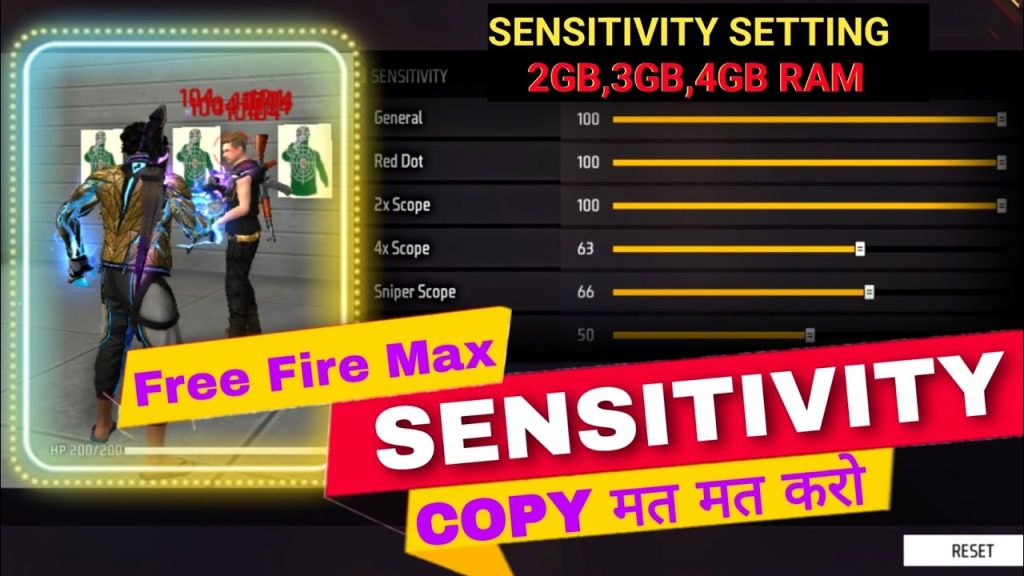
Your settings are now on the new device, but they might not feel exactly right. Screen size, refresh rate, and touch response vary between phones. Head to the Training Ground and test your aim with different weapons. Move slowly, then speed up. If something feels off, don’t panic—you can adjust individual sliders. Use a sensitivity optimizer to find the sweet spot, or follow our method to test your settings systematically.
I recommend spending at least 10 minutes in the Training Ground before jumping into a match. This saves you from a frustrating game where you can’t control recoil.
Common Pitfalls
- Forgetting to link your account: If you’re playing as a Guest, cloud save won’t work. Always link to Facebook, Google, or VK before syncing.
- Different screen resolutions: A sensitivity that’s perfect on a 6-inch phone can feel too fast or slow on a tablet. Plan to adjust after syncing.
- Missing categories: Cloud save might not cover every sub-category (like advanced aim assist or gyroscope). Always double-check all tabs after import.
Where to Next
Now that your settings are synced, you can focus on improving your gameplay. Experiment with different sensitivity presets for aggressive or passive play. Also, don’t forget to check our other guides on mastering sniper recoil and tracking enemies. Sync smart, aim sharper!



