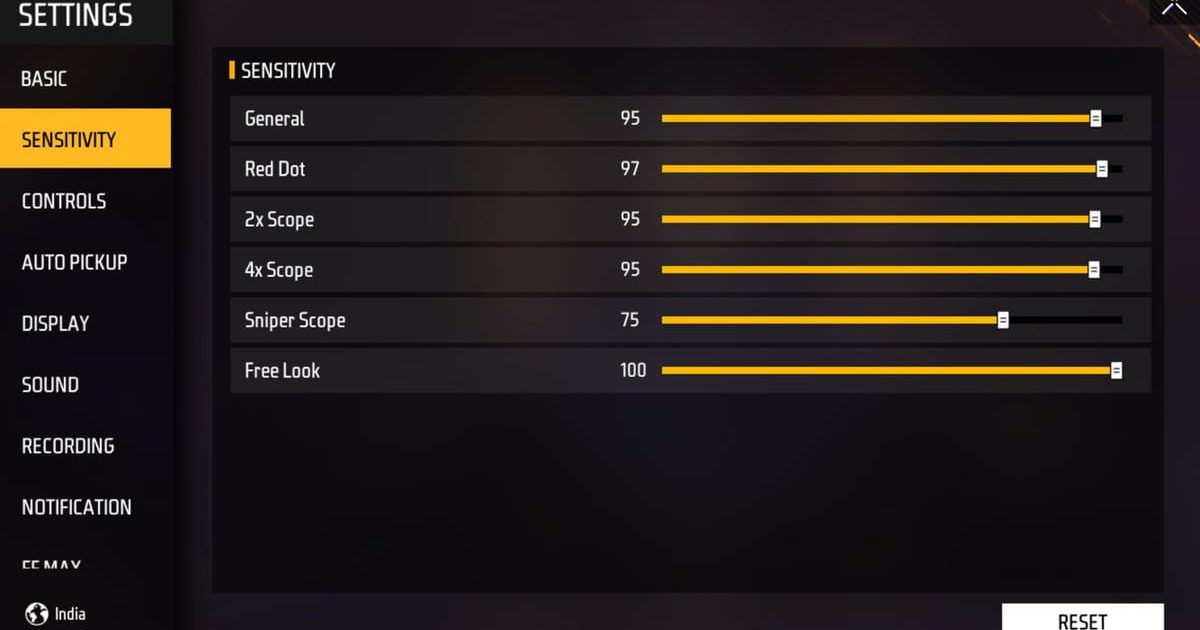
Hey champ! If you’re tired of sluggish aim and want your Free Fire gameplay to feel like butta, you’re in the right place. This guide is for anyone who wants to combine high FPS (frames per second) with killer sensitivity settings. High FPS gives you smoother motion, but if your sensitivity isn’t dialed in, you’ll still miss shots. By the end of this tutorial, you’ll have a sensitivity setup that works perfectly with max FPS, giving you faster reactions and laser-like precision.
We’ll walk through enabling high FPS mode, resetting your sensitivity, and tweaking each slider step by step. I’ll also show you how to save and share your settings using a profile code. Whether you’re on a gaming phone or a daily driver, these tips will help you dominate the battlefield. Let’s get those frames high and your aim on point!
What You’ll Need
- A phone that can run Free Fire at 60 FPS or higher (check your device’s specs)
- Free Fire installed (latest version)
- A stable internet connection
- About 30 minutes of free time to test settings
- Optional: screen recorder to compare before/after
Step 1: Enable High FPS Mode
First, you need to make sure your game is set to run at the highest possible FPS. This is the foundation for smooth aim. Go to Free Fire’s settings, tap on the Graphics tab, and set the frame rate to ‘High’ or ‘Ultra’ (if available). Some devices also have a ‘High FPS’ toggle in the Advanced section. Turn it on. This will push your phone to deliver more frames, reducing screen tearing and input lag.
Step 2: Reset Sensitivity to Default
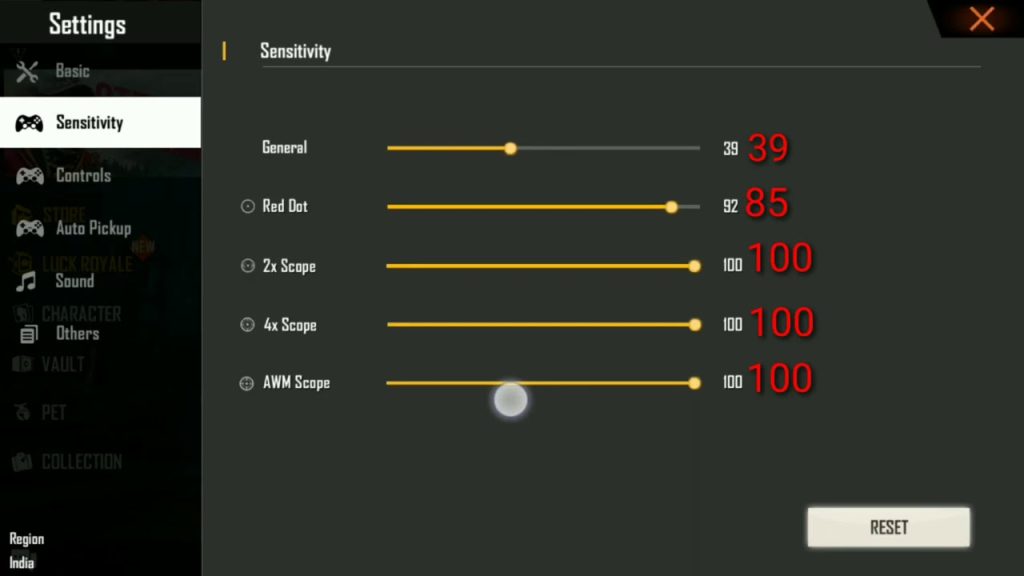
Before making any changes, reset your sensitivity to default. This gives you a clean slate. Go to the Sensitivity menu and tap ‘Reset to Default’. Don’t worry, we’ll build from there. This ensures no old conflicting settings mess with your new high-FPS tune.
Step 3: Adjust General Sensitivity
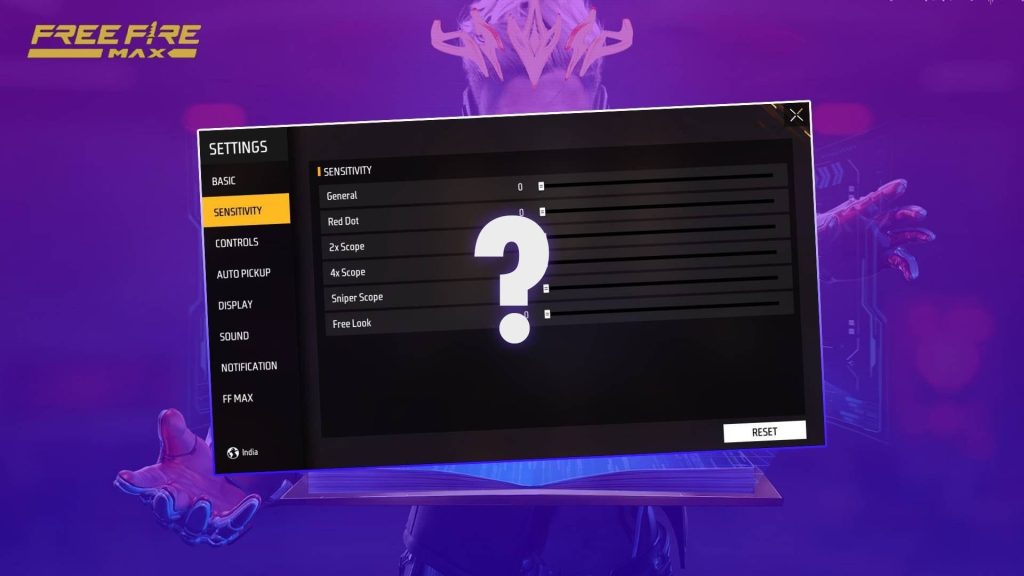
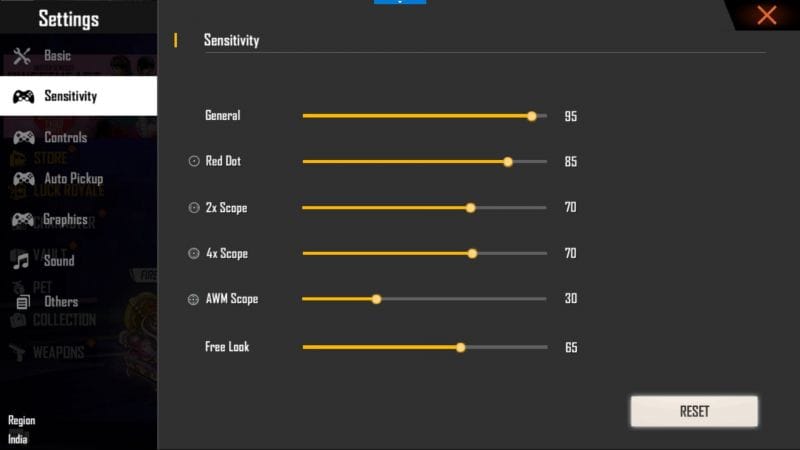
Now the fun part. Start with General Sensitivity. For high FPS, you want it high enough to flick quickly but low enough to control recoil. A good starting point is between 70-80. After setting it, hop into the training ground and test. If you’re overshooting targets, lower it. If you can’t track fast enemies, raise it. Adjust in increments of 5 until it feels natural. Remember, high FPS means you can afford a slightly higher sens without jitter.
Step 4: Tweak Scope Sensitivity
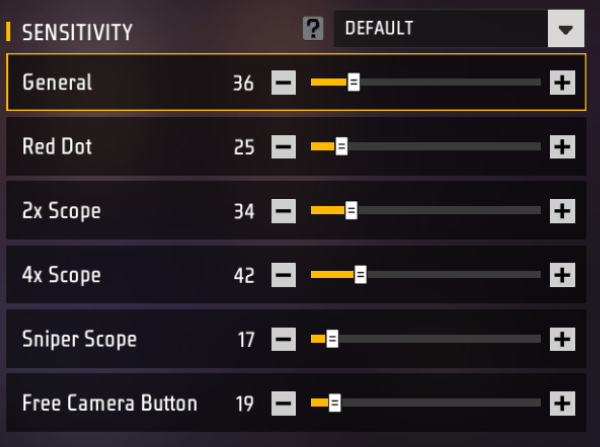
Scope sensitivity is crucial for ranged fights. For high FPS, you can lower it a bit for stability. Try 50-60 for red dot, 40-50 for 2x, 30-40 for 4x, and 20-30 for sniper scope. Fine-tune each in training mode. If you’re into close combat, you might want higher scope sens for quick scopes – check out our dedicated free fire sensitivity settings for close combat guide for more details.
Step 5: Test and Save Your Settings
Once you’re happy, play a ranked match to see how it feels under pressure. Don’t be afraid to make small adjustments after each game. When you’ve found the sweet spot, save your settings. You can also generate a profile code to share with friends or reuse on other devices. Learn how to do that in our free fire sensitivity settings profile code article. Also, if you want to back up your setup, check out how to save free fire sensitivity settings.
Step 6: Optimize with Game Booster (Optional)
To keep your FPS steady during intense moments, use your phone’s built-in game booster or a third-party app. This locks the CPU/GPU speed, prevents throttling, and clears background apps. If you have a gaming phone, check our free fire sensitivity settings gaming phone guide for device-specific tweaks.
Common Pitfalls
- Setting sensitivity too high on low-end phones: High sensitivity with unstable FPS causes micro-stutters and misses. Stick to 70-80 max if your phone struggles.
- Ignoring DPI settings: Your phone’s DPI (display density) affects how fast your finger moves across the screen. If you’ve changed DPI, sensitivity feels different. Keep DPI at default or adjust accordingly.
- Not testing enough: One match isn’t enough. Spend at least 10 minutes in training and play 2-3 matches before finalizing. Patience pays off.
Where to Next?
You’ve now got a smooth, high-FPS sensitivity setup. Want to take it further? Check out our guides on free fire sensitivity settings for instant headshot and the free fire sensitivity settings with 4 finger claw layout for even more control. Happy grinding!



