Whether you’re grinding ranked matches or pushing for Heroic, your sensitivity settings can make or break your gameplay. This guide is for anyone who wants to move beyond default settings and unlock elite-level aim. By the end, you’ll have a custom sensitivity profile that suits your playstyle – whether you prefer one-tap headshots, long-range sprays, or aggressive rush tactics.
We’ll walk through the exact values I use (and many top streamers swear by), explain how to adjust each slider, and show you how to test your settings in real matches. No fluff – just the settings and the reasoning behind them so you can tweak intelligently.
What You’ll Need
- A phone with Free Fire installed (any device works, but settings may vary slightly).
- 5–10 minutes of free time in the training ground or a Clash Squad match.
- Your preferred grip (claw or thumbs) – settings adjust differently for each.
- A calm mind – you’ll need to test and retest until it feels right.
Step 1: Reset to Default (Optional but Recommended)
If you’ve messed around with settings before and now your aim is all over the place, start fresh. Go to Settings > Sensitivity and tap “Reset to Default.” This clears any weird values. Screenshot your old settings first in case you want to revert.
Step 2: Set General Sensitivity (The Foundation)
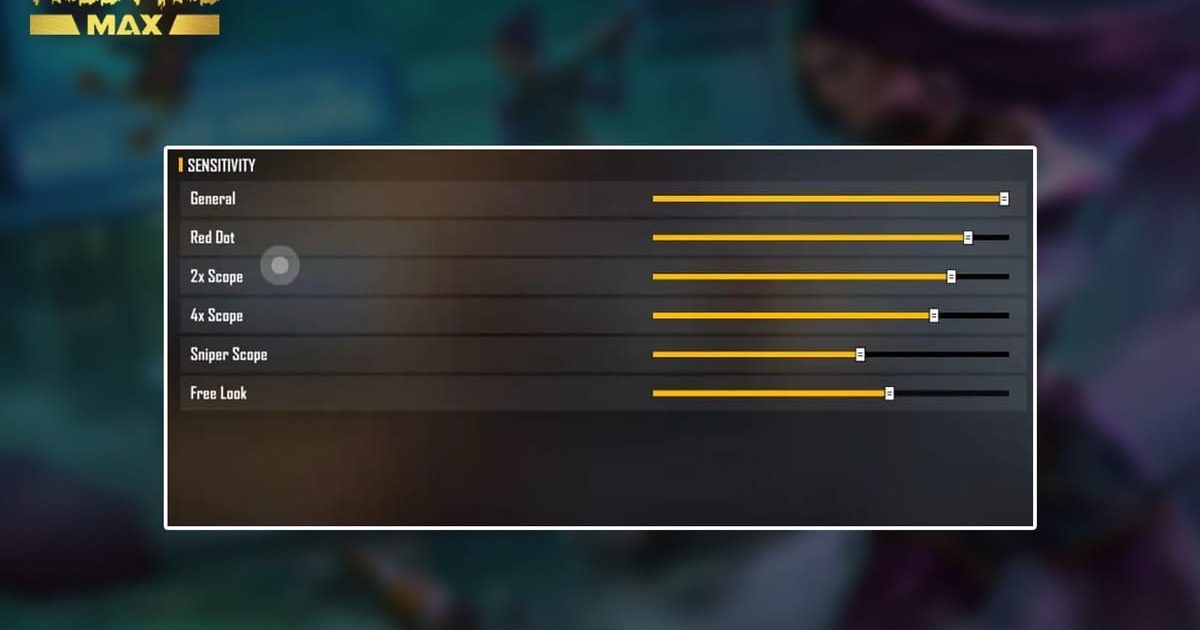
General sensitivity controls how fast your crosshair moves when you swipe. For elite gameplay, you want it high enough to flick quickly but low enough to control recoil. Start with these values:
- General: 90–100 (claw players) / 70–80 (thumb players)
- Red Dot: 85–95 (for headshots)
- 2x Scope: 80–90
- 4x Scope: 70–80
- Sniper Scope: 50–60
- Free Look: 60–70
Why these numbers? Higher general and red dot help you snap onto targets quickly – essential for one taps. Lower scope sensitivities give you steadier aim at range. If you prefer the best sensitivity for one tap, try General 95 and Red Dot 90.
Step 3: Adjust for Your Device and Grip
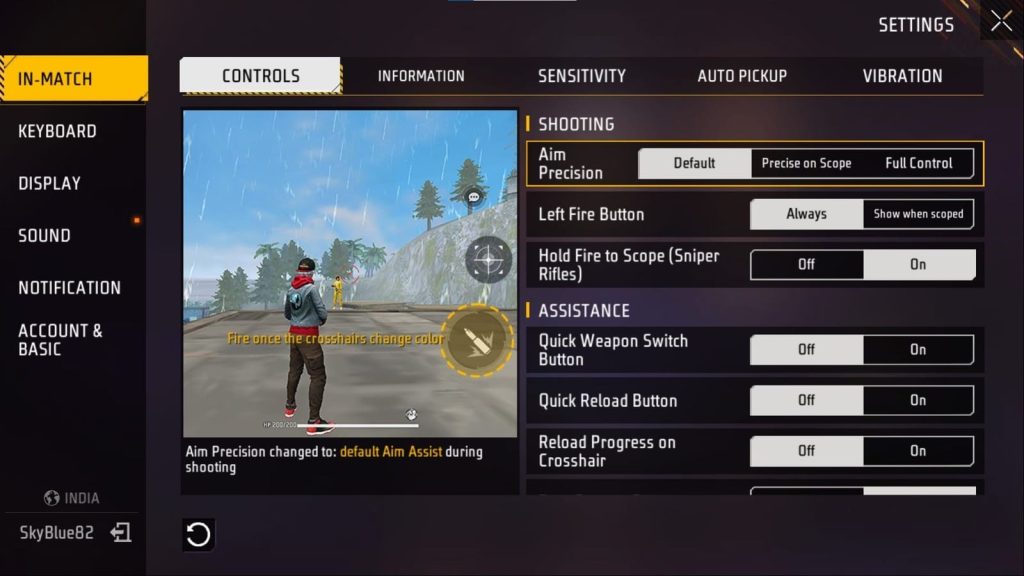
Not all phones are the same. If you’re on a Snapdragon device, you can push general sensitivity higher because the touch response is faster. Check out our dedicated Snapdragon sensitivity settings for optimized values. For other devices, drop general by 5–10 if you feel jittery.
Grip matters too. Claw players have more fingers to stabilize, so they can handle higher sensitivity. Thumb players need slightly lower values to maintain accuracy. Test in the training ground: if you overshoot often, lower general by 5; if you can’t turn fast enough, increase by 5.
Step 4: Fine-Tune for One-Tap and Drag Headshots
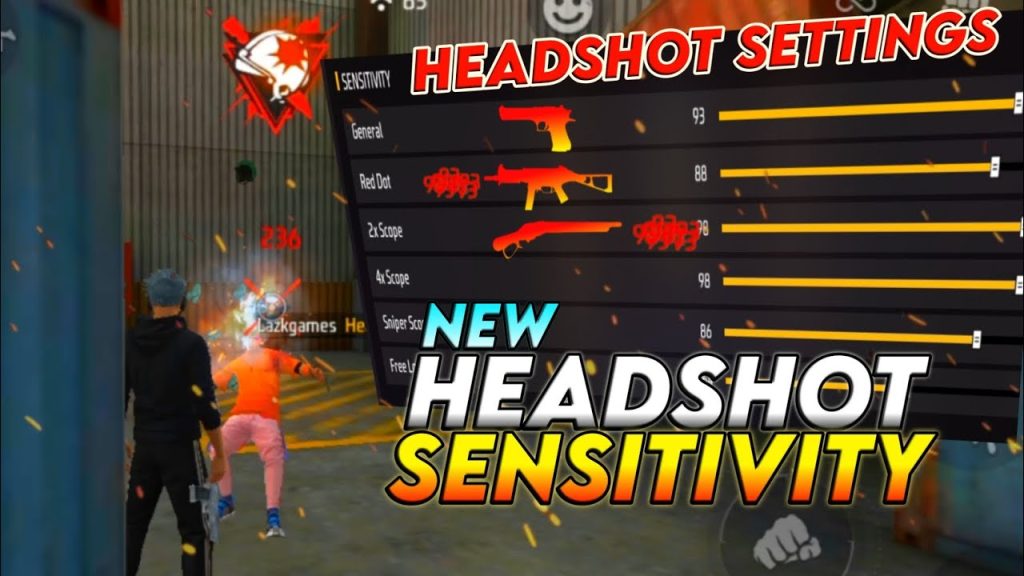
One-tap headshots require precise flicking. Set Red Dot sensitivity between 85–95. For drag headshots (pulling down your crosshair while shooting), you need a good touch combo – that’s your finger placement and sensitivity working together. A higher general sensitivity (90+) and a steady drag motion will land consecutive headshots.
If you’re struggling with drag headshots, try our drag headshot sensitivity guide. It breaks down the exact swiping technique.
Step 5: Test in Real Matches
Training ground is great for warmup, but real matches have pressure. Play a few Classic or Clash Squad games with your new settings. Focus on:
- Close-range sprays (SMG/Shotgun) – do you track enemies smoothly?
- Mid-range taps (AR) – are your bullets hitting the red numbers? See our red numbers sensitivity guide for more.
- Long-range scoped shots – is the reticle shaking too much?
- Quick 180 turns – can you spin and shoot after being shot in the back?
Make small adjustments after each match. If something feels off, change it by 5 points and test again. Once you’re comfortable, save your settings. Here’s how to save sensitivity settings so you never lose them.
Common Pitfalls
- Copying streamer settings blindly: Streamers often play on high-end devices with custom touch response. Their settings may not work on your phone. Always start from the values above and tweak.
- Changing too many settings at once: If you adjust general, red dot, and scope all at the same time, you won’t know what helped or hurt. Change one slider per match.
- Ignoring your grip style: Claw and thumb require different sensitivities. Don’t force a claw-friendly high sensitivity if you’re a thumb player. Lower it until you’re accurate.
Where to Next
You’ve got a solid foundation, but elite gameplay is a journey. Next, dive into our guide on sensitivity and touch combo to master advanced movement like jiggle peeking and jump shots. Also check out the best sensitivity for one tap if you want to always land that instant kill. Share your settings with friends and compare – sometimes a small tweak from someone else’s setup can be the missing piece.



