
If you’re playing Free Fire on an iPhone and feel like your aim is off, you’re not alone. The default sensitivity settings on iOS often feel sluggish or too twitchy, making it hard to land headshots. This guide is for iPhone players who want to dial in their sensitivity for smooth, precise aim. By the end, you’ll have a setup that works for your playstyle and helps you climb the ranks.
iPhone screens have a high touch sampling rate, and with the right sensitivity, you can flick faster and track enemies better. We’ll cover camera sensitivity, red dot and scope settings, gyroscope, and even how to use a sensitivity simulator to find your sweet spot. Plus, we’ll link to advanced guides like elite gameplay sensitivity and one tap sensitivity for extra fine-tuning.
What You’ll Need
- An iPhone (iPhone 11 or newer recommended for smooth 60fps)
- Free Fire installed (latest version)
- A stable internet connection (Wi-Fi or 4G/5G)
- Patience to test and tweak your settings
Step 1: Access the Sensitivity Settings
Open Free Fire and tap the gear icon on the lobby screen. Go to ‘Settings’ then select the ‘Sensitivity’ tab. Here you’ll see all the sliders for different scopes and the gyroscope. Make sure your device is running smoothly – close background apps and enable Game Mode if your iPhone has it.
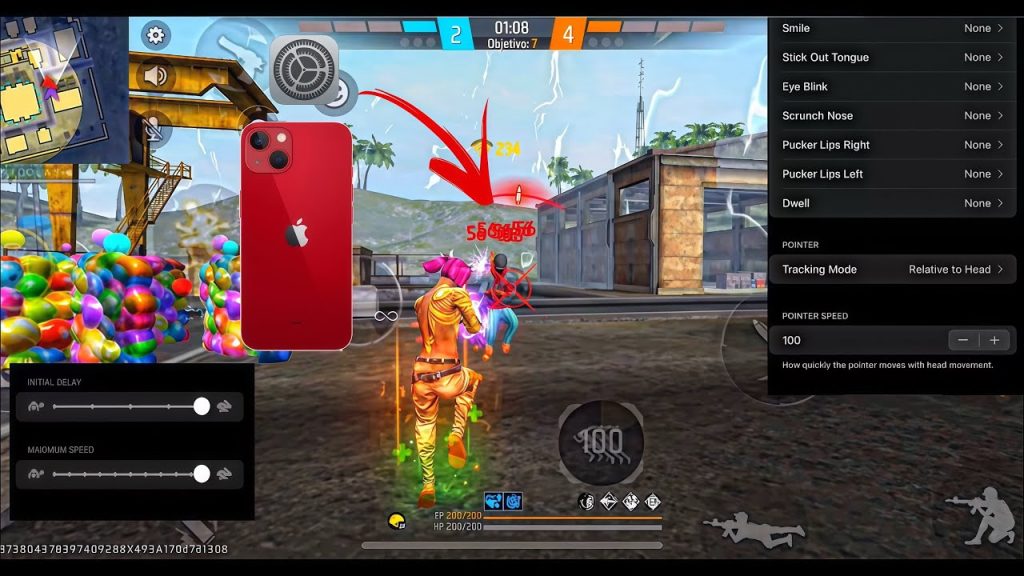
Step 2: Set Camera Sensitivity (General Aim)
Camera sensitivity controls how fast your view moves when you swipe. For iPhone, start with these values: General: 100, Red Dot: 90, 2x Scope: 78, 4x Scope: 52, Sniper Scope: 45. These are balanced for most phones. Adjust up if you need faster flicks, down for more precision. Many pro players use values around 100-110 for general and 80-90 for red dot – check out our one tap sensitivity guide for exact numbers.

Step 3: Tweak Red Dot and Scope Sensitivity
Red dot and scope settings are crucial for long-range fights. For red dot, try 90; for 2x, 78; for 4x, 52. If you’re aiming for headshots, slightly higher red dot sensitivity helps with dragging. The red numbers sensitivity guide dives deeper into landing headshots consistently.

Step 4: Enable and Adjust Gyroscope
Gyroscope uses your phone’s tilt to aim. On iPhone, it’s a game-changer. Turn it on and set ‘Gyroscope Sensitivity’ to 50 for all scopes. You can increase it to 70-80 if you want faster tilt aiming. Hold your phone comfortably and practice tilting to adjust your crosshair – it’s smoother than swiping.

Step 5: Fine-Tune with a Sensitivity Simulator
Not sure if your settings are optimal? Use a sensitivity simulator to test different values virtually. Simulators let you adjust sliders and see how they affect aim. Once you find a sweet spot, note the values. You can also import settings from streamers or use the export feature to save your configuration. Learn how to export your sensitivity and share it with friends.

Step 6: Test in Training Ground
Head to the Training Ground to test your new settings. Try hitting stationary and moving targets. Focus on flick shots and tracking. If something feels off, go back and adjust the sliders by 5-10 points. Repeat until you consistently hit headshots. Don’t forget to save your settings – we recommend you sync across devices if you play on multiple iPhones.
Common Pitfalls
- Copying PC settings: PC players use mouse DPI – iPhone is different. Never directly copy PC sensitivity; always start from the values above.
- Ignoring gyroscope: Many iPhone players skip gyroscope, but it gives you a major advantage for precise aiming. Spend time getting used to it.
- Not saving your settings: If you don’t back up or export your sensitivity, you’ll lose it after updates. Always export your sensitivity or save a screenshot.
Where to Next
You’ve got your iPhone sensitivity dialed in – now it’s time to master it. Check out our guides on elite gameplay sensitivity for advanced techniques, or try the sensitivity simulator to test extreme values. If you play on multiple devices, learn how to sync across devices so your settings travel with you. Keep practicing, and those headshots will become second nature.



