This guide is for Free Fire players who want to improve their aim and movement. Whether you’re tired of missing shots or struggling with jittery controls, we’ll help you find your perfect sensitivity settings and master touch combo techniques. By the end, you’ll have a custom sensitivity profile that feels natural, plus a touch combo layout that lets you jump, shoot, and slide seamlessly. No more fumbling mid-fight.
What You’ll Need
- A phone with Free Fire installed (Android or iOS)
- At least 15 minutes of free time
- Access to Free Fire’s training room (practice mode)
- Optional: A game booster app for smoother performance – check our guide on free fire sensitivity settings with game booster
Step 1: Reset to Default and Understand the Settings
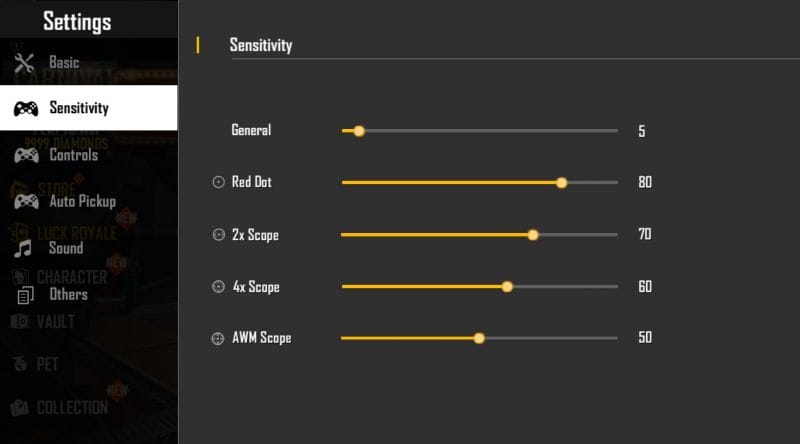
Start by resetting your sensitivity to the default. This gives you a clean slate. Go to Settings > Sensitivity and note the sliders: General, Red Dot, 2x Scope, 4x Scope, Sniper Scope, and Free Look. Each slider controls how fast your crosshair moves when you drag your finger. A higher number means faster movement, but too high can make you overshoot. For a starting point, try the latest sensitivity settings from our guide – they offer a balanced baseline.

Step 2: Tweak Your General Sensitivity
Enter the training room and stand in front of a target. Move your crosshair to track a moving dummy. Adjust the General slider until you can smoothly follow the target without over-aiming. If your crosshair jitters, lower it. If you can’t keep up, raise it slowly by 5 points. Once it feels comfortable, you can test your free fire sensitivity settings in a real match to confirm.

Step 3: Fine-Tune Scope Sensitivities
Now adjust each scope individually. For the red dot, practice flicking to the head of a stationary target. You want to land on the head with minimal adjustment. For higher scopes (2x, 4x, sniper), the sensitivity should be lower because small movements get magnified. A good rule: set sniper scope around 30-40, 4x around 40-50, 2x around 50-60. Use the free fire sensitivity settings simulator to dial in exact numbers if you want precision.
Step 4: Set Up Touch Combo – The 4-Finger Claw Grip
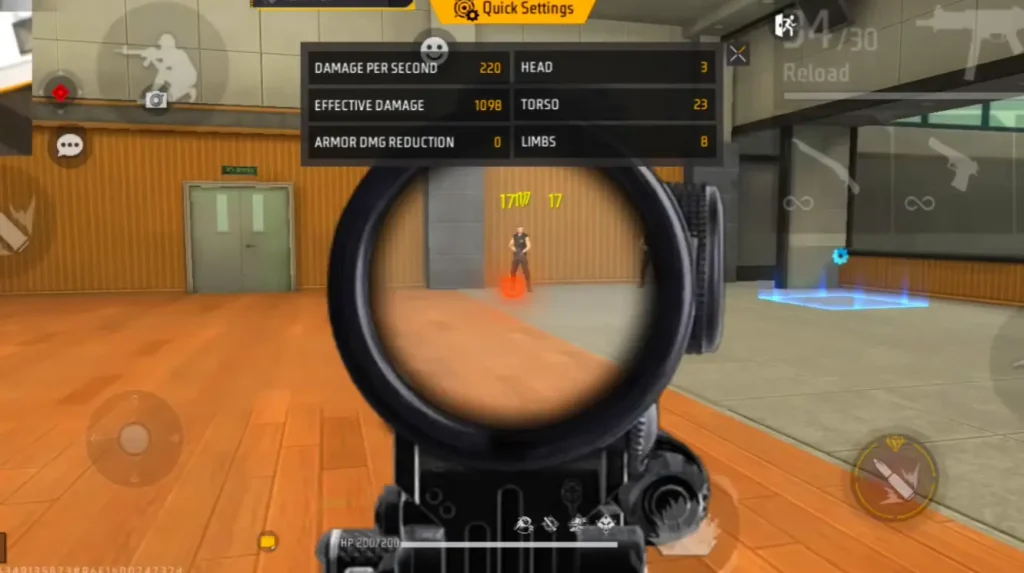
The touch combo (or claw grip) lets you use multiple fingers for faster actions. The most popular is the 4-finger claw: index fingers tap the fire and scope buttons (top corners), thumbs control movement and camera (bottom). To set this up, go to HUD layout in settings and drag the fire and scope buttons to the top-left and top-right corners. Resize them to fit your index fingertips. If you prefer a more aggressive playstyle, try our aggressive sensitivity settings once your grip is solid.

Step 5: Practice the Combo Moves
Now practice essential moves: jump-shot (jump + shoot), slide-shot (slide + shoot), and quick peek (scope + lean). To do a jump-shot, press jump with your right thumb while firing with your left index. For slide-shot, slide with your left thumb and fire. Spend 10 minutes in training room drilling these. Once comfortable, try them in Clash Squad. You can also sync sensitivity settings across devices if you switch phones – that way your practice carries over.

Common Pitfalls
- Cranked sensitivity too high – leads to shaky aim. Start lower and increase gradually.
- Neglecting the touch combo – you can’t compete with thumbs-only against claw players. Learn the grip early.
- Copying pro settings blindly – pros have different finger sizes, phone sizes, and play styles. Always test your free fire sensitivity settings in your own game.
Where to Next
Now that you have your sensitivity and touch combo, take it further. Use the free fire sensitivity settings simulator to perfect your numbers, or check our guide on sync sensitivity settings across devices to keep your setup consistent. For more aggressive plays, our aggressive sensitivity settings can give you an edge. Happy fragging!



