If you’re rocking a phone with 12GB of RAM, you’ve got the hardware to run Free Fire buttery smooth. But raw power won’t fix your aim — that’s where sensitivity settings come in. This guide is for players who want to squeeze every bit of performance out of their high-end device, reduce recoil, and land more shots. By the end, you’ll have a custom sensitivity profile that takes advantage of your 12GB RAM’s fluid frame rates and responsive touch input.
We’ll walk you through the optimal general sensitivity, aim precision, and gyroscope settings, plus show you how to test them in the Training Ground. Whether you’re a rusher or a sniper, these settings are a solid starting point. Tweak them to your liking, and don’t forget to back them up — we’ll show you how.
What You’ll Need
- A smartphone with at least 12GB RAM (Android or iOS)
- Free Fire app installed (latest version recommended)
- Stable internet connection
- 5–10 minutes in the Training Ground
- Optional: a friend to help test in a custom room
Step 1: Open Free Fire Settings
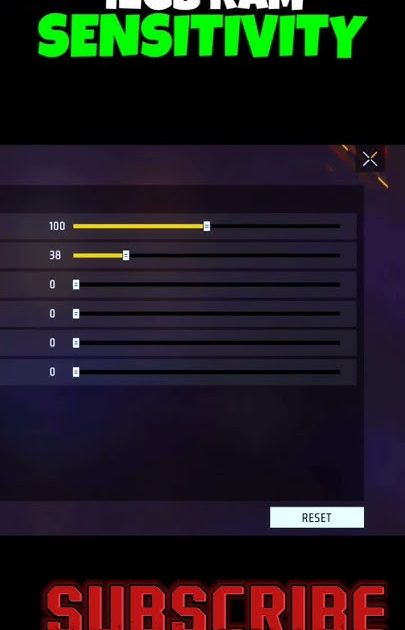
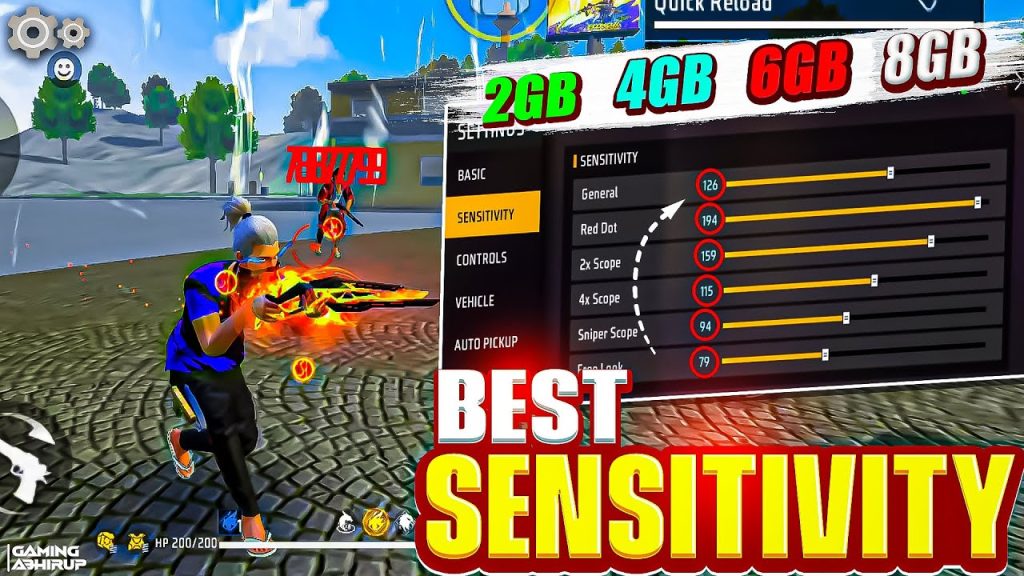
Launch Free Fire and tap the gear icon in the top-right corner of the lobby. This opens the Settings menu. Navigate to the ‘Sensitivity’ tab — it’s usually the second tab on the left. You’ll see sliders for General, Red Dot, 2x Scope, 4x Scope, Sniper Scope, and Free Look. Don’t worry, we’ll set them one by one.
Step 2: Adjust General Sensitivity
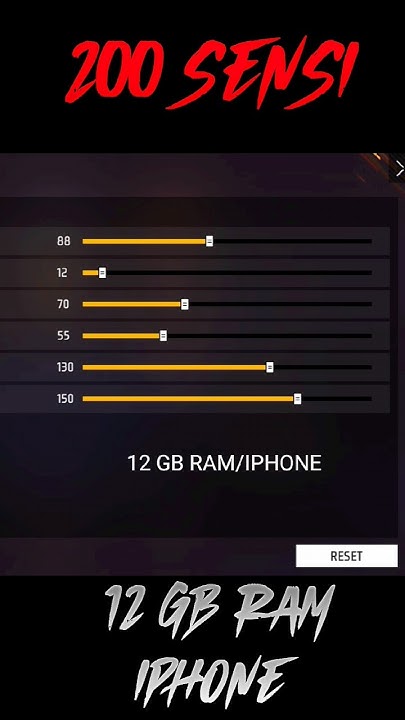
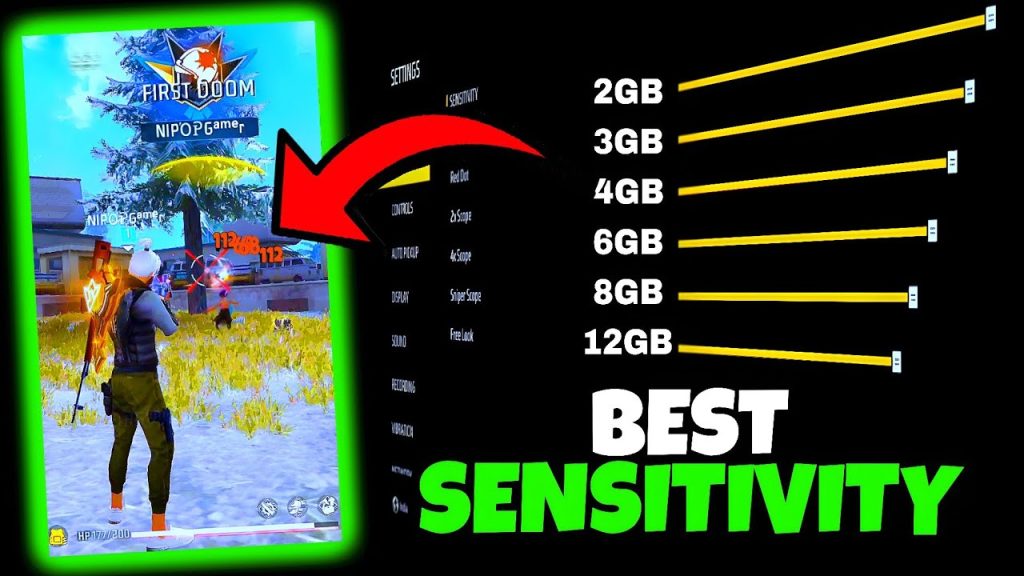
General sensitivity controls your camera movement when not aiming down sights. With 12GB RAM, you can handle higher values without lag. Set General to 90–100. This gives you fast 360-degree turns and quick reactions. If it feels too twitchy, drop it to 85.
Step 3: Fine-tune Aim Precision
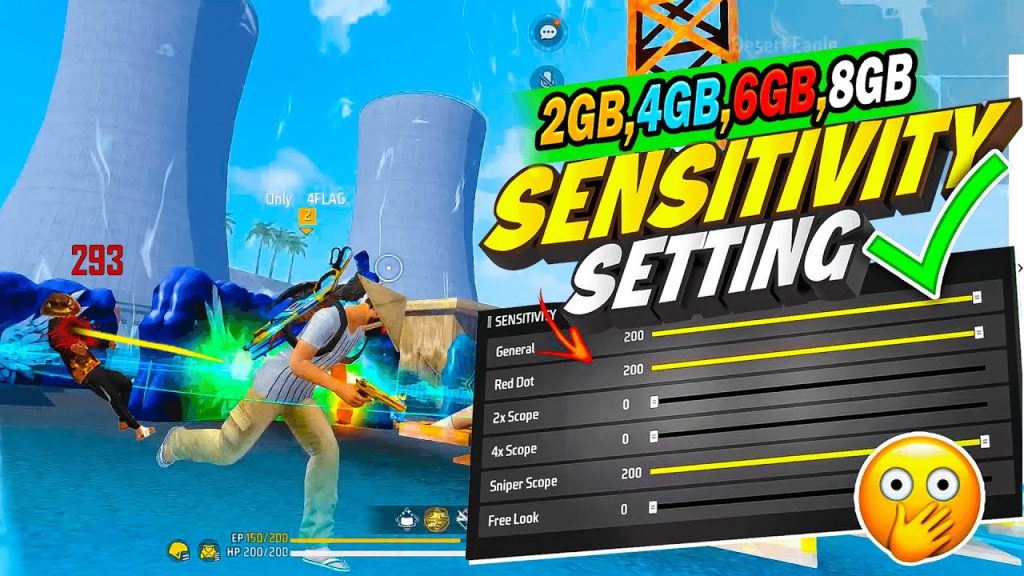
Now set the scope sensitivities. For Red Dot and 2x Scope, use 80–90 — this keeps recoil manageable while allowing fast target acquisition. For 4x Scope and Sniper Scope, lower to 50–60 to avoid overshooting. Free Look (the eye icon) can stay at 70. These values work well with the fluidity of a 12GB device.
Step 4: Set Gyroscope (Optional)
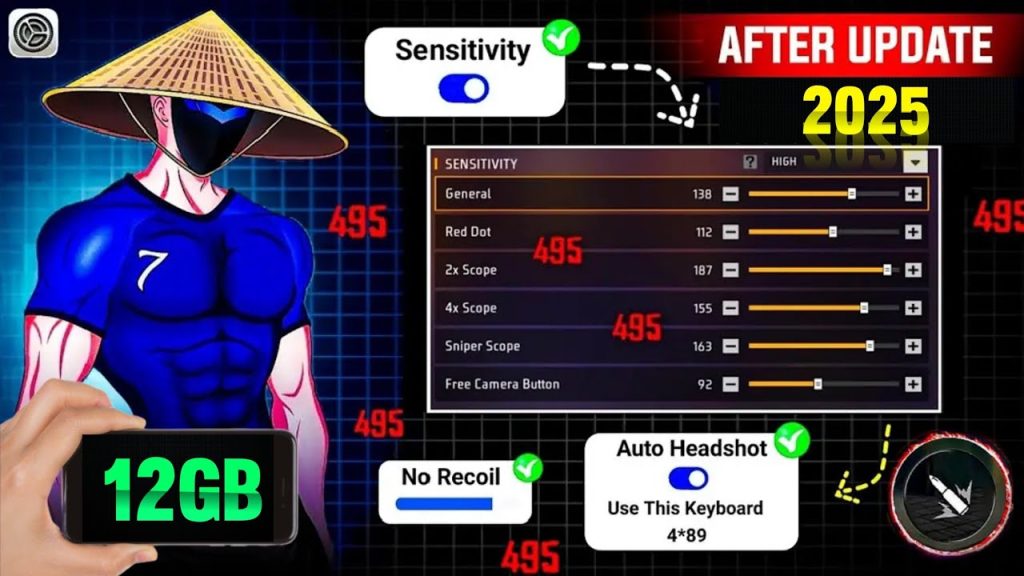
If your phone has a gyroscope, you can use it for fine adjustments. Enable Gyroscope in the Sensitivity tab. Set Gyroscope sensitivity to 40–50. This lets you tilt your phone to aim without moving your thumb. With 12GB RAM, the gyro response will be instant. Disable it if you don’t like the feel.
Step 5: Test in Training Ground
Head to the Training Ground from the lobby. Practice on moving targets and stationary dummies. Check if your crosshair stays on target when you strafe. If you’re overcompensating, lower the scope sensitivities by 5 points. If you’re too slow, increase them. Spend at least 5 minutes here. You can also refer to our tested settings guide for reference values.
Step 6: Save and Backup
Once you’re happy, save your settings. Free Fire doesn’t have a built-in cloud backup, but you can screenshot your sensitivity sliders. For a proper backup, follow our guide on saving your sensitivity settings. That way, you won’t lose your perfect setup after an update or reinstall.
Common Pitfalls
- Setting sensitivity too high: With 12GB RAM, 100 is tempting but can make your aim jittery. Drop by 5 if you miss easy shots.
- Ignoring device-specific tweaks: Every phone’s touch response differs. Adjust pointer speed adjustments in your system settings if touch feels delayed.
- Not testing thoroughly: Jumping straight into ranked without practice ruins your muscle memory. Use the Training Ground for 10 minutes daily.
Where to Next
You’ve got a solid sensitivity base for your 12GB RAM phone. Now take it further: check out our ranked mode tweaks for competitive matches, or see hardcore settings if you want an even higher skill ceiling. For older devices or different playstyles, we’ve got settings for older devices too. Keep practicing, and your aim will thank you.



