Hey! If you’re playing Free Fire on the EU server, you might have noticed that the default sensitivity feels a bit off. Maybe your aim swings too fast or too slow, and you’re losing close-range fights you know you should win. Don’t worry – this guide is for you. Whether you’re a newcomer just starting ranked or a casual player looking to up your game, by the end you’ll have a sensitivity setup that feels natural and helps you lock onto enemies faster. We’ll go step by step, adjusting every slider so you can dominate the EU server.
The EU server has its own feel – players tend to be aggressive and fights happen at a variety of ranges. That means your sensitivity needs to be versatile. We’ll start from a solid baseline, then fine-tune for your device and playstyle. No confusing jargon, just simple adjustments you can make right now. Plus, we’ll include screenshots so you know exactly where to tap. Ready? Let’s get your aim on point.
What You’ll Need
- A phone or tablet running Free Fire (Android or iOS)
- Stable internet connection (EU server ping preferably below 80ms)
- At least 10 minutes of free time for testing
- A notepad or mental note of your current settings (just in case you want to revert)
- Optional: a friend for custom room testing
Step 1: Reset to Default Sensitivity
Before we tweak anything, let’s start fresh. Open Free Fire, go to Settings (gear icon), then Sensitivity. Tap the “Reset” button if you’ve changed things before. This gives us a clean slate. If you’ve already fine-tuned some settings, write them down first – you can always go back. A clean start ensures we build from a known baseline.
Step 2: Set General Sensitivity (Camera & ADS)
Now we’ll set the main sliders. For most players on the EU server, a balanced setup works best. Try these as your starting point:
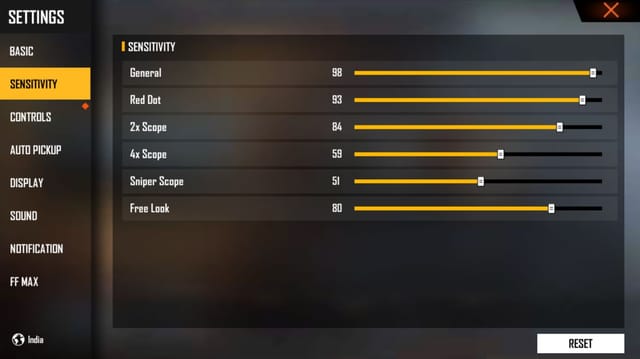
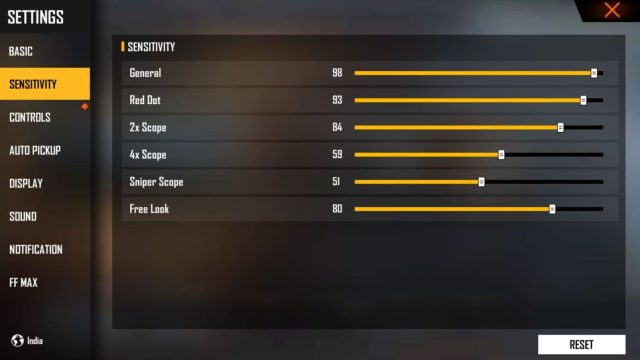
- General Sensitivity: 90
- Red Dot Sight: 75
- 2x Scope: 60
- 4x Scope: 40
- Sniper Scope: 25
- Free Look Sensitivity: 50
These numbers are a middle ground – not too twitchy, not too slow. If you’re a rusher, you might want to push General up to 100 later. But start here. Play a few matches in Classic or Clash Squad to see how it feels. If you’re using gyroscope, keep reading; if not, these settings are perfect for you. For a detailed breakdown, check out the tested free fire sensitivity settings guide on our site.
Step 3: Adjust for Your Device’s Performance
Not all phones are created equal. On lower-end devices, high sensitivity can cause frame drops or input lag. If your EU server experience feels choppy, lower the General Sensitivity to 75 and ADS sliders by 10 each. On flagship phones, you can push harder. Also, disable “Auto Aim” if you haven’t – it messes with manual aim. For older devices, see our free fire sensitivity settings for old devices guide. Testing in the training ground is key here.
Step 4: Fine-Tune with Gyroscope (Optional)
Gyroscope gives you more precise aim by tilting your phone. If you’re new to gyro, start low – around 30-40% for both camera and ADS. Play a few games to get used to it. EU server players often use gyro to snap onto enemies quickly. But if you don’t like it, stick with touch. We have a whole article on free fire sensitivity settings for non gyroscope users. Also, if you’re a rusher, consider our free fire sensitivity settings rush sensitivity for close combat.
Step 5: Save and Backup Your Settings
Once you’re happy, don’t lose your work! Free Fire doesn’t sync settings across devices easily. Go to Settings > Sensitivity and take a screenshot of all sliders. Or use the in-game cloud save (if available). For a complete backup method, read how to save free fire sensitivity settings. This ensures if you reinstall or switch phones, you’re back in action in seconds.
Common Pitfalls
- Over-Adjusting Too Fast: Don’t change more than 2-3 sliders per match. Give each setting at least 3-4 games to feel natural. Changing everything at once makes it impossible to know what worked.
- Ignoring Server Lag: High ping on the EU server can make sensitivity feel sluggish. If your ping is above 100ms, lower your sensitivity slightly (by 5-10) to compensate for delayed input.
- Copying Pro Settings Blindly: Pro players often use ultra-high sensitivity because they have super steady hands. For most of us, starting at 90 is safer. You can always increase later. Check free fire sensitivity settings for grandmaster rank for high-level ideas, but adapt to your own comfort.
Where to Next
You’ve now got a solid sensitivity setup for the EU server. But consistency is key – stick with these settings for at least a week before making changes. Want to climb the ranks? Our free fire sensitivity settings for ranked mode will help you fine-tune for competitive play. Also, remember to update settings after major game updates – sometimes Garena tweaks the mechanics. Happy hunting, and see you in the safe zone!