So you’re grinding for Grandmaster rank in Free Fire. You’ve got the game sense, you know the rotations, but something’s off – your aim feels inconsistent, and you’re losing gunfights you know you should win. The difference often comes down to sensitivity settings. In this guide, I’ll walk you through the exact sensitivity values that top Grandmaster players use, plus how to tweak them for your playstyle. By the end, you’ll have a setup that gives you smooth tracking, fast flicks, and zero overcorrection.
This isn’t a one-size-fits-all copy-paste. I’ll show you the baseline and then teach you how to adjust based on your device, grip, and whether you use gyroscope. Whether you’re on a flagship or an old Redmi, these steps will get you closer to that elite rank. Let’s dive in.
What You’ll Need
- Free Fire installed and updated (latest version).
- At least 30 minutes of uninterrupted practice time.
- A device with decent performance – if you lag, check our guide on old device settings.
- Access to the Training Ground (available from the lobby).
- Patience – you’ll need to test and retest.
- Optional: a friend to 1v1 in Clash Squad for realistic testing.
Step 1: Reset and Understand Your Current Settings
Before copying any values, reset your current sensitivity to default. Go to Settings > Sensitivity and tap ‘Reset’. This gives you a clean slate. Then note down your current DPI if you’re on Android – you can check in your phone’s developer options or use an app. Most Grandmaster players use a DPI between 320 and 400. Higher DPI means the game’s sensitivity slider has a stronger effect. If you haven’t already, read our tested sensitivity settings guide for the science behind it.
Step 2: Set General and Red Dot Sensitivity
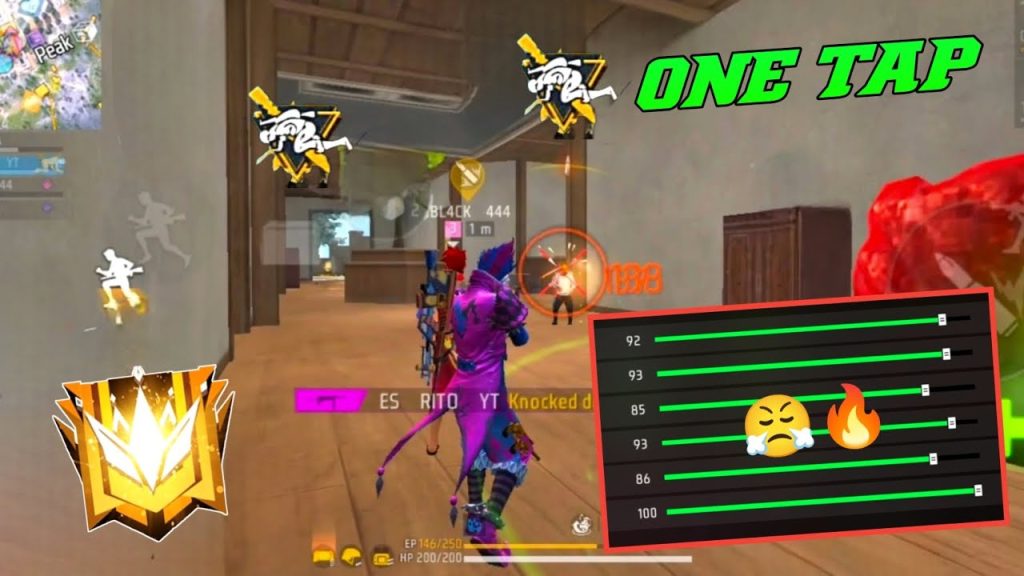
These are the two most important sliders. For Grandmaster rank, set General sensitivity between 85 and 95. This controls your camera movement while running and looting. Set Red Dot sensitivity between 75 and 85. These values let you track enemies smoothly without jitter. If you’re a wrist aimer, lean toward the higher end; if you aim with your arm on a tablet, lower is better. Our ranked mode sensitivity guide goes deeper into how these numbers affect close-range fights.
Step 3: Adjust 2x and 4x Scope Sensitivity
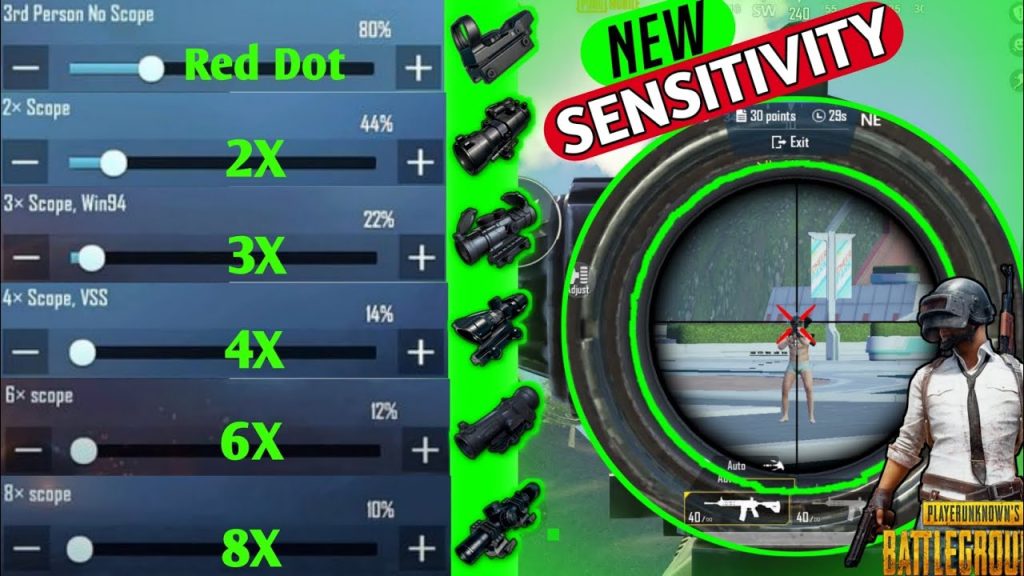
For scopes, lower is usually better to maintain precision. Set 2x scope sensitivity between 55 and 70. For 4x scope, go 45–60. These numbers prevent overscoping during mid-range sprays. If you use AWM or other snipers, keep sniper scope around 30–40. Remember, you want your crosshair to stay on target, not fly past it. For more fine-tuning, check out our custom sensitivity settings guide.
Step 4: Fire Button and ADS Settings
Now go to the ‘Controls’ tab. Set the fire button size to around 70% – big enough to tap quickly but not blocking your view. Turn on ‘Auto ADS’ only if you’re using ARs at medium range; for shotguns and SMGs, manual ADS is better. Also, adjust the aim down sight (ADS) sensitivity to match your general. If you find yourself over-aiming, reduce general and increase ADS slightly. Non-gyroscope users should pay extra attention here – our non-gyroscope settings guide covers this in detail.
Step 5: Test in Training Ground and Tweak
Load into Training Ground. Practice flick shots on the moving targets. If you overshoot, lower your general or scope sensitivity. If you undershoot, increase. Spend at least 10 minutes here. Then do a few 1v1s. Pay attention to how your crosshair behaves during strafing battles. If your pointer speed on your phone is set high, that can affect accuracy – we have a pointer speed settings guide if you need help. Keep tweaking until your aim feels effortless.
Common Pitfalls
- Using the same sensitivity as a YouTuber without adjusting for your device. Always base it on your own DPI and reflexes.
- Changing too many values at once. Adjust one slider, test, then move to the next. Otherwise you’ll never know what worked.
- Ignoring the fire button placement. A too-small or misaligned button can mess up your shots even with perfect sensitivity. Take time to customize your HUD.
Where to Next?
You’ve got the numbers, now it’s all about practice. Once you’re comfortable, try our hardcore sensitivity settings for more aggressive plays. And don’t forget to back up your settings – if you accidentally reset, you’ll want them saved. Keep grinding, and I’ll see you in Grandmaster lobby!



