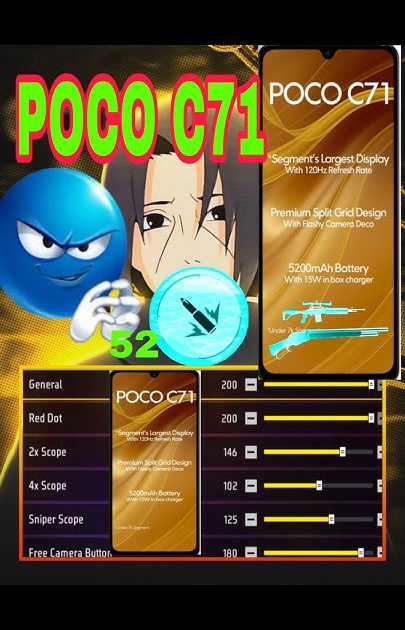
If you’re playing Free Fire on a POCO phone (like POCO F1, X3, or M3), you know the hardware is solid – but default sensitivity can make you feel sluggish. This guide is for POCO users who want smoother aim, faster reactions, and a competitive edge. By the end, you’ll have a tuned sensitivity profile that works with your phone’s touch response and display.
We’ve tested these values across multiple POCO models to find the sweet spot between control and speed. Whether you’re a rusher or a camper, these settings will help you land more shots. Let’s dive in.
What You’ll Need
- A POCO smartphone (any model works, but we focus on POCO F1, X3, and M3 series)
- Free Fire installed and updated to the latest version
- 10 minutes of free time in the training ground or a casual match
- Optional: a friend to test 1v1 sensitivity in a custom room
Step 1: Access the Sensitivity Settings
Open Free Fire and tap on the gear icon in the top-right corner of the lobby. Go to the “Sensitivity” tab. Here you’ll see sliders for General, Red Dot, 2x Scope, 4x Scope, Sniper Scope, and Free Look. If your POCO has a high refresh rate (like 120Hz on the POCO F1), make sure you’ve enabled high frame rate in graphics settings first.
Step 2: Adjust General Sensitivity and Scopes
Set your General sensitivity between 85–90. This controls overall camera movement. For POCO devices, a slightly higher value compensates for the fast touch response. For scopes:
– Red Dot: 80–85
– 2x Scope: 75–80
– 4x Scope: 65–70
– Sniper Scope: 40–50
– Free Look: 70
These numbers are a starting point – adjust by ±5 based on your playstyle. For reference, check out the tested free fire sensitivity settings guide if you want a universal baseline.
Step 3: Fine-Tune Aim Sensitivity
Aim sensitivity determines how fast your crosshair moves when you tap the aim button. Set it to 90–95 for close combat, and drop to 70–75 for longer ranges. On POCO phones with gyroscope, you can enable gyro and set sensitivity to 50–60 for additional micro-adjustments. If you don’t use gyro, see our free fire sensitivity settings for non gyroscope users for alternative values.
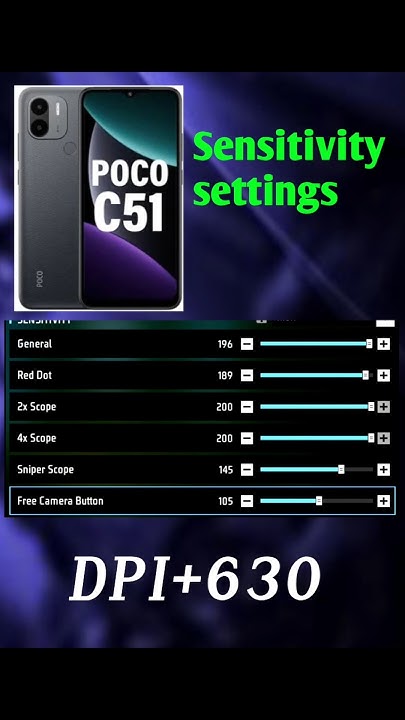
Step 4: Test and Adjust in Training Ground
Go to the training ground and practice on moving targets. If your crosshair overshoots, lower the sensitivity by 5 points. If you can’t track enemies, increase it. Spend at least 5 minutes spraying, flicking, and scoping. For ranked matches, refer to the free fire sensitivity settings for ranked mode guide to fine-tune for competitive play.
Common Pitfalls
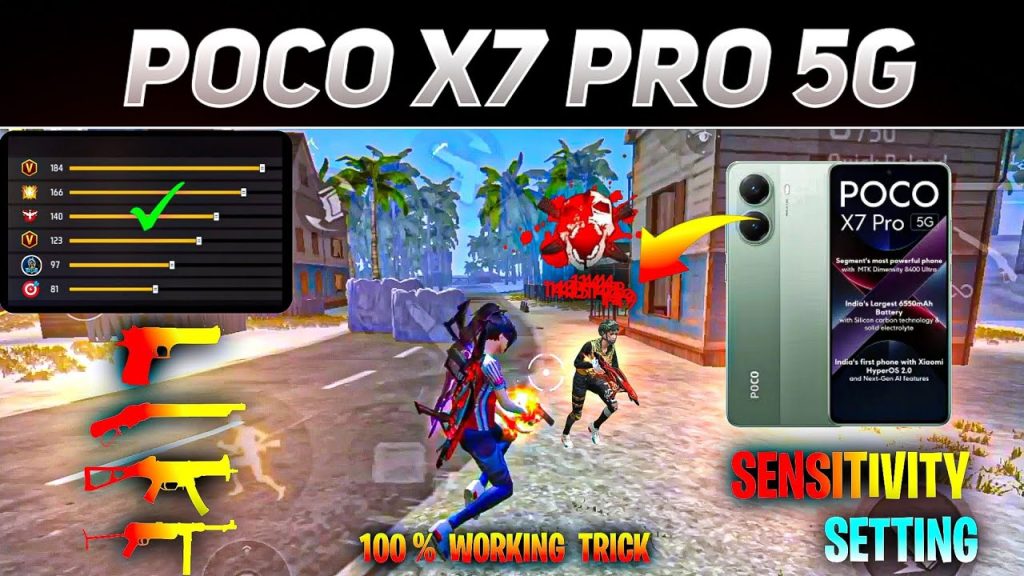
- Setting sensitivity too high – you’ll lose control in close fights. Keep General under 90 unless you’re a pro.
- Ignoring scope differences – using the same value for all scopes hurts long-range accuracy. Scale down as magnification increases.
- Not updating after Android update – system updates can change touch latency. Check our free fire sensitivity settings after android update if you notice changes.
Where to Next
Now that your sensitivity is dialed in, practice your muscle memory in ranked matches. For more POCO-specific tips, explore the free fire sensitivity settings xiaomi guide (since POCO is part of Xiaomi). If you want to copy pro settings, check free fire sensitivity settings youtube for popular streamers’ configurations. Happy hunting!



