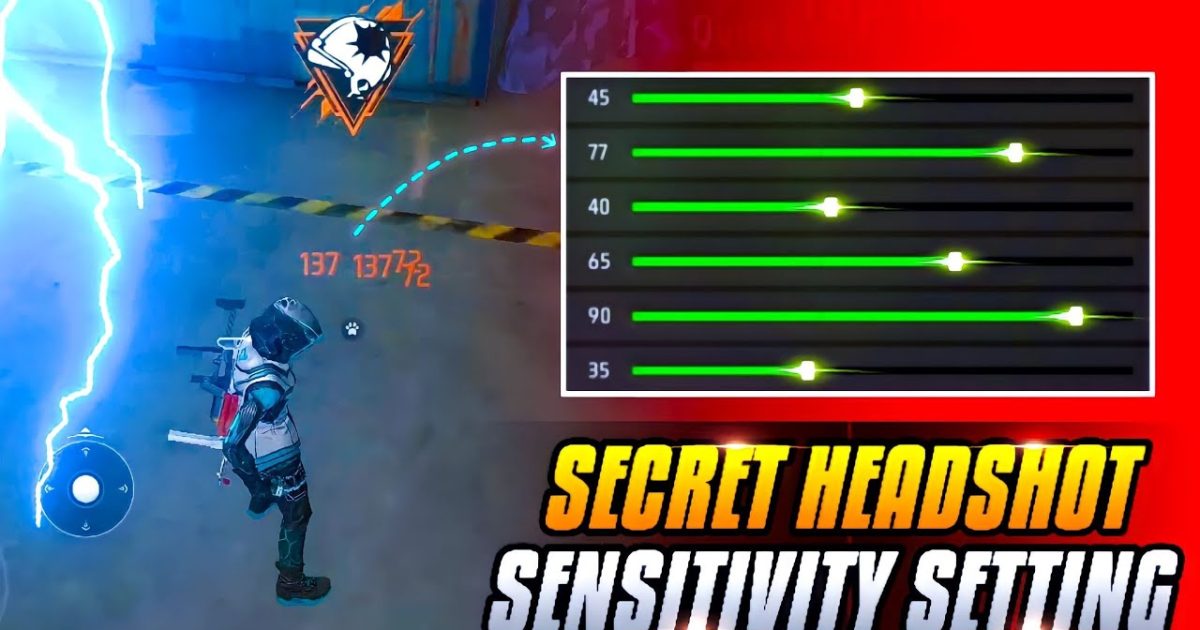
If you’ve been missing shots, getting outgunned in close range, or feeling like your crosshair is all over the place, your sensitivity settings might be the culprit. In Free Fire, sensitivity controls how fast your screen moves when you swipe. Too high and you’ll overshoot; too low and you can’t react fast enough. This guide is for anyone who wants to dial in their aim without copying random pro codes blindly. By the end, you’ll have a custom sensitivity profile that feels natural, improves accuracy, and helps you win more gunfights.
We’ll walk through the three main sensitivity sliders — General, Red Dot, and Scope — then fine-tune them in Training Grounds. You’ll learn a method that works for any device, whether you’re on a budget phone or a gaming beast. Let’s get your aim on point.
What You’ll Need
- A device with Free Fire installed (Android or iOS).
- At least 15 minutes of uninterrupted time.
- Patience — don’t expect magic in one match.
- Optional: a friend to help test in a custom room.
- Optional: screen recorder to analyze your swipes.
Step 1: Reset to Default (or Use a Baseline)
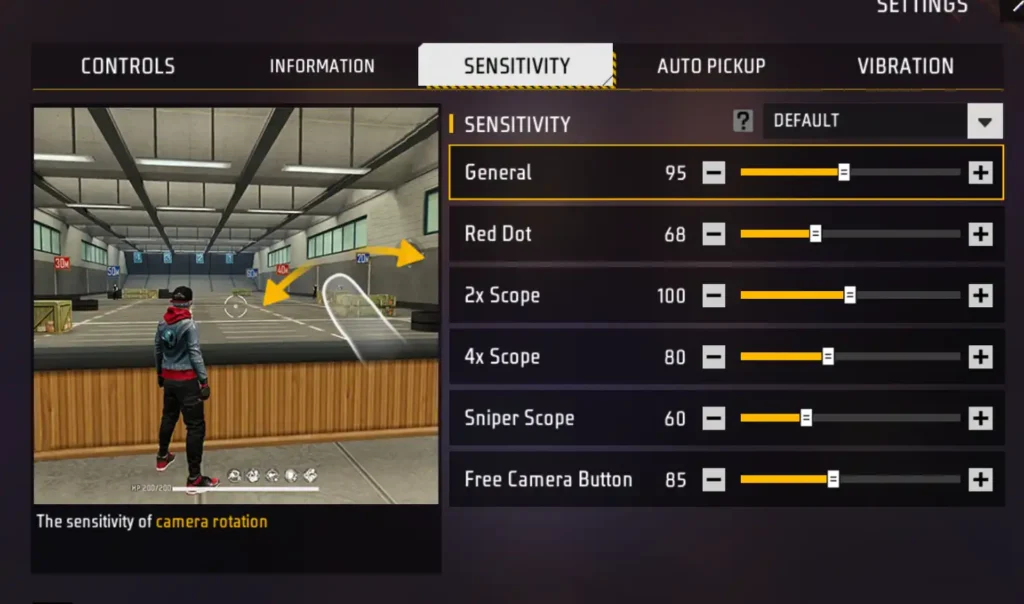
Start from a clean slate. Go to Settings > Sensitivity and tap “Reset”. This gives you a neutral starting point. If you already have a profile you like, skip this step. Otherwise, these default numbers work for most players: General 75, Red Dot 65, Scope 40. They’re a good middle ground. For a more curated baseline, check out the simple free fire sensitivity settings guide.
Step 2: Understand the Three Sensitivity Sliders
Free Fire has three sensitivity categories: General (hip-fire and while running), Red Dot (for weapons with a red dot sight), and Scope (for 2x, 4x, AWM scope, etc.). Each one affects your aim differently. General is the most important for close combat, so you’ll spend the most time there. The free fire sensitivity settings close combat guide covers this in depth.
Step 3: Enter Training Grounds to Test
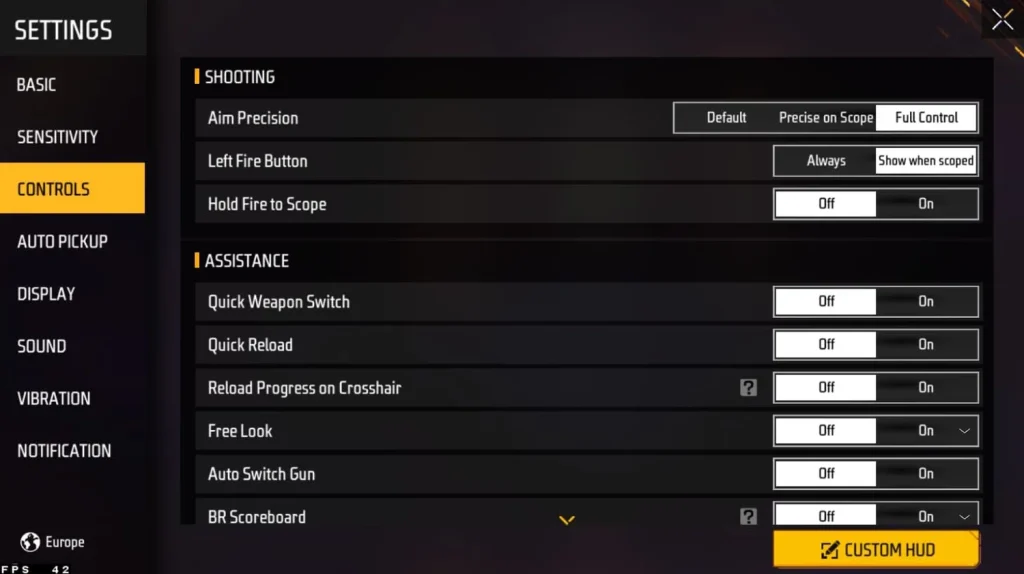
Go to Training Grounds. This is your lab. Grab two weapons: an AK47 (high recoil) and an MP40 (close-range spray). Stand still and aim at a wall, then fire a burst. Watch the recoil pattern. Now adjust your General sensitivity up or down by 5 points and repeat. You want the crosshair to stay roughly in the same spot after the first few shots. For fast turning, you need high General sensitivity — see the free fire sensitivity settings for fast turning guide.
Step 4: Tune Red Dot Sensitivity
Switch to a weapon with a red dot sight (like M4A1). Aim at a distant target and try to track it while moving. If you’re overcorrecting, lower Red Dot sensitivity. If you can’t keep up, increase it. A good range is 55–75. This setting is crucial for mid-range fights. The free fire sensitivity settings latest guide has more details on this.
Step 5: Fine-Tune Scope Sensitivity
Put a 4x scope on an AWM or a SCAR. Scope sensitivity should be lower than General — around 30–45. Try quick-scoping stationary targets. If you’re overshooting, reduce it. For sniping, lower is better for precision. Remember, this setting only affects scoped weapons. If you use an 8x scope, you might want even lower values.
Step 6: Test in Real Matches and Iterate
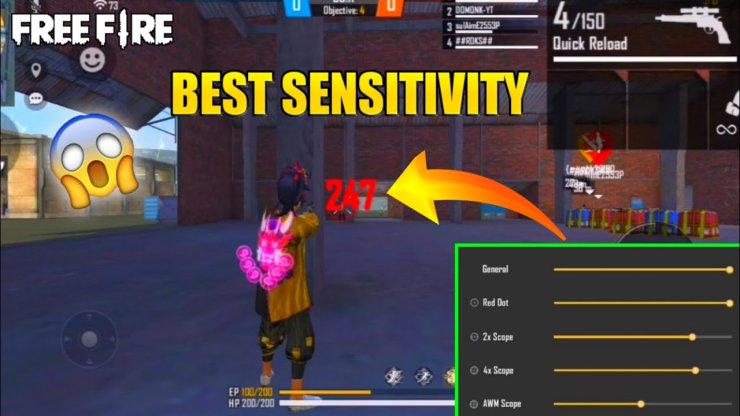
Take your new settings into a Clash Squad or ranked match. Play at least 3–5 matches before making changes. Focus on how your aim feels at different ranges. If you’re constantly losing close-range fights, raise General sensitivity. If you’re missing long-range shots, lower Scope sensitivity. This is a cycle: test, adjust, repeat. Don’t be afraid to tweak by 2–3 points at a time.
Common Pitfalls
- Copying pro settings blindly: Every player has different hand size, grip, and device. Pro settings might feel too fast or too slow for you. Always start from a baseline and adjust to your own feel.
- Changing too many things at once: If you change General, Red Dot, and Scope by 10 points each, you won’t know what helped. Make one small change per session.
- Ignoring device performance: A laggy phone makes sensitivity feel inconsistent. If your FPS drops, tweak your graphics settings first. For high-FPS optimization, see the free fire sensitivity settings gaming phone guide.
Where to Next
Once your sensitivity feels solid, the next step is to save your profile so you never lose it. Use the free fire sensitivity settings export code guide to get a shareable code. Also, explore different control layouts (like 4-finger claw) to further improve your gameplay. Keep practicing, and you’ll see those headshots climb. Good luck out there!
The best sensitivity is the one that feels like an extension of your hand. Don’t rush the process.
Free Fire pro tip



