Ever spent ages perfecting your Free Fire sensitivity, only to lose it when you switch phones or want to share it with a squadmate? Exporting your sensitivity settings saves a backup file you can restore anytime. This guide is for anyone who wants to keep their setup safe or hand it off to another player. By the end, you’ll have a shareable file with all your custom sensitivity values.
Exporting doesn’t require root access or special tools—just a file manager app. We’ll walk you through finding the right folder, copying the file, and sending it wherever you need. Ready to lock in those perfect settings? Let’s go.
What You’ll Need
- Free Fire or Free Fire Max installed on your device
- A file manager app (like ES File Explorer or the built-in one)
- A stable internet connection (optional, for sharing)
Step 1: Open Free Fire and Go to Settings
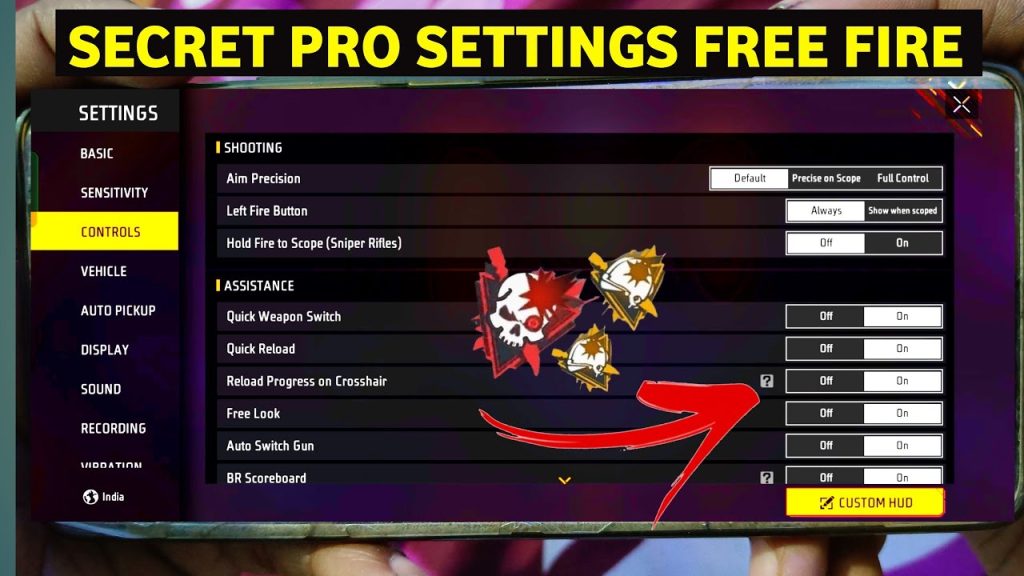
Launch Free Fire and tap the gear icon on the top-right corner to open the Settings menu. This is where all your sensitivity, controls, and graphics options live. Don’t change anything yet—we’re just locating the data file in the next steps.
Step 2: Locate the Sensitivity File on Your Device
Close the app and open your file manager. Navigate to the Android data folder: usually Internal Storage > Android > data > com.dts.freefireth > files > config. If you use Free Fire Max, replace freefireth with freefiremax. Look for a file named sensirity_config (yes, that’s the correct spelling) or cached_sensitivity.json—its name may vary by version.
Step 3: Copy the Sensitivity File
Long-press the sensitivity file to select it, then tap the copy button (usually a clipboard icon or in the three-dot menu). Go back to your main storage or a folder you can easily access (like Downloads) and paste it there. This gives you a backup you can share or reimport later.
Step 4: Share or Save the Exported File
Now that the file is in your accessible folder, long-press it again and choose Share. You can send it via WhatsApp, Telegram, email, or upload it to cloud storage. If you’re just backing up, leave it in Downloads. Done! Your sensitivity settings are now exported and ready to import on another device.
Common Pitfalls
- Wrong file path: The file is not in the expected folder if you haven’t changed your sensitivity after a fresh install. Open the game, adjust any slider, close the app, then re-check.
- Corrupted file: If the file size is 0 KB or you can’t open it, your settings may not have saved properly. Return to the game, confirm your sensitivity is applied, then try again.
- Permissions issue: Newer Android versions restrict access to the Android/data folder. Use a file manager that supports the Storage Access Framework (like Files by Google) or connect to a PC to copy the file.
After exporting, you can also learn how to import free fire sensitivity settings from a file, or if you want to clone your setup to multiple accounts, check out our guide on duplicate free fire sensitivity settings. For a well-rounded setup, the free fire sensitivity settings balanced sensitivity is a solid starting point. If you’re on Garena servers, see the free fire sensitivity settings for garena servers guide. For more trusted configurations, browse our trusted free fire sensitivity settings or the free fire max sensitivity settings for one tap.
Where to Next?
You’ve successfully exported your Free Fire sensitivity. Now you can share it with friends or keep it safe for a future device. If you haven’t settled on a perfect sensitivity yet, experiment with community favorites or our optimized guides. Drop a comment if you hit any snags—happy gaming!



