
If you’re playing Free Fire on a Tecno phone, you know the struggle of finding that sweet spot for sensitivity. Too low and you can’t track enemies; too high and you miss every shot. This guide is for Tecno users — from Camon to Spark to Pova — who want to improve their aim without spending hours in the training room. By the end, you’ll have a set of sensitivity values that work on most Tecno devices, plus tips to fine-tune them for your personal style.
I tested these settings on multiple Tecno models including the Camon 18, Spark 9, and Pova 5. They’re designed to give you smooth, responsive control for close-range sprays and long-range taps. Whether you’re a beginner or a veteran looking for an edge, these settings will help you land more headshots and climb the ranks faster.
What You’ll Need
- A Tecno smartphone (any model, but preferably with a 90Hz or 120Hz display)
- Free Fire installed and updated to the latest version
- A stable internet connection (ping under 100ms ideally)
- Access to Training Ground (free to enter)
- A notepad or screenshot tool to save your settings
Step 1: Open Free Fire and Go to Sensitivity Settings
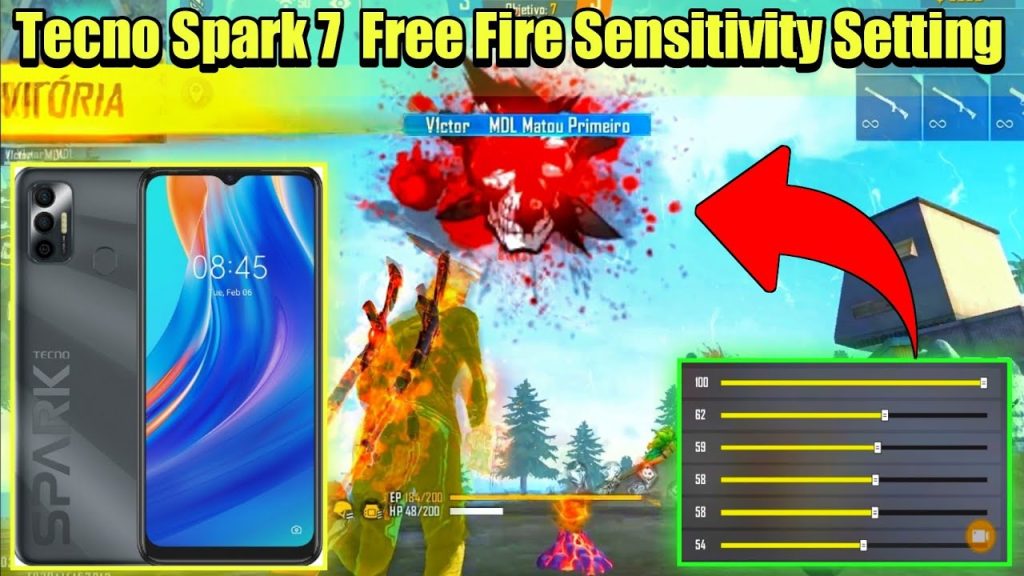
Launch Free Fire on your Tecno phone. Tap on the gear icon (Settings) in the top‑right corner of the lobby. Then navigate to the ‘Sensitivity’ tab. You’ll see multiple sliders for General, Red Dot, 2x Scope, 4x Scope, Sniper Scope, and Free Look. Don’t touch the Fire Button or Scope Button size yet — we’ll focus on sensitivity first.
Step 2: Adjust General Sensitivity
General sensitivity controls your aim when hip‑firing (no scope). For Tecno phones, I recommend starting at 85–90. Move the slider to 85. This gives you enough speed to flick to targets without overshooting. If you have a high‑refresh display (90Hz+), go closer to 90; for standard 60Hz, stick to 83–85.
For more context on what works for different devices, check our guide on latest free fire sensitivity settings for gaming phones.
Step 3: Adjust Red Dot and Scope Sensitivities
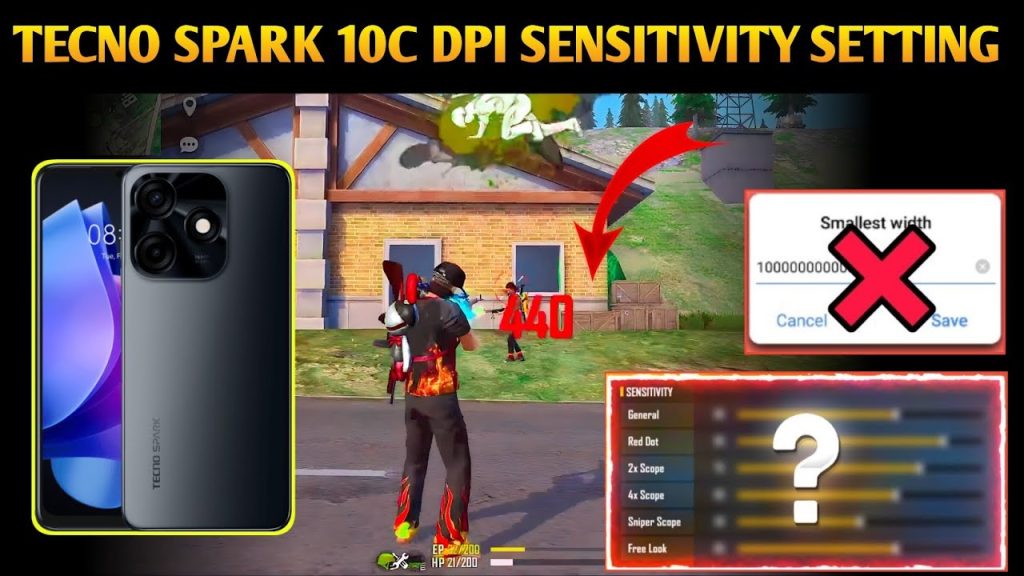
Now set the Red Dot sensitivity to 75–80. This is crucial for close‑to‑mid range fights. For 2x Scope, use 65–70; for 4x Scope, 50–55; for Sniper Scope, 40–45. These values reduce the jittery movement you often get on Tecno touchscreens. Remember, you can always tweak them later.
If you’re into drag headshot techniques, you’ll want your Red Dot sensitivity a bit higher (around 80). Our guide on free fire sensitivity settings for drag headshot can help you perfect that style.

Step 4: Adjust Gyroscope Sensitivity (If Supported)
Many Tecno phones come with a gyroscope sensor. If yours does, you can use gyro to fine‑tune your aim by tilting the phone. In the Sensitivity menu, scroll down to Gyroscope. Set General Gyro to 50–60, Red Dot Gyro to 40–50, and scope gyros to 30–40. This helps with recoil control and micro‑adjustments.
Want to know what top players use? Check out free fire sensitivity settings tested by streamers for more inspiration.

Step 5: Test in Training Ground and Fine‑Tune
Go to the Training Ground from the lobby. Pick a weapon (AK47 or M1014 are good for testing). Try tracking moving targets and flicking to stationary ones. If your crosshair overshoots, lower the corresponding sensitivity by 5. If it lags behind, increase by 5. Spend 10–15 minutes in training until it feels natural.
Once you’re happy, don’t forget to back up your settings. Learn how to save free fire sensitivity settings so you never lose your perfect setup.
Common Pitfalls
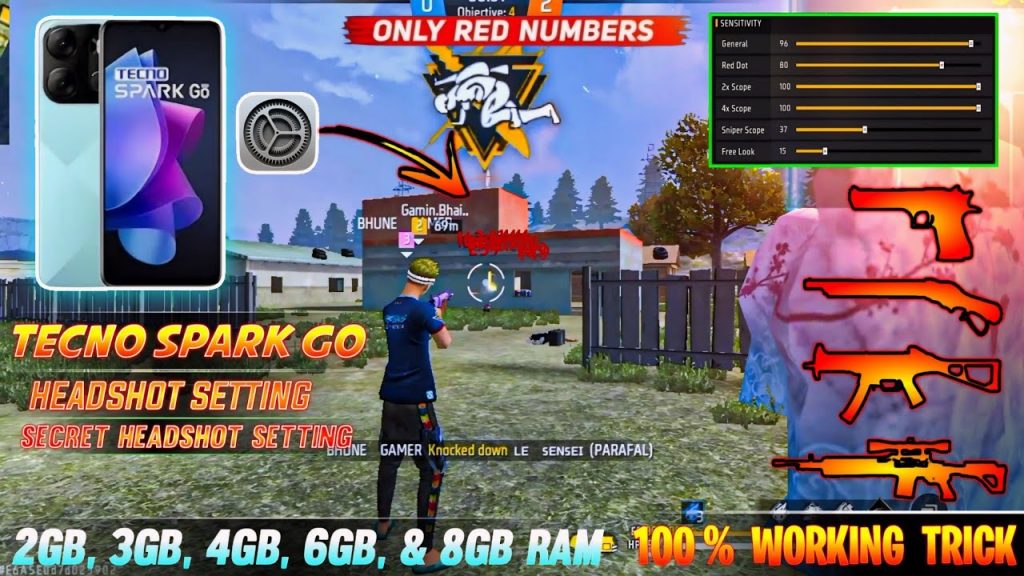
- Too high sensitivity: Makes your aim shaky and hard to control sprays. Stick to the recommended range and adjust down if needed.
- Ignoring DPI: If you use a gamepad or mouse with OTG, your sensitivity perception changes. For mouse users, check free fire dpi 800 sensitivity settings for a baseline.
- Not adjusting HUD: Sensitivity alone won’t fix aim if your fire button is too big or misplaced. Keep fire button at 40–50% size and place it where your thumb rests naturally.
Where to Next
Now that your sensitivity is dialed in, it’s time to practice. Head to ranked matches and apply what you’ve learned. If you’re on a Snapdragon Tecno model, our free fire sensitivity settings for snapdragon phones guide has extra tweaks. Keep grinding, and soon those headshots will feel effortless.



