
If you’re rocking an Oppo phone and playing Free Fire, you’ve probably noticed that the default sensitivity settings don’t always cut it. Maybe your aim feels jittery, or you can’t track enemies smoothly. This guide is for Oppo users who want to dial in their sensitivity for better accuracy and faster reactions. By the end, you’ll have a custom sensitivity profile that feels natural on your Oppo’s display, whether you’re using a newer Reno series or a budget A series.
We’ll walk through every step from opening the settings menu to fine-tuning your aim and testing it in the training ground. No complicated jargon – just simple, practical steps. Plus, I’ll share some Oppo-specific tips like enabling Game Space and adjusting touch optimization to reduce input lag. Ready to dominate the battlefield? Let’s get started.
What You’ll Need
- An Oppo smartphone (any model running ColorOS 11 or later)
- Free Fire or Free Fire Max installed and updated to the latest version
- A stable internet connection (Wi-Fi or 4G/5G)
- Patience to test and tweak settings in the training ground
Step 1: Open Free Fire and Access the Settings Menu
Launch Free Fire on your Oppo phone. Once you’re on the main lobby, look for the gear icon in the top-right corner – that’s the settings button. Tap it to open the full settings menu. Don’t worry about messing anything up; we’re just getting started. You’ll see tabs like Basic, Controls, Sensitivity, and more. We’ll focus on Sensitivity for now.

Step 2: Adjust General Sensitivity
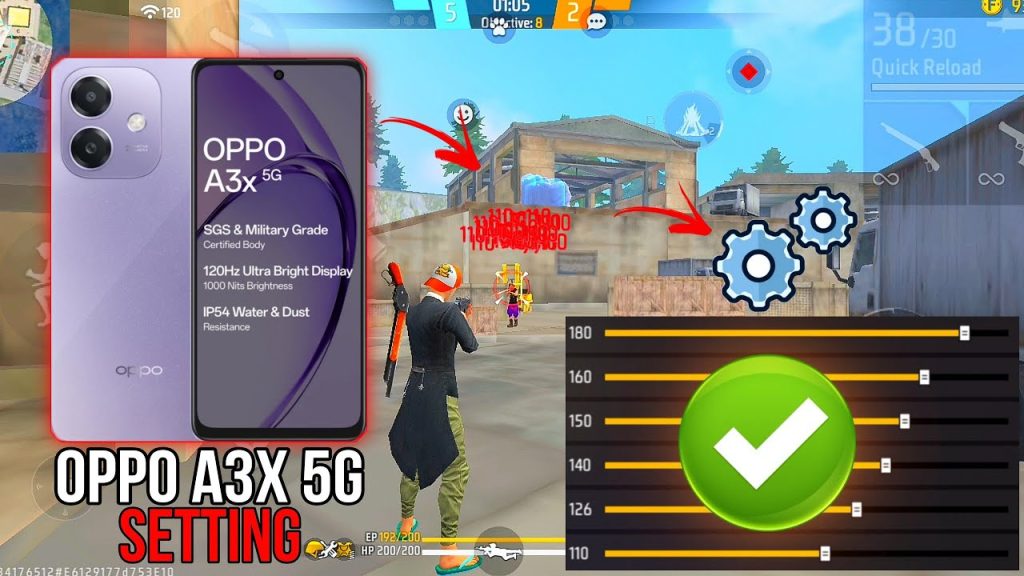
Under the Sensitivity tab, you’ll see sliders for General, Red Dot, 2x Scope, 4x Scope, and so on. Start with General sensitivity – this controls how fast your view moves when you swipe. A good baseline for Oppo phones (which often have high touch sampling rates) is around 70-80. If you’re used to a slower pace, try 60. For reference, check out our casual sensitivity settings for a beginner-friendly range. Move the slider and exit the menu to feel the change in-game.
Step 3: Fine-Tune Aiming Sensitivity and Dead Zone
Now focus on the aiming-related sliders: Red Dot, 2x Scope, and 4x Scope. For close-range fights, a higher Red Dot sensitivity (80-90) helps you snap onto targets. For medium range, 2x around 70 works well. If you use 4x for sniping, keep it lower at 50-60. Also adjust the Dead Zone – the minimal distance your finger moves before the game reacts. On Oppo, a dead zone of 5-10% prevents accidental movements. Pro player sensitivity settings often use lower dead zones, so experiment. And for assault rifles, you’ll want consistent tracking – try our assault rifle sensitivity guide for fine-tuning.
Step 4: Customize Your HUD Layout
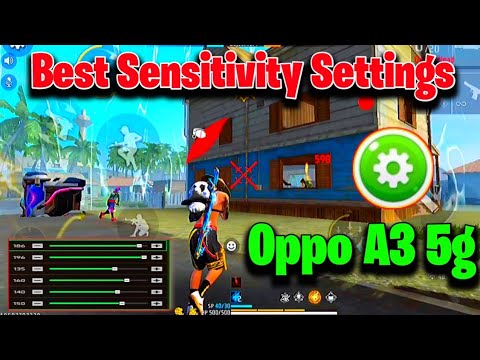
Sensitivity alone won’t make you a pro – your HUD layout matters too. Go to the Controls tab and select Customize HUD. Drag buttons so your fingers naturally reach them. For claw players, place fire and aim buttons on the top corners. If you’re using two thumbs, keep everything within your thumb’s reach. Oppo’s Game Space lets you block accidental touches, so enable that in your phone settings. For more ideas, our article on sensitivity with DPI pairs well with HUD tweaks.
Step 5: Test in Training Ground
Don’t jump straight into ranked matches – head to the training ground first. Practice flicking between targets, tracking moving dummies, and spraying with your favorite weapon. If your aim overshoots, lower the sensitivity; if it feels sluggish, increase it. Repeat this process until it feels snappy. For flick shots, you want high sensitivity but with control – our flick shot sensitivity guide covers this in detail. Also, if you notice any input delay, check your Oppo’s Game Space settings for a performance boost – our settings for input lag article can help.

Common Pitfalls
- Copying pro settings without adjusting for your Oppo model – every phone’s touch sensitivity is different, so always fine-tune.
- Ignoring performance mode – make sure Game Space or similar is enabled to reduce lag and improve touch response.
- Not saving your settings – after each tweak, hit the checkmark and exit properly, or your changes won’t stick.
Where to Next
Now that your sensitivity is dialed in, keep refining as you play. Check out our other guides on battery saving settings, HUD combos, and seasonal updates. Every match is a chance to improve – happy hunting, and may your shots always hit the mark!



