If you’re playing Free Fire on a Samsung Galaxy phone, you’ve got a solid device but probably feel your aim isn’t as sharp as it could be. That’s because default sensitivity settings rarely match your personal touch response. This guide is for any Galaxy user — from S23 to A series — who wants to improve their aim without guessing. By the end, you’ll have a custom sensitivity profile that feels natural and helps you win more fights.
We’ll cover everything from adjusting your DPI and general sensitivity to fine-tuning scope settings. You’ll also learn how to use Samsung’s Game Booster to keep the game smooth. And if you’re a claw player, we’ve got tips to sync with your grip. Ready to stop missing shots? Let’s dive in.
What you’ll need
- A Samsung Galaxy phone (any model, but the process is similar across One UI versions)
- Free Fire or Free Fire Max installed (latest version recommended)
- A stable internet connection (to avoid lag while testing)
- Training mode access (so you can practice without pressure)
- Patience – expect to tweak a few times before it feels perfect
Step 1: Set up Samsung Game Booster for peak performance
Before touching sensitivity, make sure your Galaxy is running Free Fire smoothly. Open the Game Launcher app, go to Game Booster, and enable ‘Focus mode’ to block notifications. Also, set performance mode to ‘Performance’ or ‘Game’ (not ‘Optimized’) to prevent stutter. This reduces input lag, which directly affects your aim. If you’re struggling with lag, check out our free fire sensitivity settings for input lag guide for extra fixes.
Step 2: Find your base sensitivity starting point
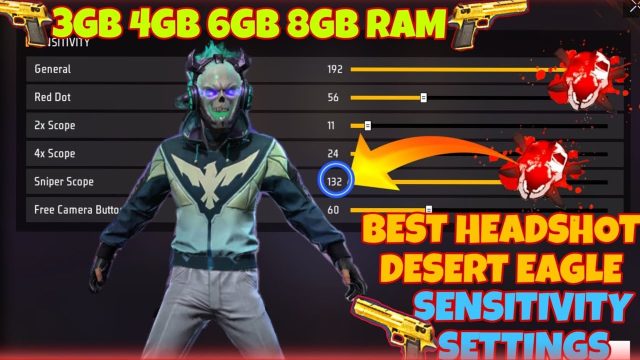
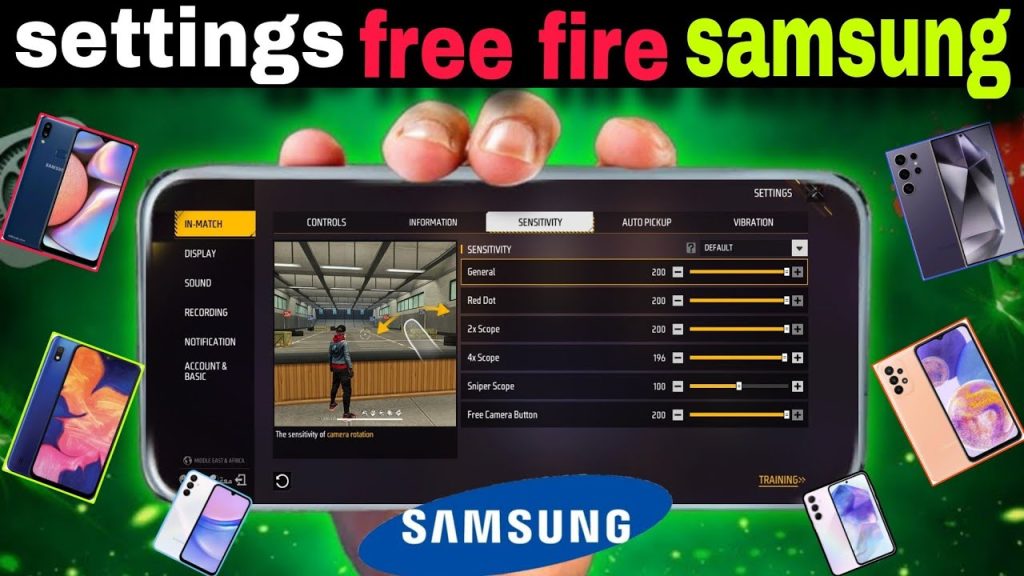
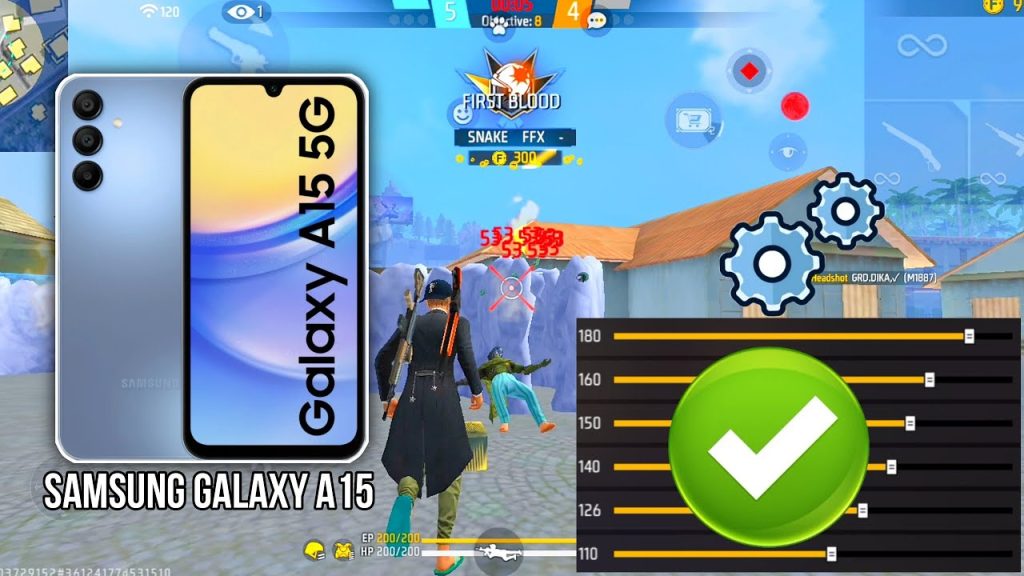
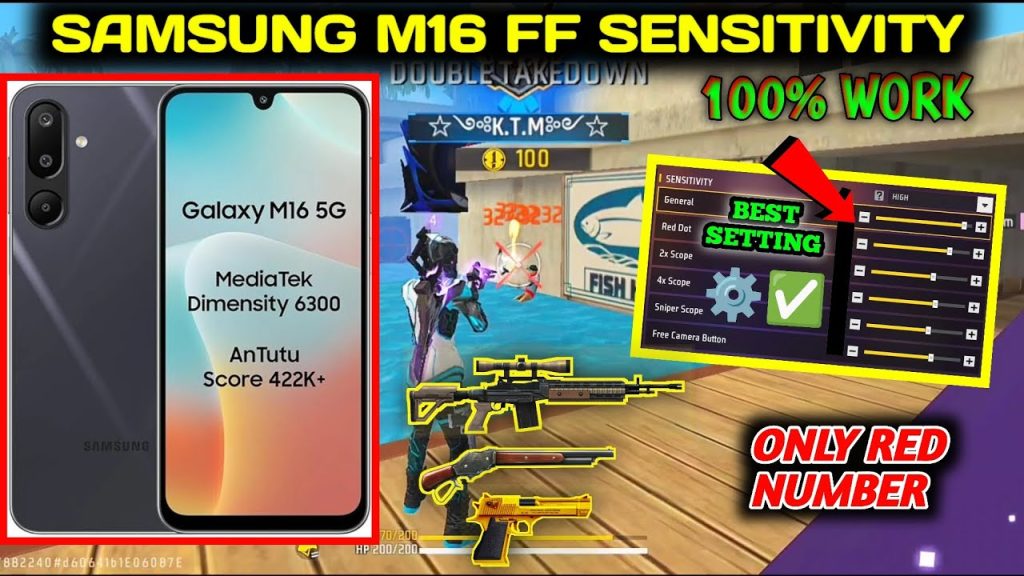
Go into Free Fire settings, then the ‘Sensitivity’ tab. We’ll start with ‘General’ (the main sensitivity). For Samsung Galaxy, a good starting range is 80–90 if you’re using thumbs-only, or 90–100 if you play with a claw grip. Tap the slider and set it to 85 for now. Then set ‘Red Dot’ and ‘2x Scope’ to 70, ‘4x Scope’ to 60, and ‘Sniper Scope’ to 40. These numbers work well on Galaxy’s touchscreen because they balance speed and control.
Step 3: Adjust DPI for your screen size
Samsung Galaxy phones have different screen sizes and resolutions, so a one-size DPI doesn’t work. In Free Fire’s extra settings, you’ll find a ‘DPI’ slider. For Galaxy S-series (6.1-inch to 6.8-inch) try between 90 and 100. For A-series (6.4-inch average) go 80–90. Lower DPI makes small moves more precise, higher makes you turn faster. Test by doing a 180-degree spin in training – it should take about one full swipe across half the screen. For a deeper dive on DPI, see our free fire max sensitivity settings with dpi guide.
Step 4: Fine-tune per-scope sensitivities
Now go through each scope individually. Equip an assault rifle with a red dot and try tracking a moving target in training. If you overshoot, lower the red dot sensitivity by 5. If you can’t keep up, raise it by 5. Repeat for 2x, 4x, and sniper scope. Pro tip: For close-range weapons like the M1887, you want higher sensitivity – check our free fire sensitivity settings for m1887 for specific numbers. Also, if you prefer one-tap headshots, our how to get one tap with free fire sensitivity settings guide will complement this step.
Step 5: Sync sensitivity with your HUD layout
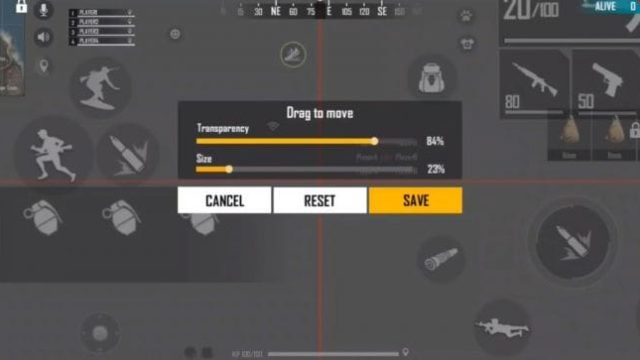
Your sensitivity will feel different depending on where you place your fire, scope, and movement buttons. If you use a claw grip (3 or 4 fingers), you need to adjust fire button size and position to avoid accidental touches. For a balanced setup, try our free fire sensitivity settings and claw combo – it pairs sensitivity with a proven HUD. If you prefer a four-finger claw, the same principles apply. Also, consider our free fire sensitivity settings and hud combo for an all-in-one solution.
Step 6: Test in real matches and adjust
Training mode is good, but real fights reveal weaknesses. Play a few ranked matches and note if you’re missing shots in close combat or long ranges. If your drag shots feel slow, increase general by 5. If you’re jittery, lower DPI by 5. Keep tweaking until you win more 1v1s. For advanced techniques like instant drag, see our free fire sensitivity settings for instant drag guide. And for ranked climbs, try our free fire sensitivity settings ranked season – built for competitive play.
Common pitfalls
- Copying settings verbatim from a pro player without testing on your Galaxy – every phone has different touch response, so always start from the recommended ranges and adjust.
- Ignoring Game Booster – if your game stutters, no sensitivity setting will feel right. Always turn on performance mode first.
- Changing too many settings at once – tweak one value per match (like general or DPI) so you know what’s causing the difference.
Where to next
You’ve got your base sensitivity dialed for Samsung Galaxy. Now take it further: explore our trending free fire sensitivity settings for the latest pro-tested values, or learn how to improve free fire sensitivity settings with daily drills. If you want to dominate with a specific weapon, our free fire sensitivity settings for assault rifle and free fire sensitivity settings for flick shots will level up your game. Happy hunting!