If you’re tired of getting outgunned in Free Fire because your aim feels sluggish or your fingers fumble on the screen, this guide is for you. Whether you’re switching to a 4-finger claw grip or just want to dial in your sensitivity, we’ll take you from default settings to a custom setup that pros use. By the end, you’ll have a rock-solid sensitivity profile and a comfortable claw layout that lets you move, aim, shoot, and jump simultaneously.
The combination of optimized sensitivity and a four-finger claw grip gives you faster reactions, smoother tracking, and better control in close quarters. No more panicking when an enemy rushes you. Let’s get your settings right so you can dominate the battlefield.
What You’ll Need
- A phone or tablet with Free Fire installed (Android or iOS).
- At least two fingers to start, but we recommend four for the full claw experience.
- A few minutes of uninterrupted practice in the Training Ground.
- (Optional) A notepad or screen recording app to save your settings.
Step 1: Set Up Your Claw Grip
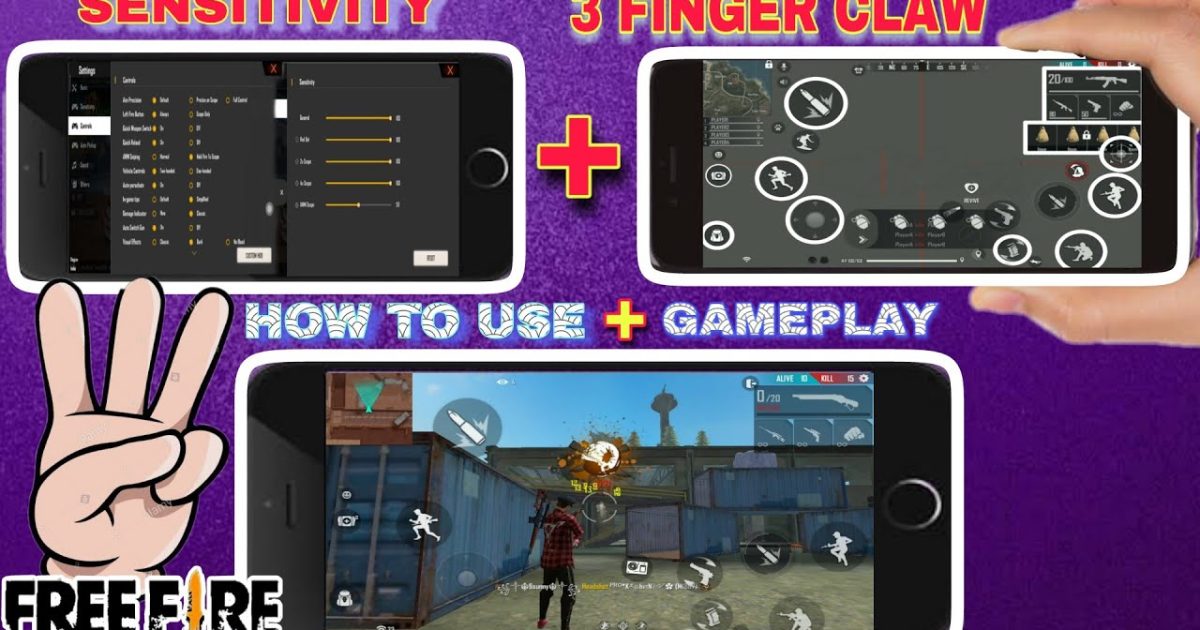
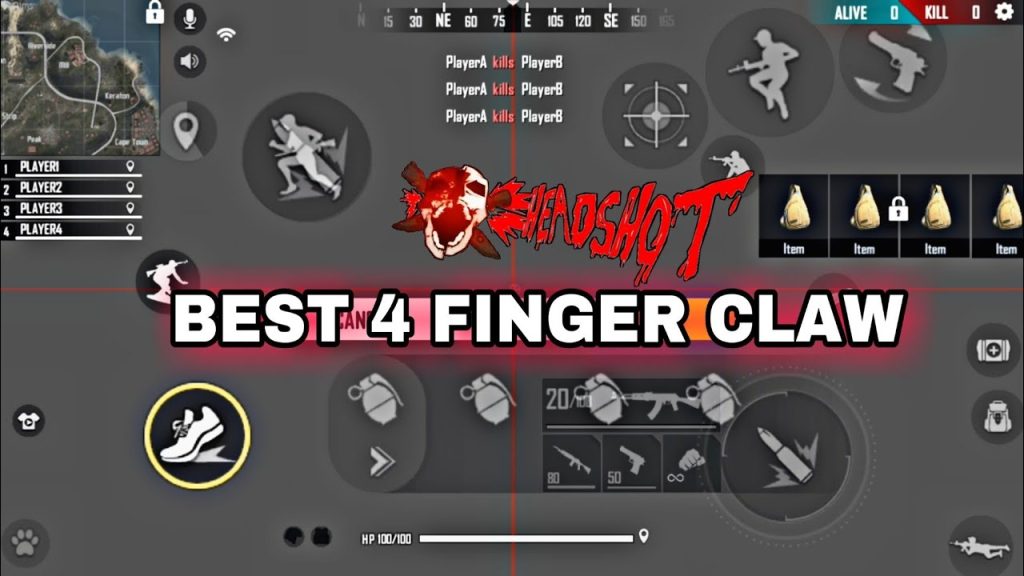
The 4-finger claw uses both your index fingers for the top buttons (fire and scope or jump/crouch) and both thumbs for movement and aim. Start by holding your device in landscape mode. Position your left index finger on the fire button (drag it to the top-left corner) and your right index finger on the fire button or scope (top-right). Your left thumb controls the movement joystick, and your right thumb controls aiming. If this feels weird, give it 10 minutes in Training Ground – it’ll click.
Step 2: Adjust General Sensitivity
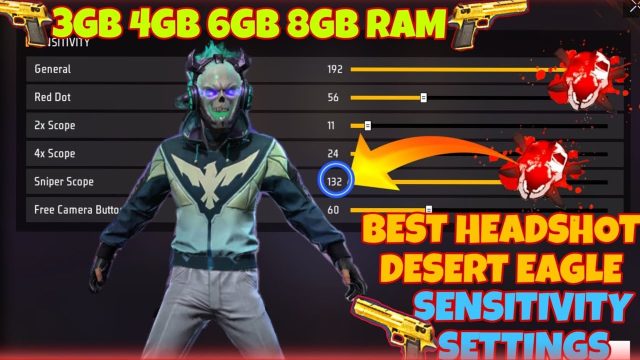
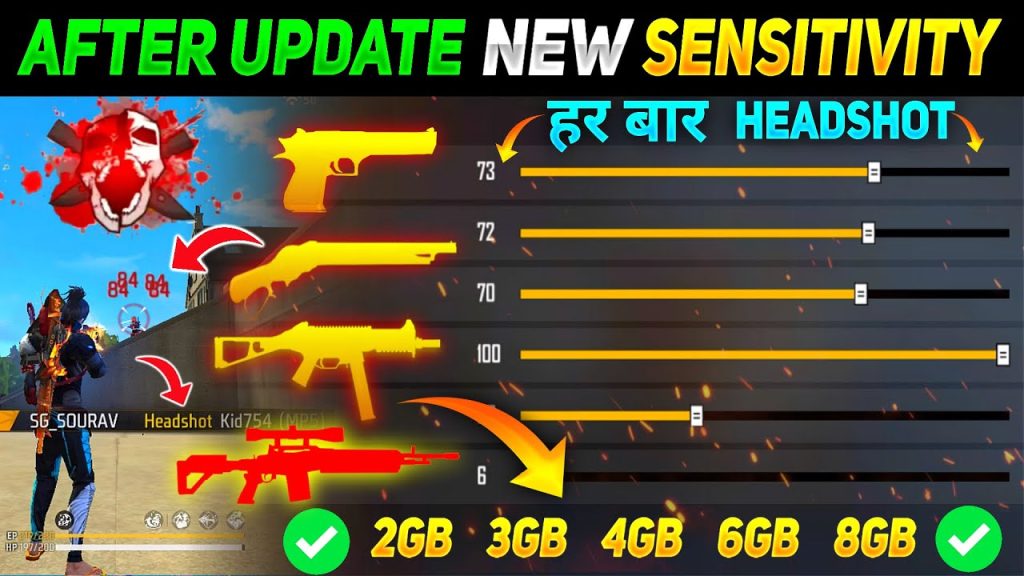
Open Free Fire, go to Settings > Sensitivity. Use these baseline values: General – 85, Red Dot – 75, 2x Scope – 60, 4x Scope – 50, Sniper – 30, Free Look – 70. These are a solid starting point for most phones. If you need even faster turns, check out our fast turning sensitivity guide. Tweak the numbers by 5% until it feels natural.
Step 3: Tweak Aim Precision
Now fine-tune the scope sensitivities for the weapons you use most. For SMGs and shotguns, keep Red Dot high (75-85) and 2x around 60. For snipers, lower your Sniper sensitivity to 30-40 for steady drag scoping. If you rush a lot, our close combat sensitivity guide has aggressive settings. For headshots, you’ll want a balance between general and red dot – too high and you’ll over-aim, too low and you’ll drag too slowly.
Step 4: Customize Your Claw HUD Layout
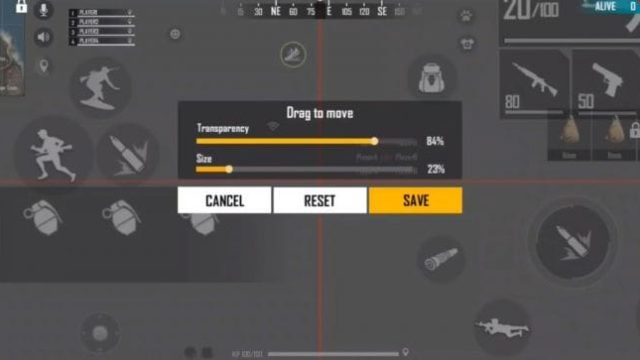
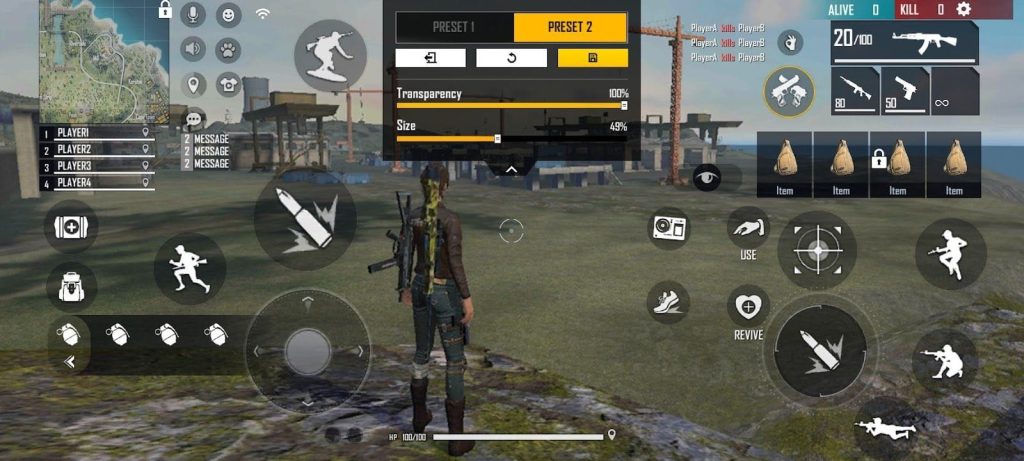
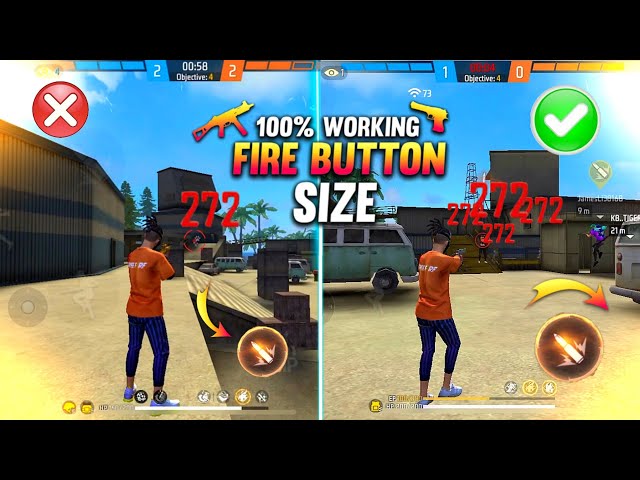
Go to Settings > Controls > Customize HUD. Place the fire button (left side) in the top-left corner, sized to about 70-80%. Put the jump and crouch buttons on the top-right, near your right index finger. Move the scope button next to your right thumb or index finger. Set transparency to 50% so you can see through them. This layout lets you aim, shoot, jump, and crouch simultaneously – essential for advanced movement.
Step 5: Test and Practice in Training Ground
Head to the Training Ground and test your new settings. Spend 5 minutes aiming at the moving dummies, then practice jump-shooting and crouch-spamming. Adjust sensitivity if you’re overshooting or undershooting. If you want a quick baseline without hassle, try our simple sensitivity settings as a starting point. Consistency comes from repetition, so practice your claw movement here before jumping into ranked.
Step 6: Save and Export Your Settings
Once you’re happy, go to Settings > Sensitivity > Export Code. Copy the code or save a screenshot. This way, if you ever reset the game or switch devices, you can import it back. For a full explanation, check out our sensitivity settings profile code guide. Exporting also lets you share your setup with friends.
Common Pitfalls
- Too high sensitivity: You’ll over-aim and miss shots. If your crosshair flies past enemies, lower General and Red Dot by 10%.
- Claw grip discomfort: Your fingers may cramp at first. Take breaks and adjust button sizes/positions until it feels natural.
- Ignoring scope-specific settings: Using the same sensitivity for all scopes ruins long-range shots. Always set individual values for each scope.
Where to Next
Now that you have a solid sensitivity and claw setup, keep refining it as you play. For more pro insights, check out our esports sensitivity settings guide. And if you ever feel your aim slipping, revisit the basics with our guide on how to improve your sensitivity settings. Happy fragging!