If you’re a casual Free Fire player, you don’t need to obsess over pixel-perfect aim or copy pro settings that feel like ice skating on a greased phone. You just want a comfortable sensitivity that lets you enjoy the game without constantly over- or under-aiming. This guide is for you — the player who wants to improve without turning gaming into a chore.
By the end of this tutorial, you’ll have a personalized sensitivity setup that feels natural, helps you hit shots consistently, and keeps the fun in the game. No spreadsheets, no DPI calculators — just straightforward steps that work.
What You’ll Need
- A phone or tablet with Free Fire installed (any version)
- About 15 minutes of uninterrupted time
- Wi-Fi or stable mobile data (avoid lag while testing)
- A basic knowledge of Free Fire settings (if you’re new, read our free fire sensitivity settings latest guide for an overview)
- Optional: a friend to practice with in Clash Squad
Step 1: Open the Sensitivity Settings
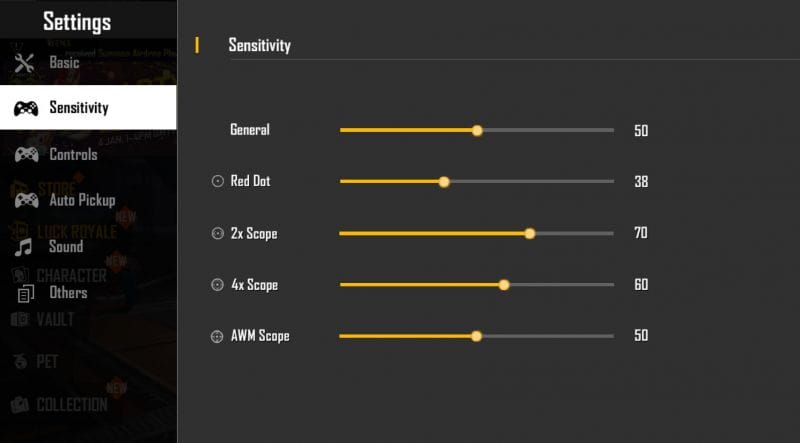
Launch Free Fire and tap the gear icon (Settings) on the lobby screen. Then go to the ‘Sensitivity’ tab. This is where all the magic happens. Don’t be intimidated by all the sliders — we’ll only touch a few.
Step 2: Set General Sensitivity
Start with the ‘General’ slider — this controls your look sensitivity when hip firing (not aiming down sights). For casual players, a value between 80 and 90 works well. It’s fast enough to react but not so twitchy that you spin out. Also set ‘Red Dot’ and ‘2x Scope’ to the same range. Leave ‘4x’ and higher scopes lower (60-70) because you don’t need to flick hard with scopes.
Step 3: Adjust ADS Sensitivity for Your Favorite Guns
ADS (Aim Down Sights) sensitivity affects how fast you aim when tapping the scope button. Different guns behave differently. For assault rifles like the M4A1, try 85. For SMGs like the MP40, go 90 (you need to track targets up close). For shotguns like the M1887, keep it around 80 for that one-shot snap. If you want a deeper dive, check out our free fire sensitivity settings for assault rifle guide.
Step 4: Test in the Training Ground
Go to the Training Ground (under ‘Play’) and grab your most-used weapon. Practice shooting at the stationary and moving targets. If you’re over-aiming (flicking too far), lower the sensitivity by 5. If you’re under-aiming (coming up short), increase by 5. Keep adjusting until you can consistently hit headshots without thinking. This is also a good time to test your free fire sensitivity settings for instant drag if you use scope drag.
Step 5: Save and Backup Your Settings
Once you’re happy, tap ‘Apply’ or ‘Save’. To avoid losing your settings, generate a code: tap the ‘Share’ button, copy the code, and save it in a note. You can also share it with friends. For a full walkthrough, see our free fire sensitivity settings and hud combo guide — we recommend pairing sensitivity with a clean HUD for the best experience.
Common Pitfalls
- Copying pro settings blindly — pros use high sensitivity with claw grips; casual players often play with thumbs. High sensitivity without claw makes you miss. Start with our recommended range and tweak.
- Ignoring your device — a small screen needs lower sensitivity? Actually, small screens can use higher because you move your thumb less. Test on your own phone. Also consider free fire sensitivity settings for battery saving if your device lags.
- Changing too many sliders at once — adjust one or two at a time. If you change everything, you won’t know what’s helping. Also, consider using a claw grip? Check our free fire sensitivity settings and claw combo guide.
Where to Next?
You’ve got a solid sensitivity base. Now, practice in Clash Squad or Classic mode. Remember, comfort beats copying. If you want to refine further, explore our other guides — but don’t overdo it. The goal is to have fun. If you ever feel lost, come back to these steps. Happy gaming!