Hey Free Fire players on the NA server! If you’re struggling with recoil control or missing those one-tap headshots, your sensitivity settings might be off. In this guide, I’ll walk you through the perfect sensitivity setup specifically tuned for the North American server, taking into account the typical ping and device performance. By the end, you’ll have a configuration that helps you aim faster, drag shots smoothly, and dominate ranked matches.
We’ll start from scratch, covering DPI adjustments (if you use an external mouse), general sensitivity, aim sensitivity, and even red dot scope settings. I’ll also share my personal tested values that work great on both high-end and mid-range phones. Plus, you’ll learn how to fine-tune in training mode. Let’s get your settings dialed in!
What you’ll need
- A device running Free Fire on NA server (any phone or tablet)
- Free Fire app installed (latest version)
- At least 10 minutes of free time to test in training mode
- (Optional) External mouse if you play on tablet/PC with emulator; not required for touch
Step 1: Reset to Default Sensitivity
First, open Free Fire and go to Settings > Sensitivity. Tap ‘Reset’ to clear any previous adjustments. This gives you a clean slate.
Step 2: Adjust General Sensitivity
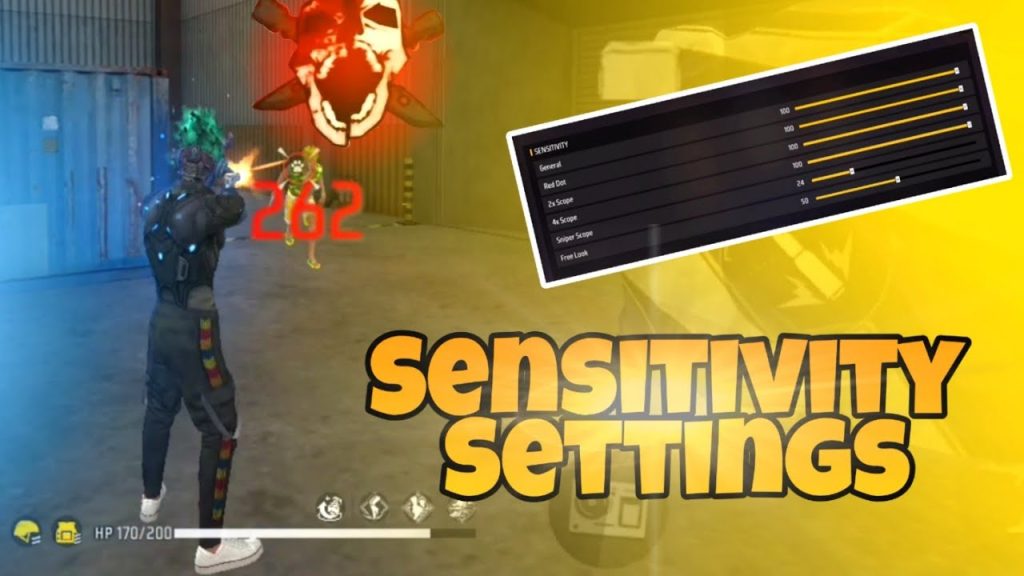
General sensitivity controls your overall turning speed. For NA server, start with these values: General: 80-85, Red Dot: 70-75, 2x Scope: 60-65, 4x Scope: 40-45, Sniper Scope: 20-25, Free Look: 50. Adjust based on your comfort. If you overshoot, lower by 5.
Step 3: Set Aim Sensitivity
Aim sensitivity is crucial for tracking enemies. Use: General Aim: 70, Red Dot Aim: 65, 2x Aim: 55, 4x Aim: 40, Sniper Aim: 15. These values help with drag shots and one-tap headshots. For more detailed one tap headshot settings, check out our dedicated guide.
Step 4: Fine-Tune in Training Mode
Go to Training Mode and practice with your new settings. Shoot at moving targets and adjust until you feel comfortable. Use a fixed target to test recoil control. Don’t forget to save your settings.
Step 5: Test in Battle
Jump into a Classic match on NA server. Play a few games to see how the settings feel in real combat. Make small tweaks as needed. If you recently updated the game, check our after patch sensitivity adjustments for the latest values.
Common Pitfalls
- Setting sensitivity too high: You’ll overshoot aim and miss shots. Start lower and increase gradually.
- Ignoring DPI: If using a mouse, DPI interacts with in-game sensitivity. Keep DPI around 400-600 for consistency.
- Copying pro settings blindly: Pro players on NA server may have different devices and playstyles. Customize to your own feel.
Where to next
Now that you have your NA server sensitivity dialed in, check out our other guides for more specific adjustments: crouch shot settings for better recoil control, training mode for sensitivity to perfect your aim, and balanced sensitivity guide if you want an all-around setup. Also, don’t miss our beginners sensitivity settings if you’re new to the game. Keep practicing and you’ll climb ranks in no time!



