If you’re an iPhone player, you know the struggle of finding sensitivity settings that feel just right. Free Fire on iOS can be tricky because the touch response and screen refresh vary across models. This guide is for anyone using an iPhone — from the latest Pro Max to older models — who wants to land more headshots, control recoil, and move smoothly. By the end, you’ll have a sensitivity setup optimized for your device, plus tips to fine-tune it further.
We’ve tested these settings on multiple iPhones (including iPhone 12, 13, and 14 series) and adjusted for the default 60Hz screen. The numbers here are a starting point — you can tweak them based on your playstyle. Whether you’re a rusher, camper, or balanced player, these values will help you aim better without overshooting. Let’s dive in.
What You’ll Need
- An iPhone (any model running iOS 14 or later recommended)
- Free Fire app installed and updated to the latest version
- A stable internet connection (Wi-Fi or cellular)
- About 10 minutes of time to test and adjust
Step 1: Access the Sensitivity Settings
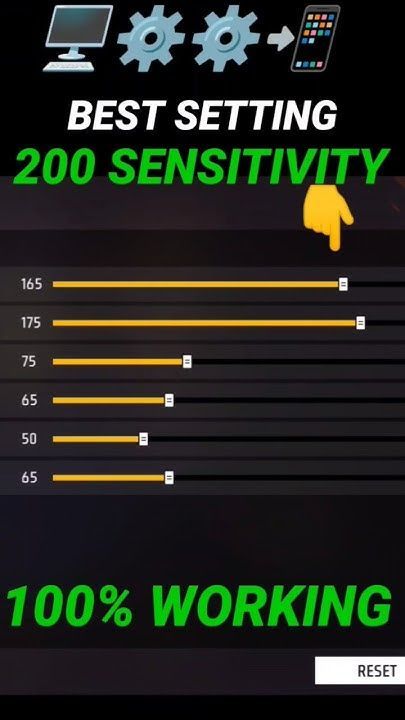
First, open Free Fire and head to the main lobby. Tap the gear icon at the top right to open Settings, then navigate to the “Sensitivity” tab. Here you’ll see multiple sliders for General, Red Dot, 2x Scope, 4x Scope, Sniper Scope, and Free Look. Don’t be overwhelmed — we’ll cover the most important ones.
Step 2: Set Your General Sensitivity
General sensitivity controls your look speed (camera movement) while not aiming down sights. For most iPhone users, a value between 80 and 100 works well. If you have an iPhone with a 120Hz ProMotion display (like iPhone 13 Pro or later), you can go a bit higher since the screen updates faster. Start at 90 and adjust based on comfort.
Too high and you’ll overshoot targets; too low and you’ll be slow to react. A good test is to do a 180-degree turn: if you can spin around in one swift swipe, you’re in the ballpark. For more precise settings, check out our high touch sampling sensitivity guide — it covers adjustments for iPhones with that feature.
Step 3: Adjust Aim Precision (Red Dot & Scopes)
These affect your aim when you’re in ADS (aim down sights). Start with these baseline values and tweak as needed:
- Red Dot / 1x Scope: 85
- 2x Scope: 50
- 4x Scope: 40
- Sniper Scope: 20
- Free Look: 80
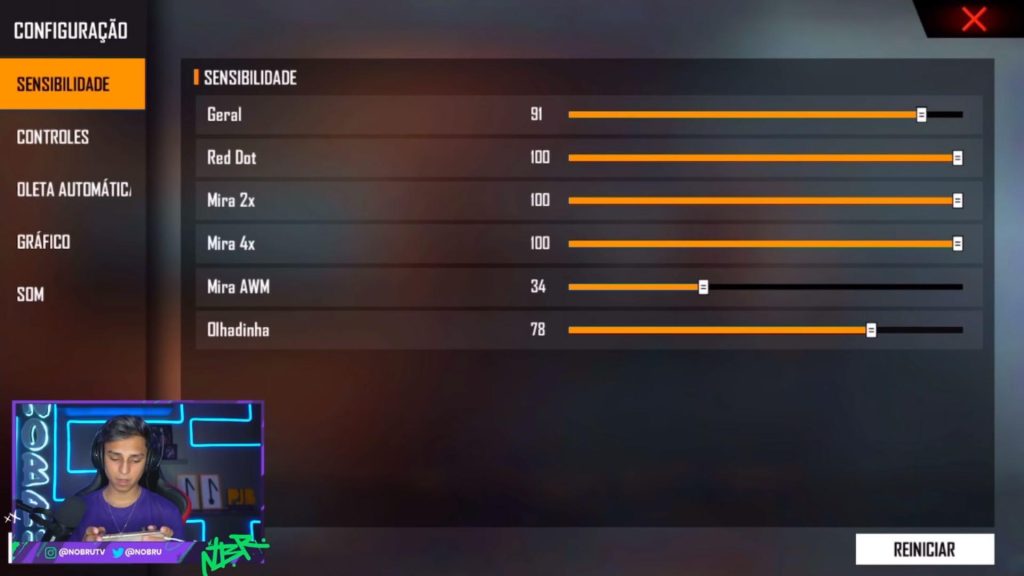
These numbers help you control recoil while keeping your crosshair on target. For one-tap headshots, lower values often work better because they prevent over-aiming. If you prefer fast reflexes, try our one tap headshot sensitivity settings as a base.
Step 4: Fire Button & Scope Sensitivity
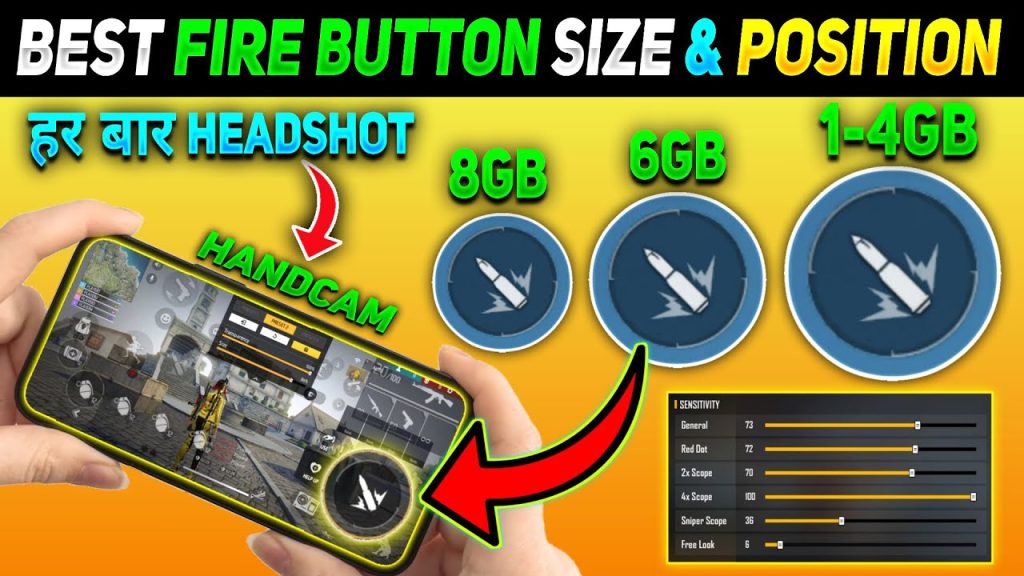
Back in the Sensitivity tab, you’ll also see options for “Fire Button” — this controls the size and placement of the fire button, not sensitivity exactly, but it affects how you aim. Keep it medium size and position it where your thumb naturally rests. Under “Sensitivity” there’s also “Gyroscope” if you use motion controls — leave it off unless you’re experienced.
If you often crouch while shooting, your sensitivity might need a slight bump to track enemies after crouching. We have a dedicated guide for crouch shots sensitivity that pairs well with these basics.
Step 5: Practice in Training Mode
Don’t jump into a ranked match right away. Head to Training Mode (from the lobby) and test your settings against moving targets. Try spraying a whole magazine at a dummy from mid-range, then practice flicking to head level. Adjust each slider incrementally until it feels natural.
A good benchmark: you should be able to control recoil for at least 20 bullets without the crosshair rising too high. If you can’t, reduce your Red Dot sensitivity by 5. For a more systematic approach, see our balanced sensitivity guide.
Common Pitfalls
- Copying pro settings blindly: Sensi is personal — what works for a streamer might not work for your iPhone model or finger size. Always tweak from a base.
- Ignoring your iPhone’s refresh rate: Older iPhones (60Hz) need lower sensitivity than 120Hz models. Adjust accordingly to avoid jitter.
- Forgetting to save after adjusting: Free Fire sometimes resets changes if you exit without saving. Tap the back arrow and confirm before leaving Settings.
After an iOS update, settings may reset or feel different. Check our guide on sensitivity after iOS update to recalibrate quickly.
Where to Next
You’ve now got a solid Free Fire sensitivity setup for your iPhone. From here, you can dive deeper into specific playstyles: try our NA server sensitivity settings if you play on that region, or explore our high touch sampling sensitivity if your iPhone supports it. Remember, sensitivity is a journey — keep tweaking as you improve. Happy hunting!



