So you just updated your iOS, opened Free Fire, and something feels… off. Maybe your aim is jittery, or the camera spins too fast. You’re not alone – iOS updates can reset or alter your sensitivity settings. This guide is for anyone who updated their iPhone or iPad and now needs to dial in their Free Fire sensitivity again. By the end, you’ll have a smooth, personalized setup that works with the latest iOS version.
We’ll walk through checking what changed, resetting to a baseline, then fine-tuning using tools like training mode. You’ll learn how to adjust general sensitivity, aim, and even gyro settings. No more blaming the update – let’s get your game back on track.
What You’ll Need
- iPhone or iPad running the latest iOS version
- Free Fire app installed and updated
- A stable internet connection
- 5–10 minutes of free time
- Optional: a mouse or controller if you use one
Step 1: Check Your Current Sensitivity Settings
First, open Free Fire and go to Settings > Sensitivity. Look at your numbers – did they change? Note any obvious differences. Often an iOS update resets everything to default, so your old values might be gone. Write down what you see so you can compare later.
Step 2: Reset to Recommended Baseline
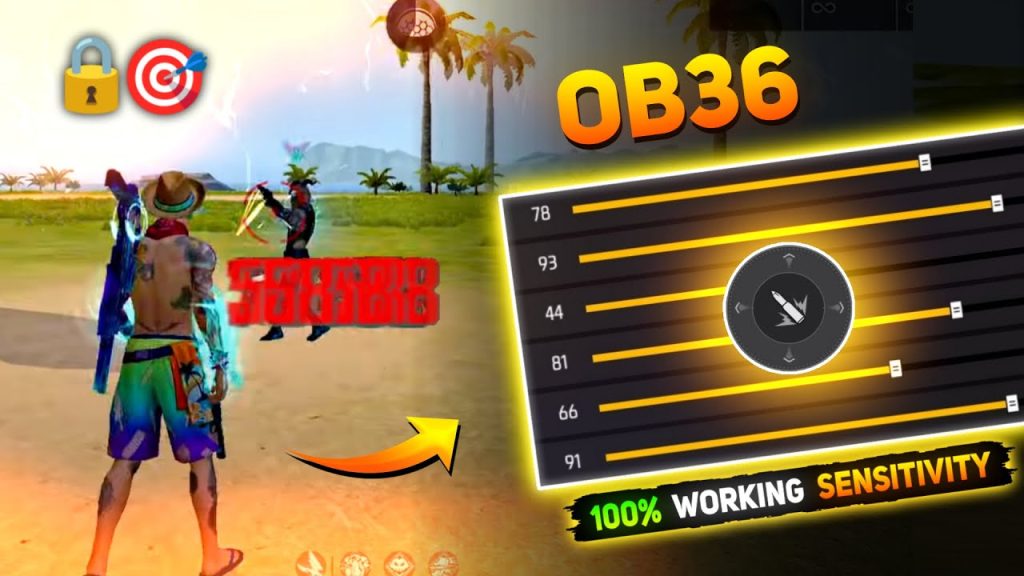
If your settings got scrambled, reset them to default (tap the ‘Default’ button). Then plug in a solid starting point. I suggest trying the recommended free fire sensitivity settings as a base – they work well for most players after an update. Adjust from there rather than starting from scratch.
Step 3: Fine-Tune in Training Mode
Enter training mode – it’s the best way to test sensitivity without pressure. Use training mode free fire sensitivity settings to compare how different values feel. Start with general camera sensitivity (80-100 for most phones), then adjust aim sensitivity (try 70-90). Move around, flick to targets, and see if you over-aim or under-aim. If you want a balanced feel, check out the free fire sensitivity settings for balanced style.
Step 4: Adjust Gyroscope Settings (Optional)
If you use gyro, iOS updates can mess with gyro responsiveness. Go to Sensitivity > Gyroscope and toggle it on. Start with low sensitivity (20-30) and increase gradually. You can learn more from our guide on how to use gyro in free fire sensitivity settings. Test in training mode until it feels natural.
Step 5: Test in Real Matches and Save
After training, jump into a Clash Squad or Classic match. Play a few minutes – if something feels wrong, go back and tweak. Once you’re happy, save your settings (they auto-save). For advanced fine-tuning, explore our custom free fire sensitivity settings guide. You can also compare your new values with a free fire sensitivity settings comparison to see where you stand.
Common Pitfalls
- Skipping training mode: Don’t jump straight into ranked without testing. Training mode lets you adjust without penalty.
- Copying others’ settings exactly: Everyone’s device and grip differ. Use values as inspiration, but always tailor them to your feel.
- Ignoring gyro: If you used gyro before the update, it likely needs recalibration. Don’t assume it’s still fine.
Where to Next
Got your sensitivity dialed in? Now practice in training mode to build muscle memory. Check out our other guides for more tips, like mastering recoil control or setting up sensitivity for specific phones. Happy gaming!



