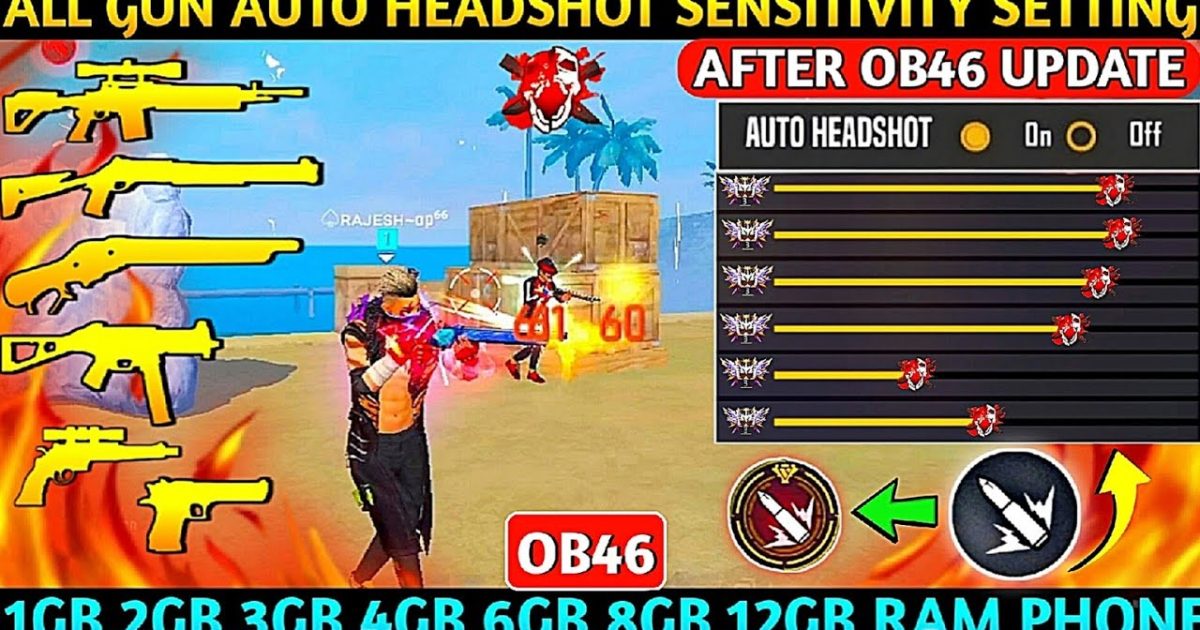
So the new Free Fire patch dropped and suddenly your aim feels like you’re swiping through butter—or concrete. Don’t worry, you’re not alone. Every patch shakes up the recoil patterns and aim assist, and your old sensitivity settings need a refresh. This guide is for anyone who wants to get back to beam shots quickly. By the end, you’ll have a customized sensitivity profile that works with the latest patch, whether you’re on a budget phone or a gaming device.
We’ll walk through resetting to defaults, adjusting general and scope sensitivities, setting up gyro if you use it, and testing everything in training mode. No fluff—just actionable steps. Let’s get your aim back on track.
What You’ll Need
- Free Fire app (updated to latest patch)
- Stable internet connection (ping below 100ms ideal)
- A surface to rest your phone/tablet (or a tripod mount)
- At least 30 minutes of uninterrupted time
- Optional: a second device to record your gameplay for review
Step 1: Understand What Changed in the Patch
Before tapping anything, open the Free Fire Patch Notes (usually in Settings > News). Look for anything about recoil adjustments, aim assist tweaks, or sensitivity scaling. If you spot changes, note them—they’ll affect your settings. For example, recent patches have adjusted SMG recoil and aim assist range. This knowledge helps you know whether to increase or decrease your sensitivities.

Step 2: Reset Your Sensitivity to Default
Go to Settings > Sensitivity and tap the ‘Reset’ button (often a gear icon or text at the bottom). This clears all your custom sliders back to default values for the current patch. Starting fresh ensures no leftover old values interfere with the new meta. Screenshot your old settings if you want to compare later, but don’t skip this step.
Step 3: Set General Sensitivity
General sensitivity controls how fast your screen moves when you swipe. After the patch, start with a medium value around 85-95. If you prefer a slower aim for more control, try 75-85. For quick flicks, go 95-100. I recommend starting at 90 and adjusting from there. This applies to both 4-finger claw and 2-thumb players—just keep your grip in mind.
If you play with a low DPI mouse (for emulator) or low in-game DPI on mobile, refer to our sensitivity under 500 DPI guide for a starting point.
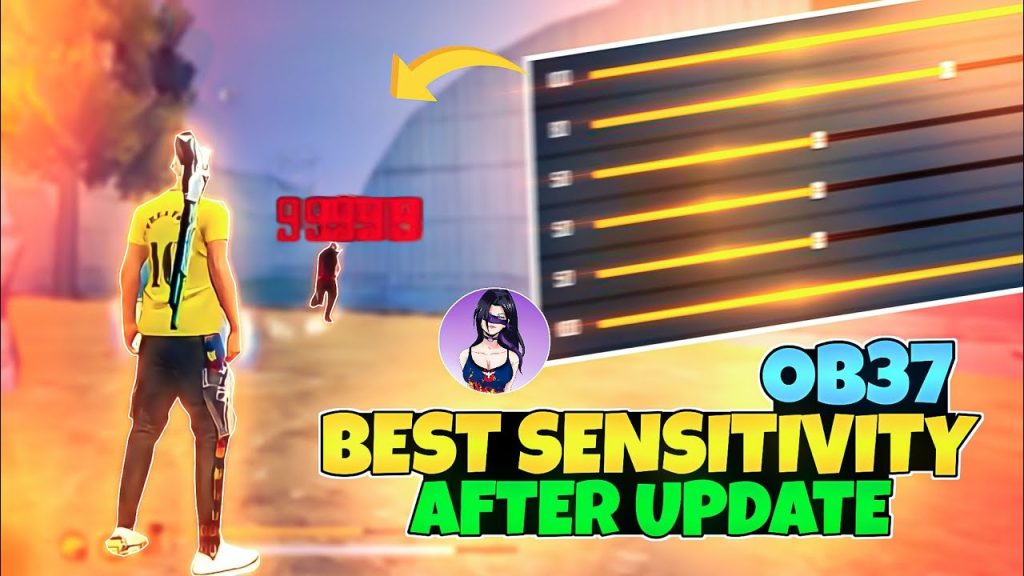
Step 4: Adjust Red Dot, 2x, 4x, and Sniper Scopes
Each scope has its own sensitivity. After the patch, aim assist might feel different, so don’t copy old numbers. Set Red Dot to around 85-95, 2x to 70-80, 4x to 55-65, and Sniper to 30-40 (higher if you use sniper for quick scopes). If you mainly use AR with red dot, prioritize that. For DMR users, fine-tune the 4x and 6x accordingly.
Need more precision? Check out our advanced sensitivity guide for detailed per-scope tweaks.
Step 5: Configure Free Look Sensitivity
Free look lets you look around while running in a straight line. Set it between 70-80. Too low and you can’t spot enemies; too high and it becomes jerky. This one is mostly preference, but after a patch, resetting it to around 75 is safe.
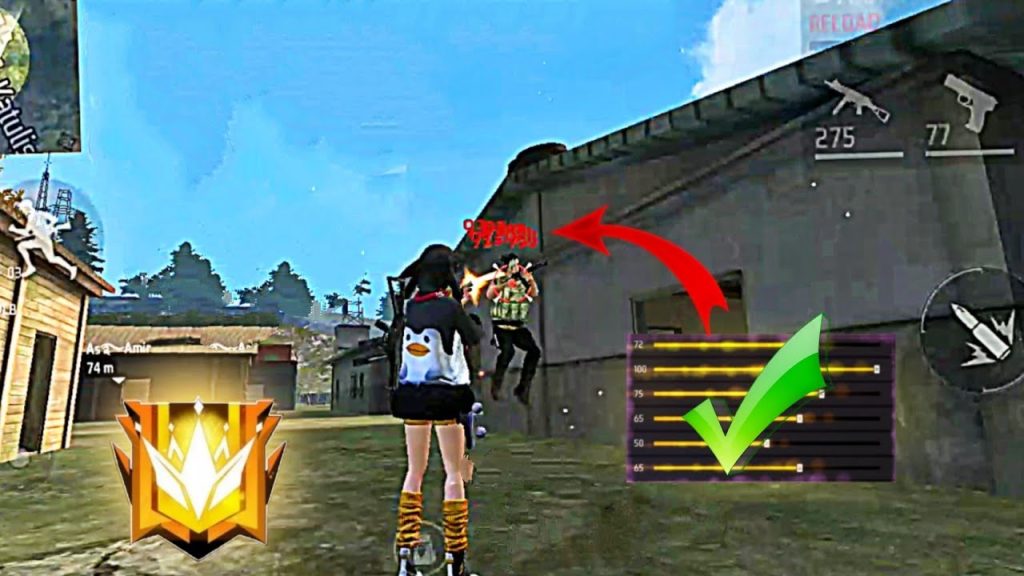
Step 6: Set Up Gyroscope (If You Use It)
Gyroscope uses your phone’s tilt to aim. If the patch changed gyro responsiveness, you may need to adjust. Enable gyro in settings and set both general and scope gyro sensitivities to around 50-70. Start at 50 and increase by 5 until you find a natural feel. For detailed gyro tweaks, see our gyro sensitivity settings guide.
Step 7: Test & Fine-Tune in Training Mode
Head to Training Mode (from lobby). Use the targets at various distances to test your aim. Check your ability to control recoil on guns like M1887, M1014, M4A1, and AK. If your crosshair jumps too much, lower general or scope sensitivity. If you can’t track moving targets, raise it. Spend at least 15 minutes here. For a structured approach, follow our training mode for sensitivity guide.
Don’t forget to test with and without attachments. The patch might have changed recoil patterns for specific guns. Also, if you play with a specific DPI (e.g., 400 DPI on emulator), make sure your in-game sensitivity matches. Our latest patch sensitivity guide has numbers for common DPI values.
Common Pitfalls
- Skipping the reset: Using old sensitivity values after a patch leads to inconsistent aim. Always reset first.
- Ignoring DPI differences: If you change phones or DPI settings, your sensitivity feels different. Adjust accordingly using sensitivity under 500 DPI as a reference.
- Using the same settings for all weapons: SMGs and ARs have different recoil. Fine-tune per-class, and if you’re into extreme precision, our recoil control sensitivity guide can help.
Where to Next
Now that your sensitivity is dialled in, consider optimizing other aspects of your gameplay. Check out our guides on HUD layout, key mapping for 4-finger claw, and best graphics settings for visibility. If you want to dive deeper, the advanced sensitivity guide covers micro-adjustments and aim assist exploitation. Good luck—go get that Booyah!



