Hey Free Fire player! If you’ve ever watched a pro stream and wondered how they snap onto enemies so fast, the secret is often their sensitivity settings code. These codes let you instantly copy someone’s entire sensitivity setup—no more manual tweaking. Whether you want to share your own perfect settings or try out a code from a top-ranked player, this guide will walk you through generating, importing, and exporting Free Fire sensitivity codes. By the end, you’ll have your very own code to share with friends or use on any device.
This guide is perfect for casual players who want a quick setup without spending hours in the training ground, as well as competitive gamers aiming to replicate pro settings. We’ll cover everything from finding the code generation menu to avoiding common mistakes. Along the way, I’ll link to related resources like how to export your sensitivity settings code and tips on combining codes with your HUD layout.
What You’ll Need
- Free Fire app installed on your phone (any version after the OB update that introduced codes).
- Stable internet connection – you’ll be downloading/uploading code data.
- A code to import (if you’re copying from someone) or your own current settings (if you want to export).
- Basic knowledge of the Free Fire settings menu.
Step 1: Open the Free Fire Settings Menu
Launch Free Fire and tap the gear icon on the top-right of the home screen to open Settings. This is where all the magic happens. Don’t worry if you’ve never been here before – it’s straightforward.
Step 2: Navigate to the Sensitivity Tab
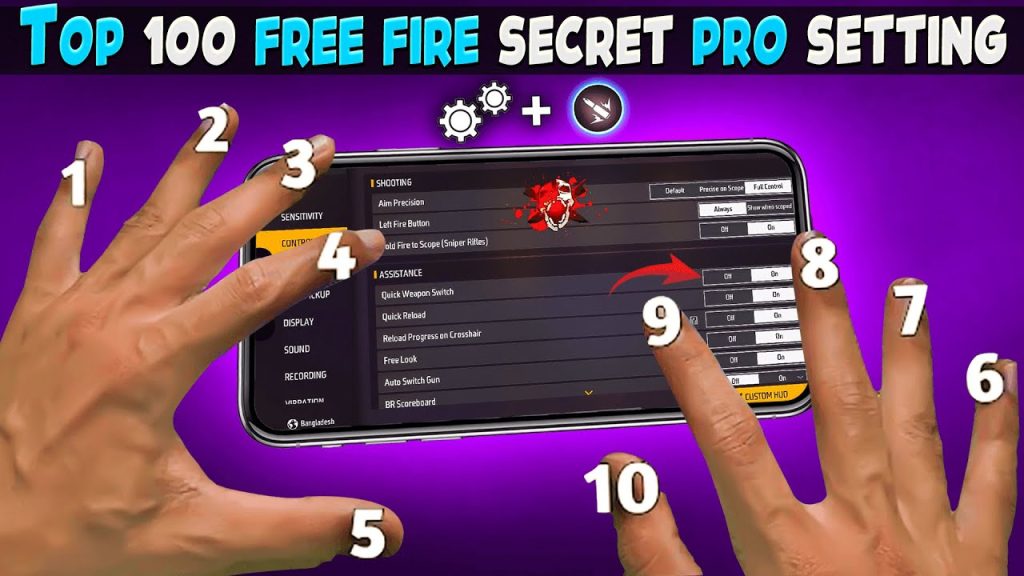
Inside Settings, find the ‘Sensitivity’ tab (it’s usually the second option). Tap it to see your current sensitivity sliders. This screen shows categories like General, Red Dot, 2x Scope, etc. At the top, you’ll see an option to generate a code – that’s what we’re after.
Step 3: Adjust Your Settings (Optional but Recommended)
Before generating a code, you might want to fine-tune your sensitivity. If you’re using a code from someone else, you can skip this step. But if you’re creating a code from your own setup, now’s the time to adjust each slider. For a solid baseline, check out our guide on simple free fire sensitivity settings – it’ll give you a five-minute setup that works for most phones.
Step 4: Export Your Code
Look for the ‘Generate Code’ button (usually a barcode icon) at the top of the Sensitivity screen. Tap it, and Free Fire will create a unique code based on your current settings. A pop-up will show your code – it’s a mix of letters and numbers. You can copy it directly from there.
Step 5: Copy and Share Your Code
Tap ‘Copy’ to save the code to your clipboard. Now you can paste it in a chat, social media, or save it in a notes app. Share it with friends or use it on another device. If you need a full walkthrough of this process, see our dedicated article on how to export your sensitivity settings code.
Step 6: Import a Code from Someone Else
Got a code from a friend or a pro? Go back to the Sensitivity tab and tap the ‘Import Code’ button (next to Generate). Paste the code and confirm. Your sensitivity sliders will instantly change to match that code. This is a great way to try out settings from top players – but remember to adjust for your device’s DPI. Our guide on free fire sensitivity settings with dpi explains how to scale codes for different screens.
Common Pitfalls
- Code expired or invalid: Some codes from older versions may not work after an update. Always get fresh codes from recent sources (e.g., within the last month).
- Wrong DPI settings: A code made on a high-DPI phone won’t feel the same on a low-DPI screen. Use our DPI guide to adjust the numbers proportionally.
- Not saving after import: After importing a code, you must exit the settings and play a match to lock it in. If you force-close the app, the changes might revert.
Where to Next?
Now that you know how to generate and use codes, it’s time to refine your gameplay. Check out our guides on free fire sensitivity settings for flick shots to snap onto enemies faster, or see how pros combine codes with their HUD in the free fire sensitivity settings and hud combo article. If you’re climbing the ranked ladder, the free fire sensitivity settings for esports players will give you that competitive edge. Happy hunting!



