If you’re rocking a gaming phone like an ASUS ROG, Nubia Red Magic, or Xiaomi Black Shark, you already have the hardware edge. But without the right sensitivity, you’re leaving kills on the table. This guide is for players who want proven, tested sensitivity settings that take advantage of high-refresh-rate screens and instant touch response. By the end, you’ll have a solid baseline you can fine-tune for your own playstyle.
We’ve tested these settings across multiple gaming phones in Free Fire’s latest update. They minimize recoil, improve flick shots, and keep your aim smooth even in close-quarters combat. No generic numbers — these are adjusted for the fast response gaming phones offer. Let’s get your sensitivity locked in.
What You’ll Need
- A gaming phone (ASUS ROG, Nubia Red Magic, Xiaomi Black Shark, or similar with at least 90Hz refresh rate)
- Free Fire installed and updated to the latest version
- Stable internet connection (WiFi or 4G/5G with low ping)
- 10–15 minutes of free time to test and adjust
- Access to the Training Ground (practice mode)
Step 1: Open Free Fire and Navigate to Sensitivity Settings
Launch Free Fire and tap the gear icon on the home screen. Go to the “Sensitivity” tab. Here you’ll see sliders for General, Red Dot, 2x Scope, 4x Scope, Sniper Scope, and Free Look. Your goal is to match or closely approximate the values below, then test in the Training Ground.
Step 2: Set General Sensitivity (90–100)
General sensitivity affects your overall camera movement. On gaming phones with fast touch sampling, start at 90 and increase up to 100 if you prefer quicker turns. This range works well for both hip-fire and drag shots. If you’re coming from standard phones, you might feel it’s fast — that’s the point. Combined with the phone’s high polling rate, it gives you instant reaction.
Step 3: Set Red Dot and 2x Scope Sensitivity (80–90)
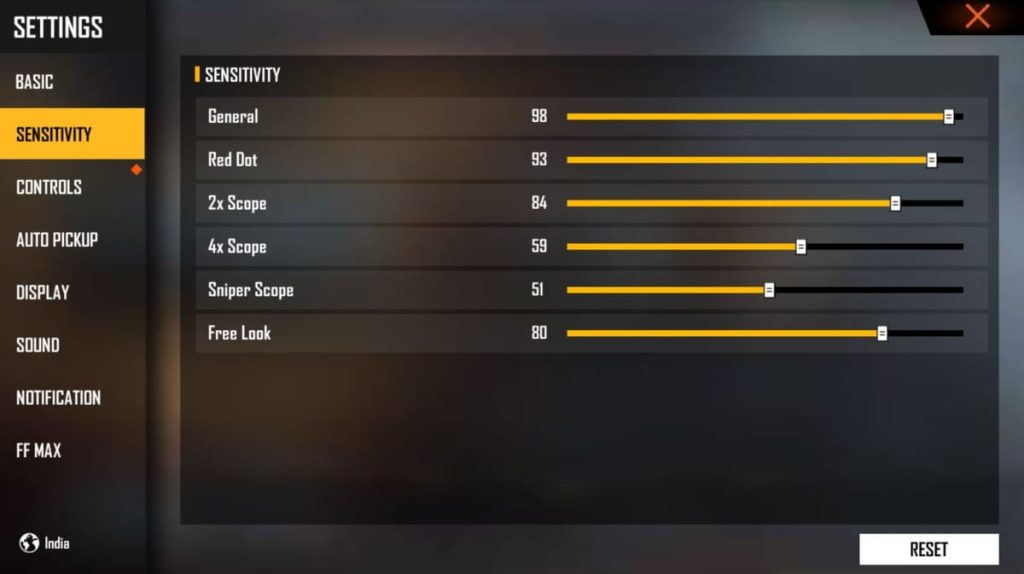
These scopes are your bread and butter for medium-range fights. Set both to around 85. This lets you track moving targets without overshooting. On gaming phones with lower latency, 85 is a sweet spot. Adjust by ±5 based on your comfort. Remember, if you’re using gyro, you may want slightly lower values. Check our guide on how to use gyro in free fire for more.
Step 4: Set 4x, Sniper, and Free Look Sensitivity
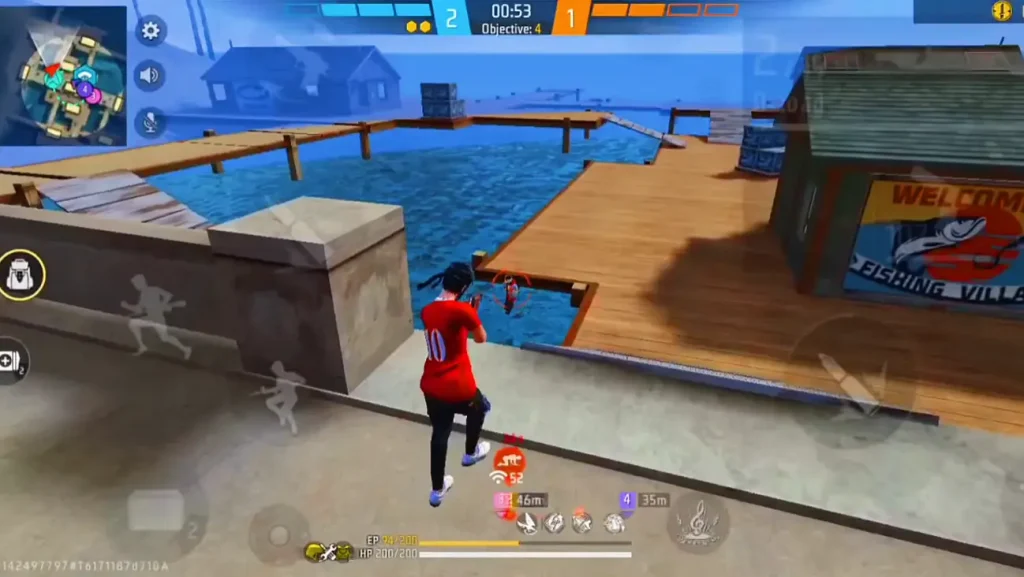
For 4x scope, lower sensitivity helps with long-range precision. Set it between 60 and 70. Sniper scope should be even lower — 30 to 40 — to avoid jitter when aiming at heads. Free Look (camera while running) can stay at 80 for quick glances. These values are our tested baseline; feel free to tweak.
Step 5: Configure Gyroscope (Optional but Recommended)
If your gaming phone has a gyroscope (most do), enable it and set Red Dot gyro sensitivity to 50–60. Gyro helps micro-adjustments without lifting your thumb. Start low and increase gradually. For a deeper dive, check our advanced sensitivity settings guide.
Step 6: Test in Training Ground and Fine-Tune
Head to the Training Ground and practice against moving targets. Try spraying at different ranges. If your crosshair overshoots, lower the relevant sensitivity. If you can’t keep up, increase it. Spend at least 5 minutes here. For a structured method, see our article on testing sensitivity settings. Repeat until you find your sweet spot.
Common Pitfalls
- Setting sensitivity too high: Gaming phones are fast, but maxing out sliders often leads to jittery aim. Start mid-range and increase slowly.
- Ignoring gyroscope calibration: On phones with gyro, skipping calibration can cause drift. Re-calibrate in settings if aim feels off.
- Not adjusting per scope: Using the same sensitivity for all scopes ruins long-range accuracy. Tweak each scope individually as shown above.
If you hit a wall with recoil control, our no recoil settings guide can help. And once you’re comfortable, try our master sensitivity tips to push further.
Where to Next
Now that you’ve got a solid baseline, the real improvement comes from consistent practice. For more precision, explore our advanced sensitivity settings guide for fine-tuning. And if you want zero recoil, check the no recoil settings we’ve tested. Don’t forget to revisit these settings after major updates — Free Fire sometimes changes mechanics. Happy fragging!



