You’re tired of default sensitivity, right? Your shots are all over the place, and that guy with the crazy aim seems to have some secret sauce. Well, the secret is often a custom sensitivity code—a string of numbers that instantly tunes your controls for better recoil control and headshots. This guide is for anyone who wants to create their own custom code or apply one from a pro. By the end, you’ll have a working code you can share with friends or use to dominate matches.
This isn’t about magic numbers—it’s about understanding what each slider does and how to tweak them for your device and playstyle. We’ll walk through generating a code, testing it in training mode, and importing codes from others. Let’s get your aim on point.
What You’ll Need
- Free Fire installed on your phone or tablet.
- A note-taking app or screenshot tool to save your code.
- Stable internet connection (codes sync with your account).
- 10–15 minutes in the training grounds to test and adjust.
- Optional: a friend’s code or pro code to try out.
Step 1: Understand the Sensitivity Scale
Free Fire’s sensitivity settings go from 0 to 100 for each scope type. General sensitivity controls hip-fire and overall turning speed. Red dot, 2x, 4x, sniper, and free look have their own sliders. Higher numbers mean faster crosshair movement, but too high can make micro-adjustments impossible. Decide your style: close-range rushers usually go 80–100 on general and red dot; snipers keep lower numbers like 10–30.
Step 2: Open Sensitivity Settings
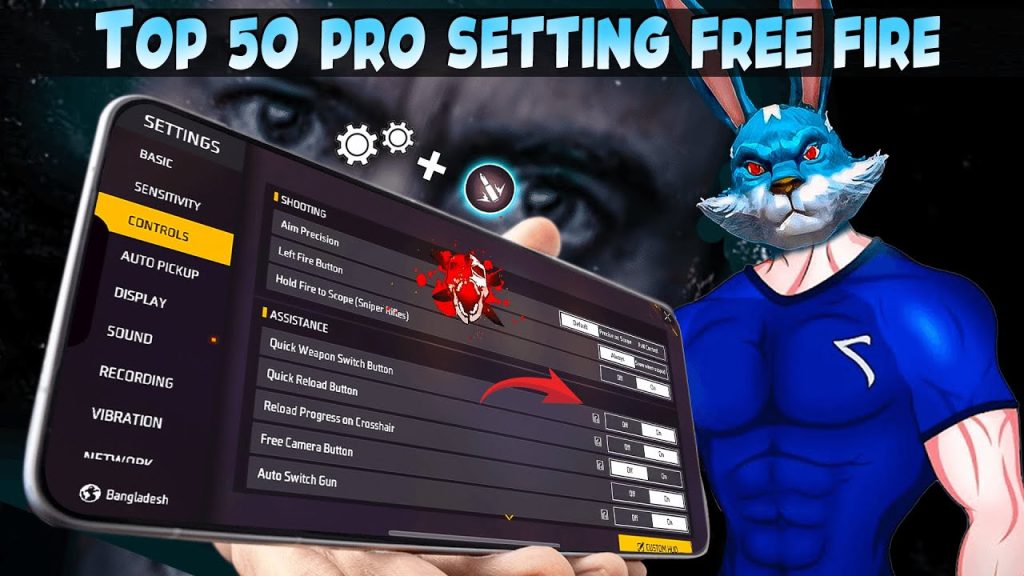
Launch Free Fire, tap the gear icon (Settings) on the home screen, then go to the ‘Sensitivity’ tab. You’ll see all the sliders. If you’ve never touched them, they’re at default values. Write down your current numbers if you want a backup.
Step 3: Adjust Sliders for Your Playstyle
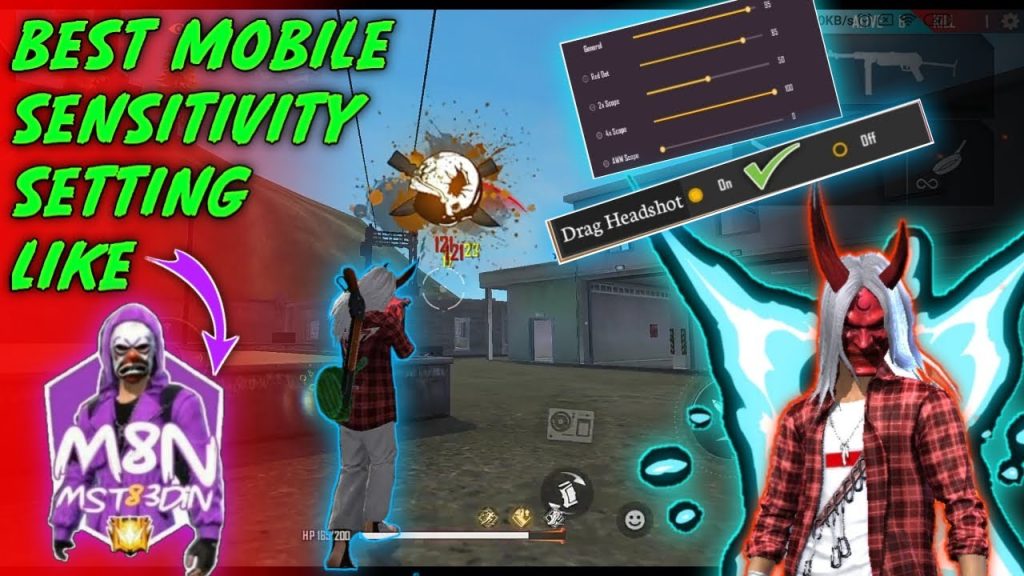
Now tweak each slider. There’s no perfect universal setting—it depends on your device, screen size, and reflexes. Start with these baseline values and adjust from there: General: 85, Red Dot: 80, 2x Scope: 60, 4x Scope: 40, Sniper Scope: 20, Free Look: 70. These give you fast turns but still let you control recoil. If you use gyroscope, set gyro sensitivity separately—usually lower than camera sensitivity.
For specific weapons like the Desert Eagle, you might want lower scope sensitivity for precise flick shots. Check out our Desert Eagle sensitivity guide for tailored numbers. If you’re chasing zero recoil builds, our zero recoil sensitivity guide has community-tested values.
Step 4: Generate and Copy Your Custom Code
After adjusting, look for the ‘Share’ or ‘Copy Code’ button at the top of the sensitivity screen. Tapping it generates a text string like ‘585823456…’ that encodes all your slider values. Copy it to your clipboard—this is your custom sensitivity code. You can also manually write down the numbers (General:85, RedDot:80, etc.) to share or import later.
Step 5: Test in Training Mode
Head to the training grounds (from the main menu, tap ‘Training’). Grab different weapons and test your new sensitivity. Shoot at walls to see recoil pattern, practice flick shots, and check if you can track moving targets. If something feels off—too slow or too jittery—go back and adjust the relevant slider. Re-tweak and generate a new code until it feels natural.
Step 6: Apply a Friend’s or Pro Code
Got a code from a friend, a streamer, or from our no recoil settings guide? In the Sensitivity tab, tap the ‘Import’ button (or ‘Paste Code’). Enter the code and confirm. Your sliders will instantly update to those values. Remember, that code might not be perfect for your device—test it in training and adjust small amounts if needed.
Common Pitfalls
- **Copying pro codes blindly** – What works for a flagship phone may feel sluggish on a mid-range device. Always tweak after importing.
- **Ignoring gyroscope** – If you use gyro, you need separate sensitivity settings. Many newbs forget to adjust gyro and wonder why aim still wobbles.
- **Not saving after import** – After pasting a code, tap ‘Apply’ or confirm. Some players close the menu and lose changes. Double-check your sliders match the code.
Your sensitivity code is a living thing—don’t be afraid to tweak it every season or after a new update.
Pro player tip
Where to Next
Now that you have your custom code, fine-tune it further with our other guides. Check out auto headshot settings for even more precise aim, or competitive settings if you’re grinding ranked. You can also explore custom sensitivity settings for different weapons and ranges. Keep practicing, and your sensitivity code will become second nature.



