If you’ve been copying pro sensitivity codes hoping they’ll instantly turn you into a headshot machine, you’re missing out. Everyone’s device, grip, and aim style are different — what works for a streamer might make you over- or under-aim. This guide is for players who want to stop guessing and build their own custom sensitivity from scratch. By the end, you’ll have a personalized setup that feels natural and improves your consistency in every match.
We’ll walk through six simple steps: resetting defaults, adjusting DPI, fine-tuning general sensitivity, setting your red dot and scope sensitivities, optionally using gyro, and testing it all in real games. You don’t need to be a tech wizard — just 15 minutes and a willingness to tweak. Let’s get those settings dialed in.
What You’ll Need
- Free Fire or Free Fire Max installed on your device
- Training mode unlocked (or a friend to help test)
- 10–15 minutes of uninterrupted practice time
- A clear idea of your playstyle: rusher, support, or sniper
Step 1: Reset to Default Sensitivity
Before you start customizing, wipe the slate clean. Go to Settings > Sensitivity and tap ‘Reset to Default’. This removes any previous tweaks or copied codes that might be throwing off your aim. Default settings are balanced for the average player — they’re your baseline. Don’t skip this step; even small leftover adjustments can mess up the whole process.
Step 2: Set Your DPI (Device Sensitivity)
DPI controls how many pixels your finger moves across the screen per inch of physical movement. On most phones, you can’t change DPI without third-party apps, but you can adjust your device’s pointer speed under Settings > Additional Settings > Developer Options (if enabled). Start at a medium value — for Android, try a DPI of 240–280. Test by swiping across the screen: your crosshair should rotate about 180° with a full swipe. Adjust DPI up for faster turns, down for more precision.
Step 3: Adjust General Sensitivity
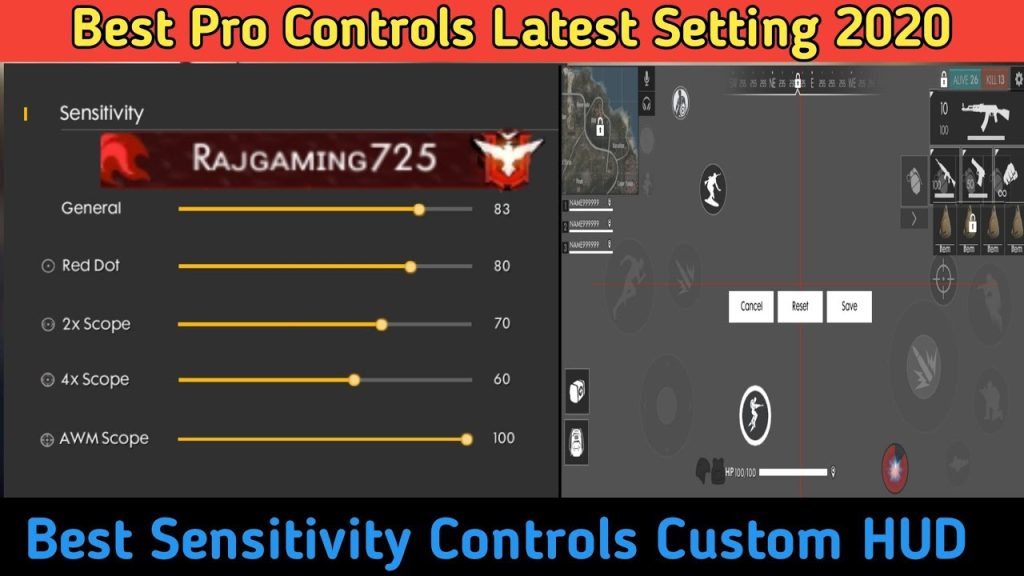
General sensitivity affects all aiming when not using a scope. Enter Training Mode, pick an AR like the M4 or AK, and start shooting at a stationary target. Start with General Sensitivity at 80. While strafing left and right, try to keep your crosshair on the target’s chest. If your crosshair overshoots, lower it by 5; if it lags behind, increase by 5. Repeat until you can track a moving dummy smoothly. This takes a few minutes, but it’s the most important step.
Step 4: Fine-Tune Red Dot and Scope Sensitivities
Now that your general sensitivity feels right, it’s time to set your red dot and scope sensitivities. These control aim down sights (ADS) for different optics. In Training Mode, equip a weapon with a red dot. Start with Red Dot Sensitivity at 50. Aim at a target and fire a few bursts while controlling recoil. If your crosshair jumps too much, reduce by 5; if you can’t keep up, increase. Repeat for 2x, 4x, and Sniper Scope if you use them. The goal is a smooth, controlled spray. For more advanced recoil control, check out our free fire sensitivity settings for zero recoil guide.
Step 5: (Optional) Enable Gyroscope Sensitivity
If your device has a gyro, you can use it for fine-tuned aim adjustments. Go to Settings > Sensitivity > Gyroscope and toggle it on. Start with Gyro General at 30 and Gyro Red Dot at 20. In Training Mode, tilt your phone gently to aim while hip-firing. The gyro helps with quick micro-adjustments, especially for snipers. Tilt too sensitive? Lower the values. Not your thing? Leave it off — many pros play without it. For tablet users, see our best free fire sensitivity settings for android recommendations.
Step 6: Test in Real Matches and Tweak
Your custom settings are almost ready. Play a few Classic or Clash Squad matches focusing on aim and recoil control. After each match, note what felt off: too fast when looting? Too slow when turning around? Go back to sensitivity settings and adjust in increments of 3–5. Keep a small notebook or phone note of your values so you can revert if needed. Remember, consistency comes from practice — stick with a setup for at least a week before making major changes. For a basis, our stable free fire sensitivity settings can serve as a starting point.
Common Pitfalls
- Copying pro settings blindly: Their device, internet, and playstyle are different. Use their settings only as a reference, then tweak.
- Changing too many settings at once: Modify one value per training session. Otherwise you won’t know what’s working or breaking.
- Ignoring device performance: Low-end phones might stutter with high sensitivity. If you notice frame drops, lower your graphics and sensitivity a bit.
Avoid these mistakes and you’ll save hours of frustration. If you’re aiming for serious improvement, our competitive free fire sensitivity settings can give you additional pro-level adjustments.
Where to Next
You’ve got your own custom sensitivity — now the real work begins. Jump into Training Mode daily for 10 minutes to lock in muscle memory. For different playstyles, check out our free fire sensitivity settings for close range and free fire sensitivity settings for tactical players guides to fine-tune further. Happy fragging!



