So you just reset your phone—maybe to fix lag, clear storage, or because you got a new device. Awesome! But now you open Free Fire and… your sensitivity feels off. Every swipe is either too slow or too fast, and you’re missing shots you used to hit easily. Don’t worry, this guide is for you. Whether you reset accidentally or on purpose, I’ll show you how to get your perfect sensitivity settings back in no time.
By the end of this post, you’ll have your old sensitivity restored—using cloud backup, screenshots, or manual notes. You’ll also learn how to prevent this headache in the future. No more guessing or spending hours tweaking sliders again. Let’s dive in.
What You’ll Need
- Your device with Free Fire installed (obviously)
- Internet connection (WiFi or mobile data)
- Your Free Fire account (Facebook, Google, or VK login)
- A screenshot or written notes of your old sensitivity settings (if available)
- A few minutes of patience
Step 1: Save Your Current Settings (Before Reset)
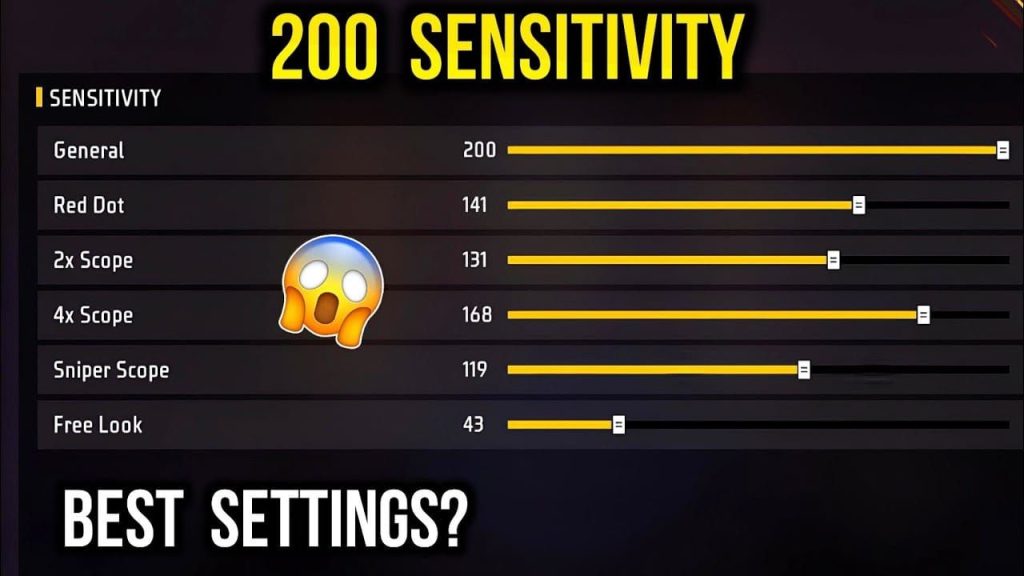
If you haven’t reset yet, this step is crucial. Open Free Fire, go to Settings > Sensitivity, and take a screenshot of each tab (General, Red Dot, 2x Scope, etc.). Also, tap the “Share Code” button to generate a code—write it down or save it in your notes. This code can be used later to import the exact same settings. If you’ve already reset, skip to Step 2 or use any saved screenshots or codes.
Step 2: Use Free Fire’s Cloud Backup Feature
Free Fire has a built-in cloud backup for your settings. Before resetting, go to Settings > Account > Backup Data and enable it. After your device reset, log into the same account, go to Settings > Account > Restore Data, and your sensitivity should come back. This is the easiest method if you planned ahead.
Step 3: Manually Note Down Your Settings
Didn’t use cloud backup? No worries. If you have a screenshot, you can manually copy each slider value. Open the screenshot on a second device or in split screen, and adjust each slider in the game to match. This takes about 5 minutes but works perfectly. For a solid starting point, check out our battle royale sensitivity guide if you want to start fresh instead.
Step 4: Restore After Reset
After your device reset, install Free Fire, log into your account, and go to Settings > Sensitivity. If you have a share code, tap “Import Code” and paste it. If you have screenshots, use Step 3 to adjust manually. If you have a backup from Step 2, go to Settings > Account > Restore Data. Done.
Step 5: Re-apply from Screenshot or Notes
This is the manual method in more detail. Open your screenshot or notes. Tap each category (General, Red Dot, etc.) and drag each slider to the exact number shown. Don’t forget DPI settings if they’re included. If you want to go pro, our pro settings guide can help you optimize further.
Step 6: Test and Fine-Tune in Training Mode
Once your settings are applied, hop into Training Mode (tap the practice icon in the lobby). Shoot at targets, drag aim, and check if it feels right. If something’s off, tweak the sliders a bit. Remember: sensitivity is personal, so trust your muscle memory. Learn how to set sensitivity from scratch in our basic guide if you need a fresh start.
Common Pitfalls
- Forgot to enable cloud backup before reset – always back up, even if you think it’s fine.
- Wrong DPI settings – device DPI affects sensitivity; ensure your display settings match.
- Share code expired or not saved – codes can expire; always screenshot as a fallback.
Where to Next
Now that your sensitivity is back, you might want to explore more. You can also clone settings from friends using our cloning guide, or use the share code method detailed in our sharing code post for easy switching. If you’re on Android, our Max sensitivity settings for Android are worth a look for smoother gameplay. Happy aiming!



