Whether you’re dropping into Bermuda for the first time or you’ve been grinding ranked for seasons, your sensitivity settings can make or break your Battle Royale performance. In Free Fire, the difference between a clutch win and a quick elimination often comes down to how smoothly you can track an enemy sliding behind cover or snap onto a headshot. This guide is for every Battle Royale player who wants to stop blaming lag and start dominating fights. By the end, you’ll have a custom sensitivity profile that feels natural for your playstyle and device.
We’ll walk through the exact steps to access and adjust your general sensitivity, scope sensitivity, and gyro controls. You don’t need to be a pro—just follow along in the training ground and tweak as you go. And if you’re looking for more advanced presets, check out our pro sensitivity settings for a head start.
What You’ll Need
- Free Fire or Free Fire MAX installed on your phone or tablet.
- A stable internet connection (lag can mess up your aim testing).
- 10–15 minutes of uninterrupted time in the training ground.
- A notepad or screenshot tool to save your settings once dialed in.
- Optional: a gyroscope-enabled device if you want to use gyro aim.
Before diving in, make sure you’ve read the beginner sensitivity guide if you’re totally new to tuning settings. It covers the basics of what each slider does.
Step 1: Access the Sensitivity Menu
Open Free Fire and head to the main lobby. Tap the gear icon in the top‑right corner (Settings), then select the ‘Sensitivity’ tab. You’ll see a grid of sliders: General, Red Dot, 2x Scope, 4x Scope, Sniper Scope, and Free Look. Don’t panic—we’ll tackle them one by one.
If you prefer to start from a known baseline, you can use our sensitivity settings helper to generate a starting point based on your device and playstyle.
Step 2: Adjust General Sensitivity
General sensitivity controls how fast your view moves when you swipe anywhere outside a scope. For Battle Royale, you want it high enough to react quickly to enemies at close range, but low enough to keep your aim steady at medium distance. A good starting range is 80–100 (on a scale of 0–100). If you’re using a large tablet, lean toward 80–90; on a phone, 90–100 works better because you have less screen real estate.
Set General to 90, then enter the training ground. Try tracking a moving target by swiping left and right. If your crosshair overshoots, lower it by 5. If it feels sluggish, increase by 5. Keep adjusting until you can smoothly follow a running bot without jittering.
Step 3: Tune Scope Sensitivity
Each scope has its own slider because zoomed sights amplify your swipes. For Battle Royale, you’ll mostly use 2x and 4x scopes for mid‑to‑long range fights. Start with the following values and tweak per scope:
- Red Dot: 90–100 (fast for close quarters)
- 2x Scope: 80–90 (balanced for medium range)
- 4x Scope: 70–80 (slower for precision)
- Sniper Scope: 50–60 (very slow for steady sniping)
- Free Look: 50–60 (just high enough to scan while running)
Test each scope in training ground. For example, equip a SCAR with a 2x scope and practice dragging your aim from one target to another. If your crosshair flies past, reduce the scope’s sensitivity. For dedicated AR builds, our SCAR sensitivity settings guide offers more detailed tweaks.
Step 4: Configure Gyroscope Sensitivity (Optional)
If your phone has a gyroscope, enabling it lets you aim by tilting the device. This is especially useful for fine‑tuning snipes and tracking. Go to Settings > Sensitivity > Gyroscope and toggle it on. Set the gyro sensitivity to around 40–50 initially—you can always raise it later.
Gyro is a game‑changer once you get used to it. Combine it with your regular swipes for hybrid aiming. For a deeper dive, check out our guide on camera control sensitivity which explains how gyro and swipe interact.

Step 5: Test and Refine in Training Ground
You’ve set your numbers—now it’s time to stress‑test them. Spend at least 10 minutes in the training ground doing these drills:
- Flick to static targets from different distances.
- Track moving bots while strafing yourself.
- Practice drag shots (swipe from head to head).
- Test all scope zooms and the free look while running.
If something feels off, go back and tweak only one slider at a time. Remember the how to set sensitivity guide for a systematic approach. Once you’re comfortable, play a few unranked BR matches to see how it holds up under pressure.
Common Pitfalls
- Copying someone else’s settings without testing: Every device, grip, and playstyle is different. A pro’s 100 sensitivity might make you miss every shot. Always start from a baseline and adjust to your own feel.
- Changing too many sliders at once: If you tweak General, Red Dot, and Gyro all at the same time, you won’t know what worked or broke. Change one slider, test, then move to the next.
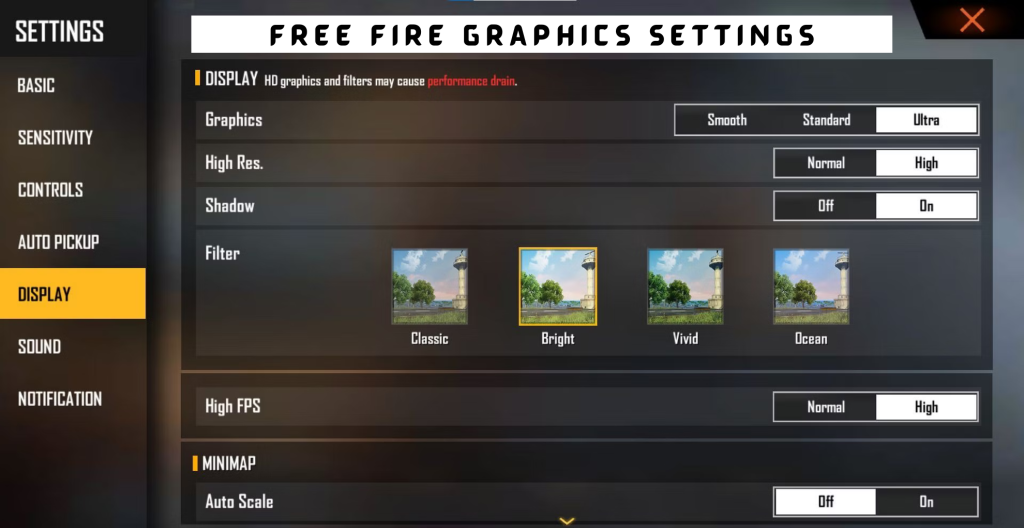
- Ignoring device performance: High sensitivity can cause dropped frames on low‑end phones. If you notice lag or stuttering, lower your graphics settings or dial down sensitivity. Check our stable FPS guide for more help.
Also, don’t forget that sensitivity isn’t permanent. As you improve or change your device, revisit these steps. Many players update their settings every season.
Where to Next
Now that your sensitivity is dialed in, it’s time to build on that foundation. Learn how to share your settings with friends using a sensitivity sharing code, or master advanced movement techniques with our aggressive rushing guide. If you’re still struggling with aim, revisit the pro sensitivity settings for a more aggressive baseline. Happy hunting!



