Ever watched a pro player land every shot and wished you could have the same sensitivity settings? You’re not alone. Cloning someone else’s sensitivity settings in Free Fire is a quick way to test setups that have already been optimized for aggressive rushing, drag aiming, or thumb play. By the end of this guide, you’ll be able to grab any sharing code and apply it in seconds — or manually copy settings when no code is available.
Cloning doesn’t mean copying blindly; it’s about finding a baseline that fits your style. Whether you’re using a sharing code from a friend or typing numbers from a screenshot, this step-by-step tutorial will walk you through the whole process. No more guessing — just a clean, playable setup.
What You’ll Need
- A device running Free Fire or Free Fire Max (Android/iOS)
- A stable internet connection
- Access to a sensitivity sharing code (from a friend, YouTuber, or pro player)
- Optional: a second device or a screenshot to copy settings manually
- Optional: a notepad to note down original settings before making changes
Step 1: Understand the Sensitivity Settings Layout
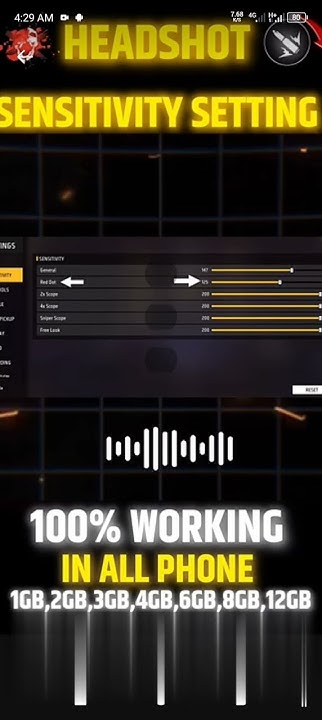
Before you clone anything, open your Free Fire settings and go to the Sensitivity tab. You’ll see sliders for General, Red Dot, 2x Scope, 4x Scope, Sniper Scope, and Free Look. Each controls how fast your screen moves when you swipe. If you’re new, check out our beginner sensitivity settings guide for a full breakdown of what each slider does.
Step 2: Obtain a Sensitivity Sharing Code
The easiest way to clone is by using a sharing code. Ask a friend with good settings, or find codes posted on social media or YouTube. Each code is a string of letters and numbers that encodes the exact slider positions. Make sure you have a code from a trusted source — avoid random codes that might not be optimized. For more details on where to find codes, read our sensitivity settings sharing code article.
Step 3: Import the Code into Free Fire
Open Free Fire, go to Settings > Sensitivity. At the bottom, tap the ‘Sharing Code’ button (or ‘Import’ depending on your version). Paste the code and confirm. The sliders will automatically adjust to the new values. Don’t forget to save after importing. If the code is invalid, double-check for typos or spaces.
Step 4: Apply and Test the Settings
Now that the settings are loaded, jump into Training Ground or a Clash Squad match to test them. Pay attention to how quickly you can aim, track targets, and scope in. If something feels off, don’t worry — you can always tweak individual sliders. Remember, cloned settings are a starting point. For aggressive rushing or drag aiming, you may need to adjust slightly. Check our how to copy free fire sensitivity settings guide for tips on fine-tuning.
Step 5: Clone Manually (If You Don’t Have a Code)
No code? No problem. You can copy settings manually from a screenshot or a friend’s phone. Arrange both devices side by side, then recreate each slider value exactly. Take a photo of the settings screen for reference. This method is slower but works perfectly. For top-tier setups, consider our top global free fire sensitivity settings or our optimized free fire sensitivity settings that you can copy number by number.
Common Pitfalls
- Forgetting to save after importing – the sliders will revert if you exit without saving. Always hit the save/confirm button.
- Using a code from an outdated version – sensitivity codes from older game versions might not work. Make sure both you and the code owner are on the same update.
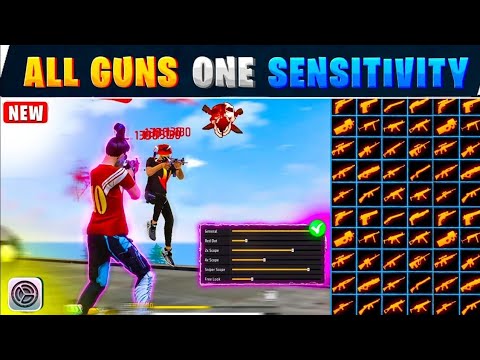
- Not adjusting based on your device – a setup perfect for a high-end phone with a high DPI may feel too sensitive on a budget device. Always test and tweak for your own hardware.
Where to Next
Cloning is just the beginning. Once you’ve got a baseline, explore our sensitivity settings for thumb players or dive into advanced techniques like drag aiming. Keep experimenting – the perfect setting is one that feels natural to you. Happy hunting!



