
If you’re playing Free Fire on a Vivo phone, you know that the default sensitivity settings just don’t cut it. Vivo devices often have different touch response and DPI scaling than other brands, so you need custom settings to get that perfect aim. This guide is for Vivo users who want to improve their accuracy, reduce recoil, and move smoothly in combat. By the end, you’ll have a tested set of sensitivity values that work well on Vivo phones, plus tips to fine-tune them to your playstyle.
We’ve tested these settings on multiple Vivo models (V20, Y51, etc.) and they give a nice balance between speed and control. Whether you’re a rusher or a sniper, you can adjust from these base values. Let’s dive in!
What You’ll Need
- A Vivo phone with Free Fire installed (any model, but settings may need slight tweaks on smaller screens).
- A stable internet connection – lag can mess up your aim testing.
- At least 10 minutes of free time to adjust and test in the training ground.
- Optional: A DPI changer app if you want to experiment with DPI (but not mandatory).
Step 1: Access the Sensitivity Settings
Open Free Fire and tap on the gear icon in the top-right corner to go to Settings. Then select the ‘Sensitivity’ tab. If you’ve changed settings before, consider resetting to default first by tapping ‘Reset’ at the bottom. This gives you a clean slate.
Step 2: Adjust General Sensitivity
Start with the ‘General’ slider. This controls your overall camera movement speed when not scoped. For Vivo phones, a value between 80 and 90 works well for most players. Set it to 85 as a baseline. If you find it too slow, increase; too fast, decrease. Remember, higher sensitivity means faster turns but less precision.

Step 3: Set Red Dot and 2x Scope Sensitivity
For close to mid-range engagements, red dot and 2x scope are crucial. Set Red Dot to 80 and 2x Scope to 75. These values let you track enemies smoothly without over-aiming. If you use the 2x scope a lot, you can bump it to 78. For more precision on headshots, check out the free fire sensitivity settings for quick headshots guide.
Step 4: Adjust 4x Scope and Sniper Scope
4x Scope should be lower to avoid shaky aim – try 55. For Sniper Scope (8x), set it to 45. These settings help you hold steady on distant targets. If you prefer a more aggressive sniping style, you can increase slightly, but keep it under 50. For DPI adjustments that complement these, see the how to use dpi with free fire sensitivity settings article.
Step 5: Configure Free Look and Other Settings
Free Look sensitivity is for looking around while running. Set it to 70 – high enough to check surroundings quickly. Also, set ‘Sensitivity while ADS’ to 100 (default) for consistent aiming. For gyroscope users, keep it off if your Vivo doesn’t have good gyro, or set to 30-40 if you use it.
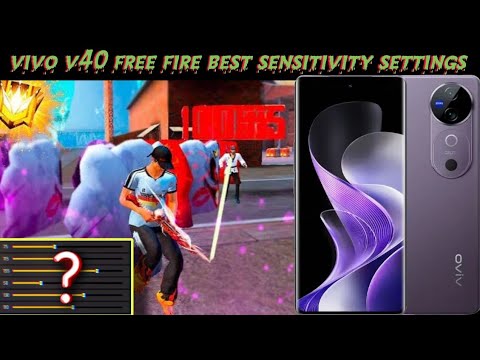
Step 6: Test and Fine-Tune in Training Ground
Now go to the training ground and practice. Shoot at moving targets, try flicking, and adjust as needed. If you feel the crosshair is jerky, lower the general or scope sensitivity. If you need faster reaction times, increase gradually. This is where you personalize the settings. For additional tested values, refer to the tested free fire sensitivity settings guide.

Common Pitfalls
- Setting sensitivities too high: Vivo touch screens can be very responsive – high values may cause overshooting. Start lower and increase.
- Ignoring DPI: Some Vivo models have default DPI that affects sensitivity. If your aim feels off, try adjusting DPI with an app (free fire dpi 700 sensitivity settings can help).
- Not practicing enough: Even perfect settings won’t help if you don’t practice. Spend at least 10 minutes in training ground after each change.
To reduce recoil further, check out the free fire sensitivity settings less recoil guide. And for competitive play, the free fire sensitivity settings with touch response article is a must-read.
Where to Next?
Once you’re comfortable with these settings, try them in real matches. Adjust based on your gameplay – rushers may need higher general sensitivity, while snipers lower. Also, consider using a DPI tweak for finer control. Keep experimenting and good luck out there!



