If you’ve been struggling with laggy controls or inconsistent aim in Free Fire, you’re not alone. Most players tweak their in-game sensitivity but ignore the hidden performance settings on their Android device. This guide is for intermediate players who want to squeeze every bit of responsiveness out of their phone. By the end, you’ll have a stable, low-latency setup with custom sensitivity settings that work with your device’s hardware.
We’ll walk through enabling Developer Options, adjusting animation scales, forcing GPU rendering, then fine-tuning your in-game sensitivity. You’ll also learn how to test and revert changes if something goes wrong. Let’s turn your phone into a Free Fire beast.
What You’ll Need
- An Android device running Android 7.0 or newer (Free Fire installs on both 32-bit and 64-bit devices)
- Free Fire already installed and updated to the latest version
- A stable internet connection for testing
- 5-10 minutes of uninterrupted time
- Optional: a friend to help test in a custom room
Step 1: Enable Developer Options
Developer Options is hidden by default. To enable it, go to Settings > About Phone > Software Information (on Samsung) or Build Number (on most phones). Tap ‘Build Number’ 7 times quickly. You’ll see a toast saying ‘You are now a developer!’ Now go back to Settings and you’ll see ‘Developer Options’ near the bottom.

Step 2: Adjust Window Animation Scale
Inside Developer Options, look for ‘Window animation scale’, ‘Transition animation scale’, and ‘Animator duration scale’. Set all three to 0.5x or Off. Reducing these makes your phone feel snappier and reduces input lag. For Free Fire, setting them to 0.5x is usually enough; turning them off can cause glitches in some apps.

Step 3: Force GPU Rendering
Scroll down to the ‘Hardware accelerated rendering’ section. Enable ‘Force GPU rendering’ and ‘Force 4x MSAA’. This makes the phone use the GPU for all 2D drawing, smoothing out graphics and reducing CPU load. Note: it uses more battery but improves frame consistency in Free Fire.

Step 4: Set In-Game Sensitivity
Open Free Fire, go to Settings > Sensitivity. Use the following baseline values (adjust based on your DPI). For reference, check out our free fire dpi 600 sensitivity settings if your device has 600 DPI. General starting point: General: 85, Red Dot: 85, 2x Scope: 70, 4x Scope: 40, Sniper Scope: 20, Free Look: 70. Also adjust ‘Aim Down Sights’ sensitivity to match.
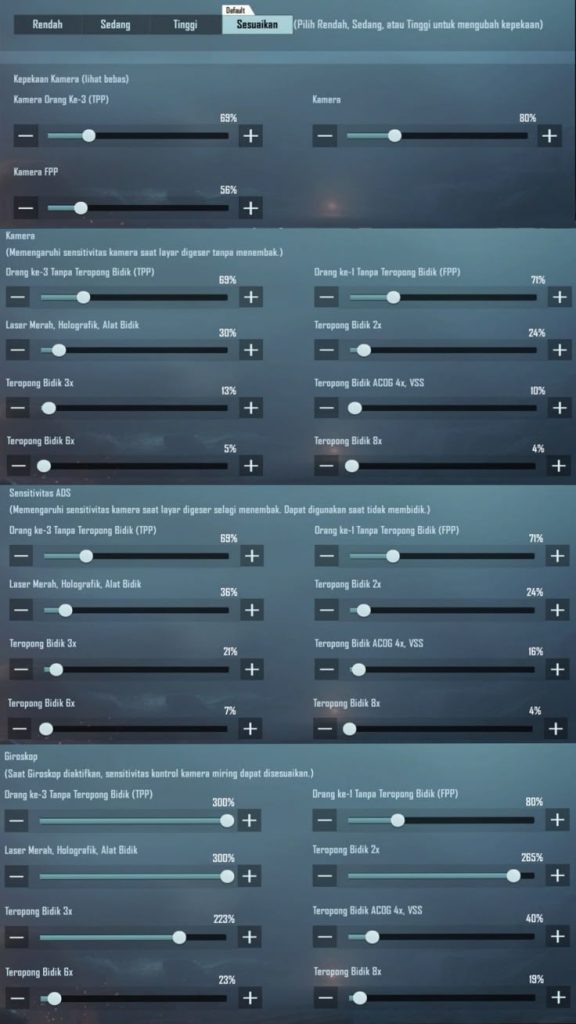
For beginners, we recommend our best free fire sensitivity settings for beginners guide. And if you want to save your config to reuse later, learn how to use a free fire sensitivity settings config code.
Step 5: Test and Fine-Tune
Enter a training ground or a casual match. Practice aiming at stationary targets, tracking moving bots, and dragging. If your crosshair overshoots, lower sensitivity. If you can’t keep up, raise it. Repeat until comfortable. Remember to also adjust the free fire camera sensitivity settings if you rely on third-person perspective.
If you experience touch delay despite tweaking developer options, read our dedicated free fire sensitivity settings for touch delay guide. You can also import free fire sensitivity settings from a friend to skip the trial-and-error.
Common Pitfalls
- Over-optimizing animations: Setting animation scales to Off can break some apps. Stick to 0.5x unless you’re sure.
- Ignoring DPI: Sensitivity feels completely different on low vs high DPI. Always match your device’s DPI with the right guide.
- Forgetting to save: After exiting Developer Options, some devices revert settings on restart. Double-check after a reboot.
Where to Next?
Once you’ve dialed in your settings, practice in Clash Squad or ranked. Keep an eye on your device’s temperature; heavy GPU rendering can cause throttling. For more advanced tweaks, check our guides on professional free fire sensitivity settings and sensitivity for auto headshot on Poco or Redmi devices.



