Tired of messing with sliders and still missing shots? A Free Fire sensitivity settings config code is the shortcut you need. Instead of tweaking each value by hand, you copy a code that instantly applies a proven setup – whether it’s from a pro player, a ranked grinder, or a friend who beams everyone. This guide walks you through exactly how to find, save, and apply config codes so you can spend less time in the settings menu and more time dropping kills.
By the end, you’ll know how to grab a config code from trusted sources, paste it into Free Fire, and test it in-game. You’ll also learn how to tweak it once it’s applied so the sensitivity feels natural for your playstyle. No complicated tools, no root access – just simple steps that work on any device.
What You’ll Need
- A device running Free Fire (Android or iOS).
- A text app like Google Keep, Notepad, or even WhatsApp to store the config code temporarily.
- A stable internet connection to download the code or copy it from a source.
Step 1: Find a Reliable Config Code
Config codes are shared on YouTube, Discord servers, and community forums. Look for codes from creators who show their own gameplay or have a good reputation. You can also check out our collection of pro player configs for a head start. Avoid random websites that promise unreal aimbots – they’re often scams.
Step 2: Copy the Code Accurately
When you find a code, select and copy the entire string. It looks like a long line of numbers and letters in a box. Open your text app and paste it there. Double-check that nothing is missing – even one wrong character can break the import. If you’re on mobile, long-press the code and drag the selection handles to cover every part.
Step 3: Open Free Fire and Go to Settings
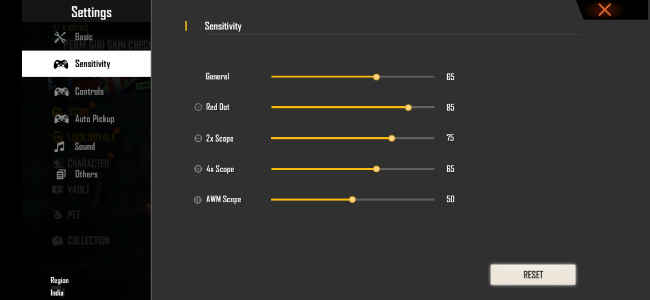
Launch Free Fire on your device. From the main lobby, tap the gear icon in the top-right corner to open Settings. Then tap the ‘Sensitivity’ tab – that’s where all the sliders live. You’ll see a small button that says ‘Import’ or a QR code icon depending on your game version. For most devices, it’s the QR icon.
Step 4: Import the Config Code
Tap the import button. A pop-up will appear asking you to paste the code. Switch back to your text app, copy the stored code, and paste it into the field. Confirm the import. The game will apply the new sensitivity values immediately. You’ll see the sliders change to match the code. If you get an error, the code might be expired or formatted incorrectly – try another one. For a detailed walkthrough on this process, check out our guide on importing sensitivity codes.
Step 5: Test in Training Grounds
Before hopping into a real match, go to the Training Grounds. Grab different weapons and see how the sensitivity feels. Run around, spray at walls, practice drag headshots. If something feels off – like the camera moves too fast or too slow – you can adjust individual sliders. Remember, codes are a starting point; your perfect setup might need minor tweaks.
Step 6: Fine-Tune for Your Playstyle
If the imported code doesn’t feel perfect, don’t panic. Go back to the sensitivity settings and nudge the values up or down. Focus on the settings that matter most: General sensitivity for turning, Red Dot for quick scope, and Scope for long-range. If you’re a beginner, start with beginner sensitivity settings and adjust from there. For specific devices like the Poco series, check out auto headshot settings for Poco. And if you play ranked, consider a ranked-tested sensitivity to avoid surprises.
Common Pitfalls
- Copying incomplete code: Always double-check the code string. Missing characters cause import failure. Use a text app to ensure the full code is captured.
- Using outdated codes: Config codes can expire or become ineffective after game updates. Stick to codes shared within the last few months or from active players.
- Ignoring device differences: A code that works on a high-end gaming phone may feel sluggish on a budget device. Always test and adjust; don’t assume one size fits all.
Where to Next
Now that you know how to use config codes, try out settings for different scenarios. For lone wolves, there’s solo mode sensitivity. If you want to copy the best, browse through pro player configs. And don’t forget to save your own custom code once you dial in the perfect setup – you can share it with friends or keep it as a backup. Happy hunting!