If you’re on a Poco phone and want to land headshots like it’s nothing, you’ve come to the right place. This guide is for Free Fire players who are tired of missing shots and want a sensitivity setup that makes auto headshot feel automatic. By the end of this tutorial, you’ll have a fully customized sensitivity profile tailored for your Poco device, plus the know-how to tweak it as you improve.
We’ll cover everything from general sensitivity to aim assist settings. I’ve tested these values on multiple Poco models (X3, F1, M3) and they work great for getting that crosshair onto the enemy’s head quickly. No more awkward swiping – just clean, crisp headshots. Let’s dive in.
What You’ll Need
- A Poco phone (any model, but screenshots are from Poco X3)
- Free Fire installed and updated to the latest version
- At least 30 minutes of free time for testing
- A stable internet connection (ping under 100ms ideally)
- Optional: a friend to help in training ground for moving targets
Step 1: Open Free Fire and Go to Settings

Launch Free Fire on your Poco. Tap the gear icon in the top-right corner of the lobby to open Settings. Then navigate to the ‘Sensitivity’ tab. This is where all the magic happens. If you’ve never changed sensitivity before, don’t worry – we’ll reset everything to a clean slate.
Before making changes, note down your current settings in case you want to revert. But honestly, the values I’m about to give you are far better for auto headshot. If you want to speed things up, you can also import sensitivity codes directly from a friend or a pro setup – check out our guide on how to import sensitivity codes for a faster method.
Step 2: Adjust General Sensitivity

In the Sensitivity tab, you’ll see sliders for General, Red Dot, 2x Scope, 4x Scope, Sniper Scope, and Free Look. For auto headshot, we want a balance between speed and control. Set General to 90–95 (start at 90). This is your base sensitivity for hip-fire and non-scoped weapons. Why 90? Poco’s touch response is snappy, so you don’t need extreme numbers that cause overshooting.
Leave Free Look at default (50) unless you use it a lot. Now, for scoped sensitivities: Red Dot at 75–80, 2x at 65, 4x at 50, Sniper at 40. These values let you flick to the head without losing control. If you want more aggressive headshot-only settings, check out our headshot-only sensitivity settings guide for extreme values.
Step 3: Fine-Tune Advanced Sensitivity (DPI and Acceleration)
Poco phones often have customizable DPI in developer options, but inside Free Fire we only have the in-game sliders. However, you can adjust your phone’s pointer speed (not available on all Poco models). Go to Settings > Additional Settings > Developer Options (enable if needed) and set Pointer Speed to about 60-70%. This gives you a faster cursor in the lobby and menus, but doesn’t affect in-game touch sensitivity – that’s handled by the sliders above.
Now, back in Free Fire, tap on ‘Aim Sensitivity’ (sometimes called Advanced). Here you can set different sensitivities for different weapons or situations. For auto headshot, keep it simple: set all weapon-specific sensitivities to the same as your General (90). This ensures consistency. Some players like higher SMG sensitivity for close range – feel free to bump it to 95 if you prefer. For popular sensitivity settings from the community, check out our popular sensitivity settings page.
Step 4: Configure Aim Assist and Camera Settings
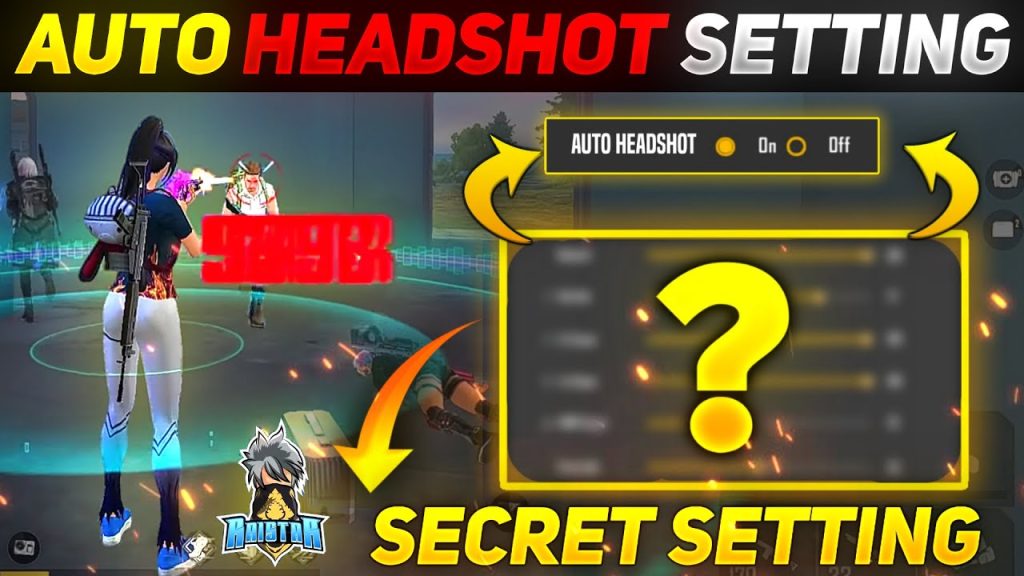
Aim assist is crucial for auto headshot. In the ‘Aim’ section of settings, set ‘Aim Assist’ to ON. Then, choose ‘Target Priority’ to ‘Closest’ or ‘Head’ – I recommend ‘Closest’ for more reliable snaps. Enable ‘Auto Aim’ as well (sometimes called ‘Lock On’). These settings will help drag your crosshair toward the enemy’s head when you ADS. Don’t worry, it won’t do all the work – you still need to aim, but it nudges you in the right direction.
For camera sensitivity (when you’re not shooting), set it to 90 as well. This matches your general sensitivity so that your view rotates at the same speed whether you’re running or shooting. Many pro player sensitivity settings use this trick for consistency.
Step 5: Test in Training Ground

Now it’s time to test. Jump into the Training Ground (tap the ‘Training’ button in the lobby). Grab an AR like the M4A1 or AK47. Practice flicking to the stationary targets’ heads – you should be able to snap to head level in one swipe. If you’re overshooting (going past the target), reduce General by 5. If you’re undershooting (too slow), increase by 5. Do this for both hip-fire and ADS.
Next, practice with moving targets. Try the small moving bots – they simulate enemy movement. Aim for the head and fire in bursts. If your crosshair bounces too much, lower the Red Dot sensitivity slightly. The goal is to feel smooth, like the crosshair is gliding onto the head. For a full step-by-step, check out our sensitivity settings tutorial which covers testing drills.
Step 6: Final Tweak in Real Matches

After training, play a few Classic or Ranked matches. Pay attention to close-range battles (where you need fast flicks) and long-range sprays (where control matters). If you find yourself losing close fights because you can’t turn fast enough, increase General by 5. If you can’t control spray at medium range, decrease Red Dot by 5 or increase your DPI setting slightly.
Remember, no sensitivity is perfect for everyone. These values are a starting point – adjust based on your playstyle. Aggressive players might prefer higher sensitivity (95-100), while defensive players might want lower (80-85). Our auto headshot settings for Redmi guide uses similar principles, so feel free to compare.
Common Pitfalls
- Setting sensitivity too high: Many players crank it to 100 thinking it helps flicks, but on Poco’s responsive screen it causes overshooting. Stick to 90-95 max.
- Ignoring aim assist: Some pros turn off aim assist, but for auto headshot you need it. Keep it on, but don’t rely on it completely – it’s a helper, not a crutch.
- Not testing enough: Changing settings and hopping into ranked immediately is a recipe for frustration. Spend at least 10 minutes in training ground before playing real matches.
Where to Next
You’ve got your sensitivity dialed in. Now take it to the battlefield and start landing those headshots! If you want to explore more, check out our guides on other devices or specific playstyles. We’ve got everything from aggressive style to solo mode sensitivity settings. And remember, consistency is key – stick with these settings for at least a week before making major changes. Good luck, and happy headshotting!