If you’re tired of getting caught off guard in Free Fire because you can’t see enemies on your sides or behind you without moving your character in a weird direction, it’s time to master free look. Free look lets you glance around while running in a straight line, and getting the sensitivity right is the difference between spotting a camper and running into an ambush. This guide is for casual and competitive players who want a practical, tested setup—no fluff, just steps that work.
By the end of this guide, you’ll have a free look sensitivity that feels snappy yet controlled, letting you scan the battlefield without losing your aim. We’ll cover the core settings, a drill to find your sweet spot, and common mistakes to avoid. Plus, we’ll point you to related resources like the competitive season sensitivity guide for even more fine-tuning.
What You’ll Need
- Free Fire app installed (latest version)
- A device with at least 4GB RAM for smooth performance
- A training ground or Clash Squad lobby to test settings
- 10–15 minutes of uninterrupted time
Step 1: Access the Sensitivity Settings Menu
Open Free Fire and tap on the gear icon at the top-right of the lobby screen. Navigate to the ‘Sensitivity’ tab. You’ll see sliders for General, Red Dot, 2x Scope, 4x Scope, Sniper Scope, and Free Look. We’re focusing on Free Look today, but other sliders also affect your overall feel—consider using a balanced sensitivity setup as a starting point.
Step 2: Set Free Look Sensitivity to a Baseline
Start with your Free Look slider at 70. This is a middle-ground value that works for most players. If you use a high DPI mouse (over 800 DPI on emulators) or a high touch sensitivity on mobile, you might prefer a lower value like 60. Keep your General sensitivity at 80–90 for now—this will affect how fast your screen moves during normal gameplay.
Step 3: Test in the Training Ground
Go to Training Ground and run forward. While running, swipe on the right side of your screen (free look area). Practice looking left, right, and behind you while maintaining your forward direction. If the camera moves too slowly, increase Free Look by 5. If it feels too jerky or disorients you, decrease by 5. Repeat until you can smoothly scan a 180-degree arc without losing your running path.
Step 4: Fine-Tune with Combat Drills
Now jump into a Clash Squad match (classic mode) and deliberately use free look in every engagement. For example, peek around corners using free look before you expose your body. If you find that your crosshair placement suffers when you return from free look, lower the Free Look sensitivity slightly. You can also combine this with your movement control sensitivity settings to ensure you don’t accidentally change direction while looking around.
Step 5: Save and Duplicate Your Settings
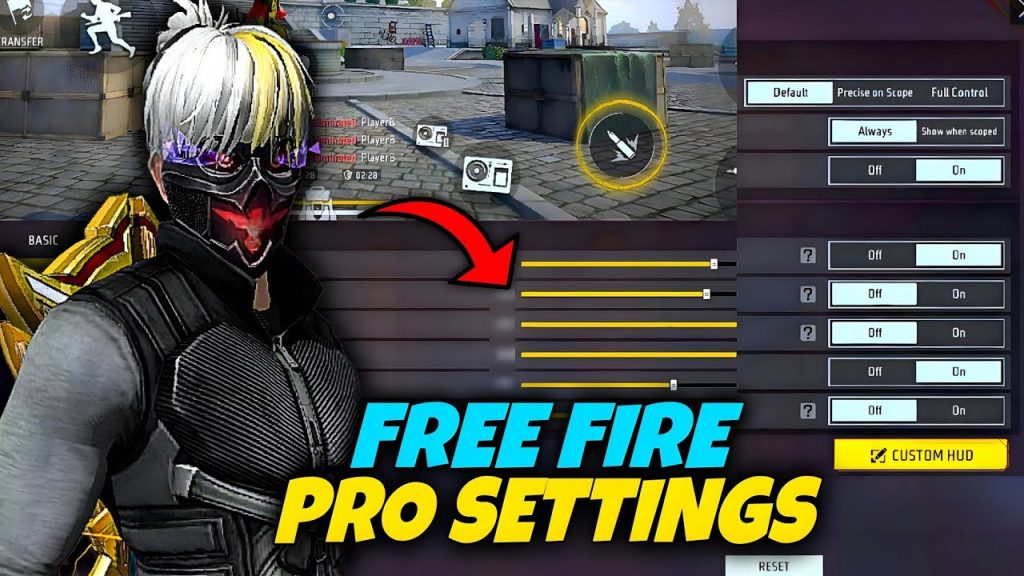
Once you’re happy, tap the ‘Save’ button. Take a screenshot of your settings in case you need to restore them. You can also duplicate free fire sensitivity settings to create a backup or share with friends. If you update the game later, check the sensitivity after new update guide to see if any sliders have changed.
Common Pitfalls
- Setting free look too high: A high sensitivity can make your view whip around so fast you lose your bearings. Stick to 70 or lower until you’re comfortable.
- Ignoring general sensitivity: Your general sensitivity affects how the screen moves after free look ends. If it’s too low or too high, you’ll overcorrect. Pair free look with an optimized sensitivity guide for consistency.
- Not practicing in real fights: Training ground is good, but real combat introduces stress. Test in Clash Squad to see if your settings hold up under pressure.
Where to Next
You’ve got your free look sensitivity dialed in. Next, refine your overall aim with our trusted sensitivity settings or check out how pros set up their controls for competitive play. If you’re on an older device, see our no-lag guide to keep performance smooth. Happy hunting!



