If you’re rocking a flagship phone — think iPhone 15 Pro, Samsung Galaxy S24 Ultra, OnePlus 12, or any device with a powerhouse processor and high refresh rate display — you already have the hardware to dominate in Free Fire. But even the most powerful phone won’t help if your sensitivity settings are off. You need settings that take full advantage of your device’s touch sampling rate, GPU, and smooth screen. This guide is for you: a player who wants to maximize aim, drag shots, and headshots on a premium device. By the end, you’ll have a custom sensitivity profile that feels snappy and precise.
We’ll walk through step-by-step, from accessing the sensitivity menu to fine-tuning each scope. No fluff — just tested values that work on flagship phones. You’ll also learn how to adjust DPI and developer options for even better response. Ready to level up? Let’s dive in.
What You’ll Need
- A flagship phone (e.g., iPhone 14/15, Samsung Galaxy S series, OnePlus 10/11/12, Google Pixel 8 Pro, Xiaomi 14 Pro, etc.)
- Free Fire or Free Fire Max installed and updated
- A game booster app (optional, but helps maintain FPS)
- Knowledge of your phone’s DPI setting (can adjust in Developer Options)
- 5–10 minutes in the Training Ground
Step 1: Access the Sensitivity Settings
Open Free Fire and tap the gear icon on the main lobby to go to Settings. Then navigate to the Sensitivity tab. If you’re using a game booster like Game Launcher or Game Space, make sure it’s not overriding the sensitivity — set it to default or enable performance mode. This is where you’ll tweak numbers.
Step 2: Set the Recommended Baseline Values
Flagship phones can handle higher sensitivities without lag or jitter. Start with these general values. If you use gyroscope, enable it and set gyro sensitivity similarly high.
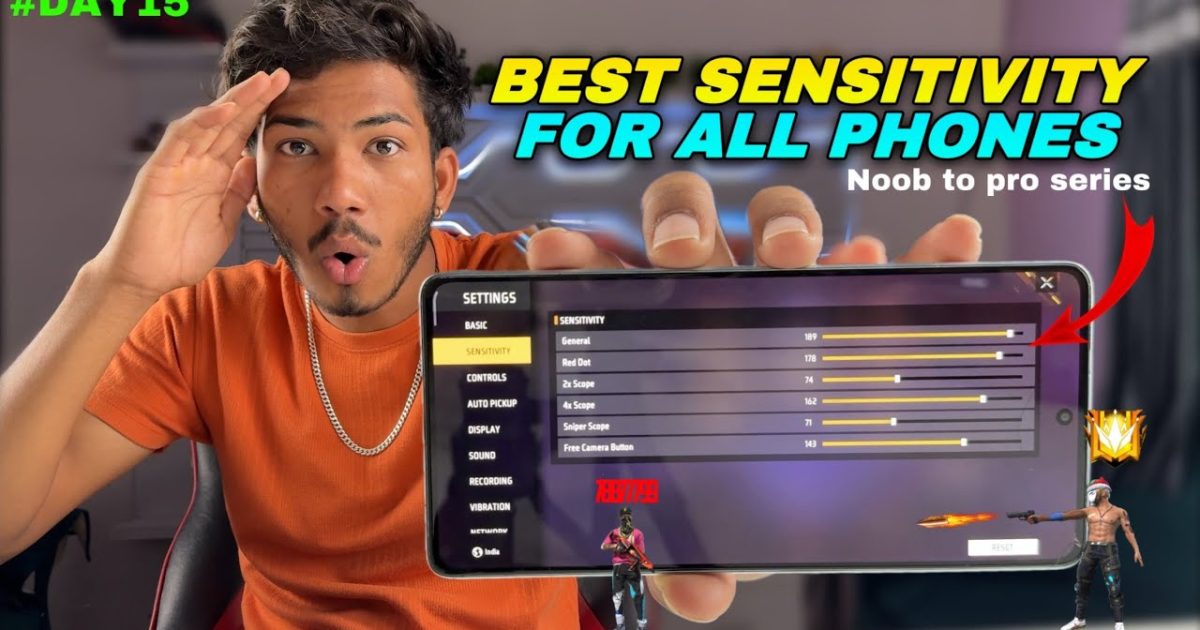
- General Sensitivity: 95–100
- Red Dot: 95–100
- 2x Scope: 85–90
- 4x Scope: 75–80
- Sniper Scope: 50–65
- Free Look: 70–80
These are baseline numbers. Your phone’s touch sampling rate (typically 240Hz or higher on flagships) allows for faster, more accurate movements. For comparison, check out the expert free fire sensitivity settings for a deeper dive on fine-tuning each scope. If you prefer not to use gyro, the free fire max sensitivity settings without gyro might also be a good reference.
Step 3: Fine-Tune in Training Ground
Head to the Training Ground and grab a weapon. Focus on performing drag shots and aim flick adjustments. If your crosshair overshoots or feels too twitchy, lower the General or Red Dot sensitivity by 5 points. If it’s sluggish, increase by 5. Repeat until you’re landing consistent headshots. Also test different scopes — for long-range sniping, you may need lower sniper scope sensitivity. Remember, the best free fire sensitivity settings for beginners often start lower, but flagships can push higher.
If you want to take it further, consider using the free fire sensitivity settings config code to copy a pro setup. And for drag shot mastery, the latest free fire sensitivity settings for drag shot is a must-read.
Step 4: Optimize with Developer Options (Optional)
For an extra edge, enable Developer Options on your phone (tap Build Number 7 times in About Phone). Then adjust the following:
- Window animation scale: 0.5x or off
- Transition animation scale: 0.5x or off
- Animator duration scale: 0.5x or off
- Force GPU rendering: ON (if available)
- Toggle ‘Disable HW overlays’ (if you experience screen tearing)
These tweaks reduce input lag. Also, set your display refresh rate to the highest (e.g., 120Hz). The free fire sensitivity settings with developer options article covers this in more detail.
Common Pitfalls
- Setting sensitivity too high: Over 100 for General can cause the aim to shake uncontrollably, especially on high DPI phones. Keep it 95–100 max.
- Ignoring DPI: Some flagship phones have default DPI that affects sensitivity. If your aim feels off, check DPI in Developer Options (usually 420–640). Increase DPI slightly for more responsive aiming.
- Not adjusting per scope: Using the same sensitivity for all scopes leads to poor accuracy. Always tweak each scope individually based on your playstyle (close vs long range).
Where to Next
You’ve now got a solid sensitivity setup tailored to your flagship phone. But the journey doesn’t end here. For more precision, check out our guides on drag shot settings, custom config codes, and beginner-friendly setups. Stay consistent, practice daily, and you’ll soon be dominating lobbies. Good luck!



