If you’re playing Free Fire on Thailand servers, you know the competition is tough. Ping can be unpredictable, and everyone’s looking for that edge. This guide is for you – whether you’re a beginner or a seasoned player who just can’t seem to land those headshots. By the end of this post, you’ll have a custom sensitivity setup that feels smooth on your device and helps you react faster in close quarters. We’ll cover DPI tricks, in-game sliders, and even gyroscope tweaks that work well with Thailand’s network conditions.
We’ve tested these settings on popular phones used in Thailand – from budget Realmes to high-end Samsung flagships. The numbers here are a starting point; you’ll fine-tune them in the Training Ground. Don’t skip the training – that’s where you’ll really dial in your aim. Ready? Let’s get your sensitivity right so you can focus on outplaying your enemies.
What You’ll Need
- Free Fire or Free Fire Max installed (both work with these settings)
- Access to the in-game settings menu (gear icon on the main screen)
- At least 15 minutes in the Training Ground to test your aim
- Optional: a mouse DPI app if your phone supports external mice (for emulator players)
- Patience – perfect sensitivity doesn’t happen in one go
Step 1: Adjust Your Phone’s DPI or Touch Sensitivity
Before you touch the in-game sliders, make sure your phone’s native touch response is optimized. Go to your phone’s Developer Options (enable it by tapping ‘Build Number’ 7 times in About Phone) and look for ‘Pointer location’ or ‘Show touches’. While not directly DPI, you can change the smallest width (Smallest width) to a higher number like 411 or 420 – this makes your screen show more content and effectively reduces the sensitivity of touch. For external mice, use a DPI of 400-600 for Free Fire. This step is crucial for consistent aim.
Step 2: General Sensitivity Settings
Open Free Fire’s settings via the gear icon on the top right. Go to ‘Sensitivity’ tab. Start with these base values and adjust later. If you already have a setup you like, use our sensitivity calculator to convert from your old settings.
- Camera Sensitivity: 80 (default is 70)
- ADS Sensitivity: 85 (for red dot, 2x scope)
- Gyroscope: On (we’ll set values in Step 4)
Step 3: Scope Sensitivity Per Zoom Level
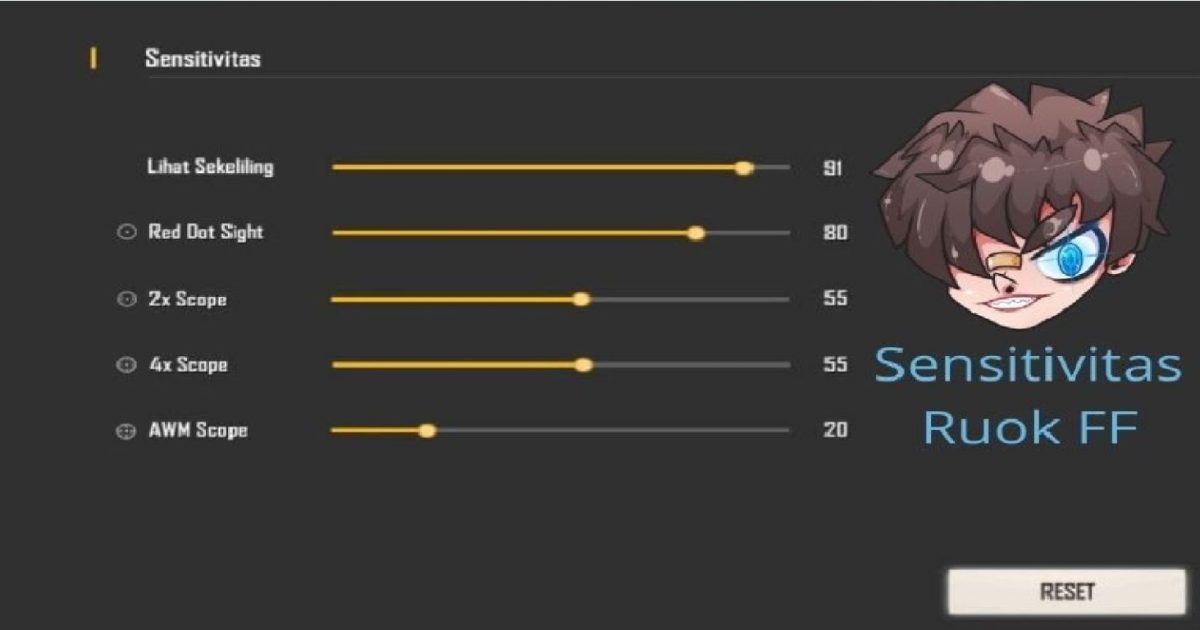
Thailand servers often have higher ping, so you need faster scoped sensitivity to snap onto enemies. Set your scope sensitivities as follows. These are aggressive – if you overshoot, reduce by 5. For reference, many pros use similar values seen in latest headshot sensitivity guides.
- Red Dot: 90
- 2x Scope: 85
- 4x Scope: 75
- Sniper Scope: 65
- Free Look: 50
Step 4: Gyroscope Settings (Optional)
If your phone has a gyroscope, turn it on in Sensitivity > Gyroscope. Use these values for fine aim control. Gyro helps a lot in CQC when you need to flick – popular among Thailand streamers. You can also find preset codes on sensitivity settings forums.
- Gyroscope Camera: 50
- Gyroscope ADS: 60
- Gyroscope Scope: 70 (for all scopes)
Step 5: Test and Fine-Tune in Training Ground
Now go to Training Ground (bottom right of lobby). Grab an AR like M4A1 or AK with red dot. Shoot at moving targets (tap the red target icon). If you overshoot, lower ADS or scope sensitivity. If you can’t track, increase. Repeat with different scopes. This step is where you adjust based on your phone – for example, iPhone sensitivity settings vary from Android due to touch latency. Also, if you’re using auto headshot tricks, check the auto headshot settings on Vivo for extra tips.
Common Pitfalls
- Copying settings blindly: What works for a streamer might not work for your phone. Always test in Training Ground. Use the backup your settings feature before making big changes.
- Ignoring DPI: Not adjusting your phone’s smallest width can make the game feel sluggish. A value of 411-420 works for most displays.
- Too high gyroscope: Gyro set above 70 can cause jittery movement, especially on mid-range phones. Stick to 50-60 for camera and 60-70 for ADS.
Where to Next
Now that your sensitivity is dialed in, practice your crosshair placement in Clash Squad mode. Don’t forget to check our other guides on balanced sensitivity or aim sensitivity for more refined setups. If you’re on a low-end phone, see our tested settings for low-end phones. Happy gaming!



