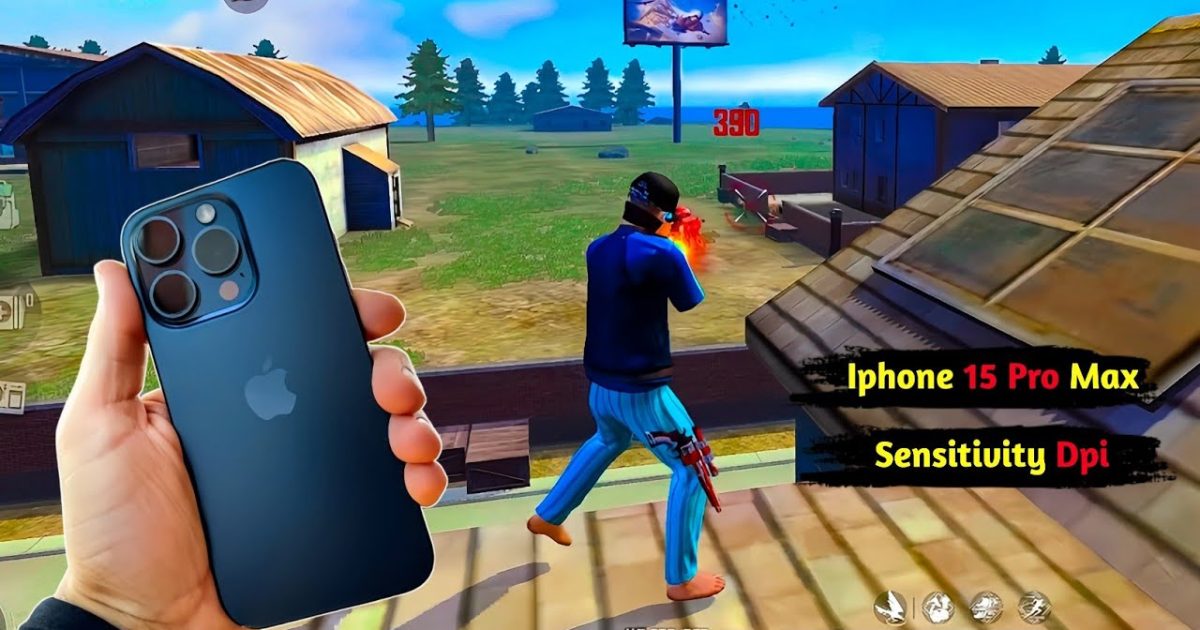
If you’re playing Free Fire Max on an iPhone, you know that smooth controls can make or break your game. Whether you’re a claw player, a thumb player, or just trying to up your headshot game, tweaking your sensitivity is the first step. In this guide, I’ll walk you through the exact settings I use and recommend for Free Fire Max on iOS devices. By the end, you’ll have a tuned setup that feels natural and helps you react faster.
These settings are based on extensive testing on iPhones with iOS 17+ and A12 Bionic chips or newer. They work great for both the standard and Max versions. We’ll start from scratch, so even if you’ve never touched sensitivity before, you’ll be fine.
What You’ll Need
- An iPhone running iOS 14 or later (Free Fire Max supports iOS 10+, but newer iOS gives better touch response)
- Free Fire Max installed (latest version from App Store)
- A stable internet connection (to avoid lag during testing)
- About 10 minutes of free time
- Optional: a friend for a training room lobby
Step 1: Open Free Fire Max and Go to Settings
Launch Free Fire Max on your iPhone. Tap the gear icon in the top-right corner of the main lobby to open settings. Then tap on “Sensitivity” from the left sidebar. This brings up all the sliders you can adjust. Make sure you’re in the sensitivity panel and not the controls panel.
Step 2: Reset to Default (Optional but Recommended)
If you’ve messed around with settings before, hit the “Reset” button at the top to start fresh. This ensures we’re all on the same page. Don’t worry — you can always import settings later using a free fire sensitivity settings import code if you want to go back.
Step 3: Adjust General Sensitivity
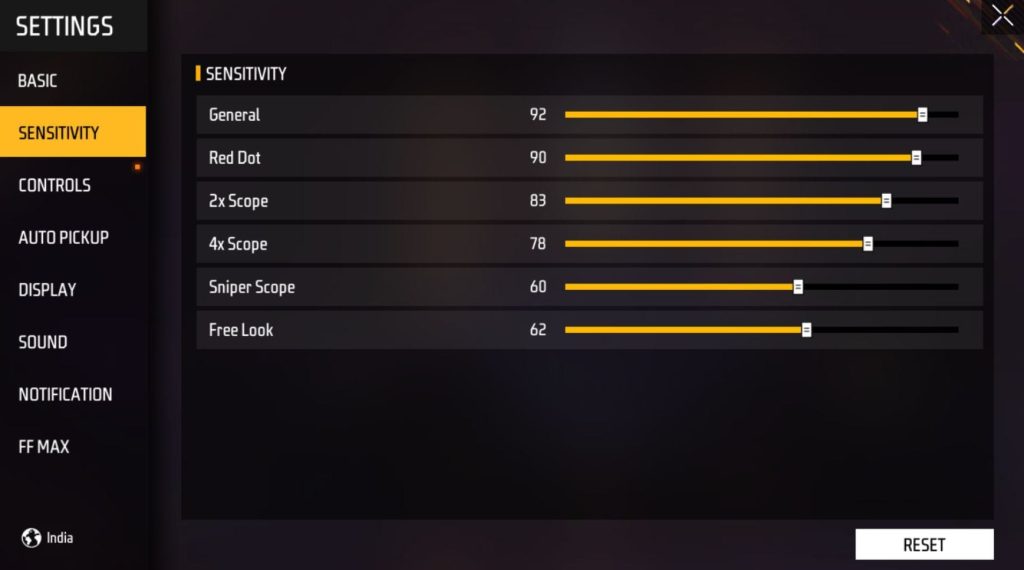
General is the most important slider — it controls your overall look speed when not aiming. For most iPhone players, I recommend starting at 85-90. If you have an iPhone with a 120Hz display (like the Pro models), you can go higher, up to 95. If your device is older, start at 80. Slide it and do a quick 360 in the lobby to see if it feels too fast or too slow.
Step 4: Adjust Red Dot and 2x Scope
For red dot (1x), set it between 70-80. This is your go-to for close to mid-range. For 2x scope, stay around 60-70. These values give you fine control for headshots without over-aiming. Remember, the higher the zoom, the lower the sensitivity should be. For a headshot-oriented setup, check out the free fire sensitivity settings for one tap headshot guide.
Step 5: Adjust 4x, AWM, and Free Look
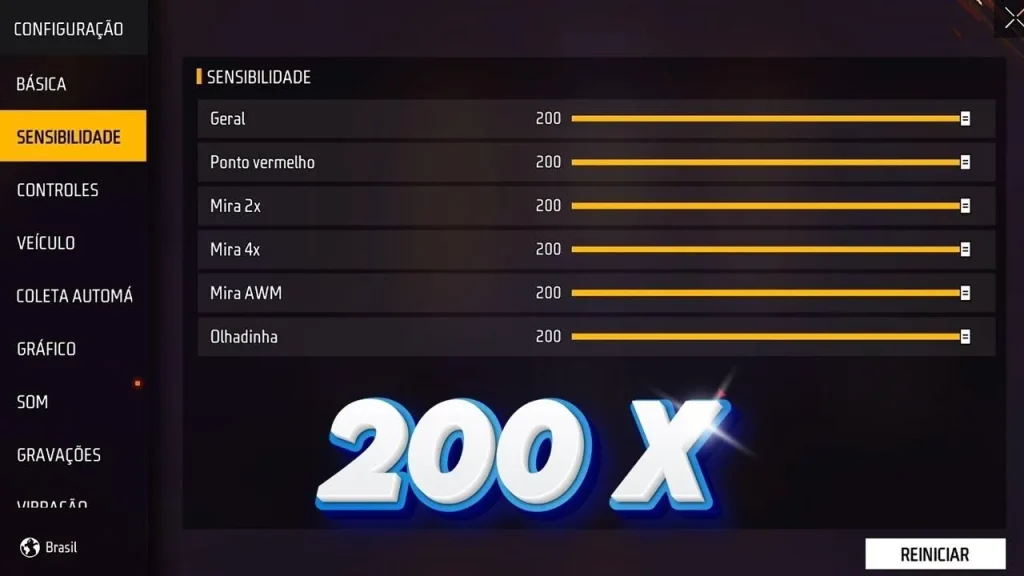
For 4x scope, start at 45-55. For AWM (sniper) scope, even lower — around 25-35. Free Look (the camera when you’re running) can stay at 80-85 — you want to be able to look around quickly while moving. If you play a lot of crouch-shots, you might want to tweak your general and red dot; see the free fire sensitivity settings for crouch shots guide for more.
Step 6: Test and Fine-Tune in Training Grounds
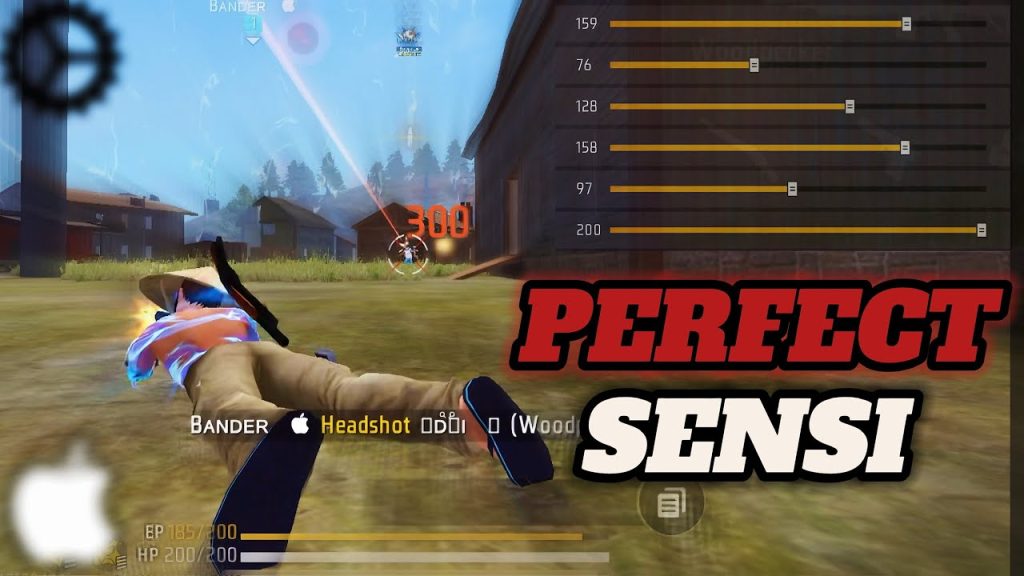
Now the fun part. Go to the Training Grounds and practice your aim on bots. Try strafing, flicking, and tracking. If you’re overshooting targets, lower your general or red dot by 5 points. If you’re under-rotating, bump them up. Also test with different weapons (AR, SMG, sniper) to see if scope sensitivities feel right. For a more balanced all-around setup, refer to the balanced free fire sensitivity settings guide.
Common Pitfalls
- Setting everything to 100. High sensitivity isn’t always better — it can make micro-adjustments impossible, especially on small iPhone screens.
- Ignoring device-specific factors. iPhones have different touch sampling rates. Newer models (iPhone 13 Pro and later) have 120Hz touch sampling, so you can handle higher values. Older models may need lower settings. Check the free fire sensitivity settings for high touch sampling guide for more.
- Forgetting to update after iOS updates. When Apple pushes a new iOS version, touch handling can change slightly. Always re-test your settings after an iOS update. We have a dedicated free fire sensitivity settings after ios update guide for this.
Where to Next
Now that you’ve dialed in your sensitivity, you might want to explore other aspects like HUD layout, gyroscope use, or aim training. For a proven starting point, check out the best free fire sensitivity settings for iphone post. Also, consider backing up your settings so you never lose them. Happy gaming!



