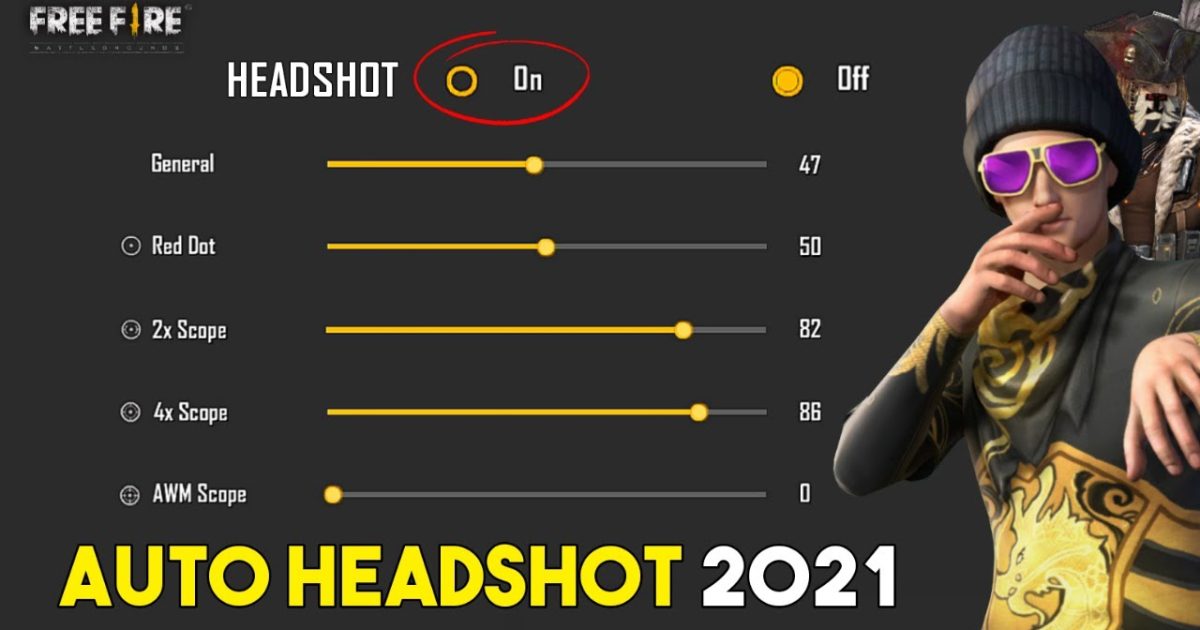
If you’re a Vivo user wanting to land more headshots in Free Fire (Free Fire Max), you’ve come to the right place. Auto headshot isn’t magic — it’s about pairing the right sensitivity settings with your phone’s gyroscope and a little practice. By the end of this guide, you’ll have a finely tuned setup that lets you snap to heads with minimal thumb movement.
This guide is made for beginners and intermediate players who own a Vivo phone (any model, but especially ones with a gyroscope). We’ll walk through enabling gyro, adjusting sensitivity, and using Vivo’s Game Space to reduce lag. You don’t need any third-party apps; everything is done inside Free Fire settings.
What You’ll Need
- A Vivo phone with gyroscope (most Vivo models from 2018 onward have it)
- Free Fire or Free Fire Max installed (latest version)
- A stable internet connection (Wi-Fi preferred)
- About 15–20 minutes for setup and practice
- Optional: screen recorder to review your aim
Step 1: Enable Gyroscope in Free Fire
Gyroscope (gyro) is the key to auto headshot. It lets you aim by tilting your phone instead of swiping. Open Free Fire, go to Settings > Sensitivity, and toggle ‘Gyroscope’ to ON. Most Vivo phones support gyro natively, but if you don’t see the option, check your phone’s motion sensor settings.
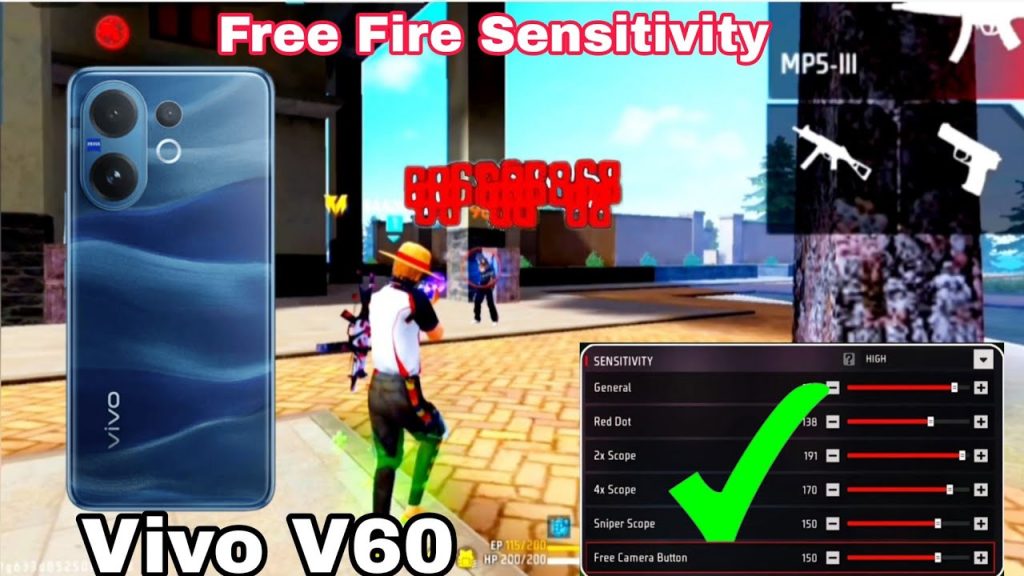
Once enabled, you’ll see gyro sensitivity sliders. Leave them at default for now; we’ll adjust later. If you’re new to gyro, start with ‘Always On’ mode (not ‘Scope Only’) to get used to it.
Step 2: Set General and Red Dot Sensitivity
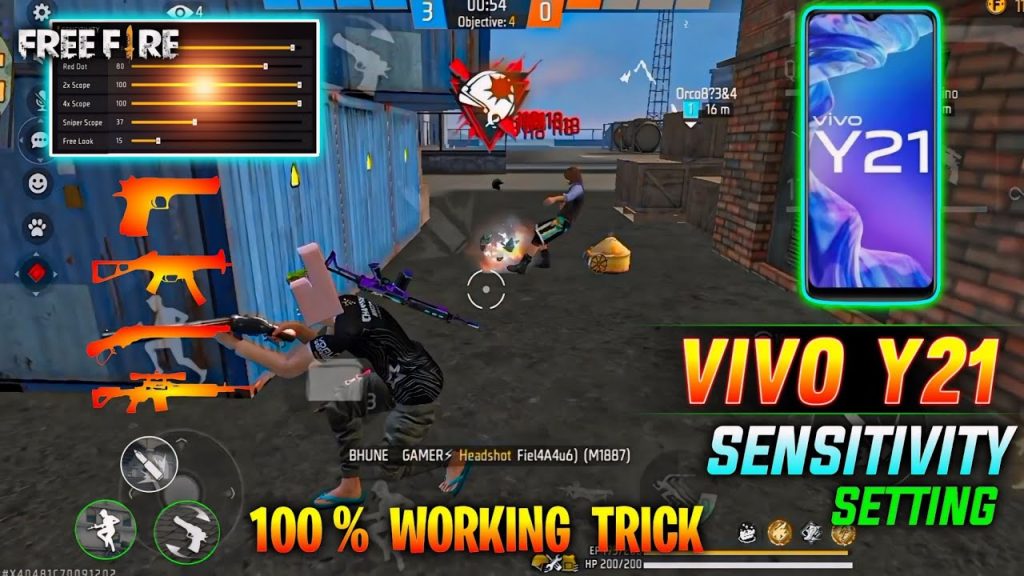
Auto headshot relies on quick vertical aim. In the same Sensitivity menu, set your ‘General’ sensitivity to 85–90 (for quick turnarounds) and ‘Red Dot’ to 70–75. These numbers work well on Vivo’s touch sampling. If you want more precision, check out the latest headshot sensitivity settings from our other guide.
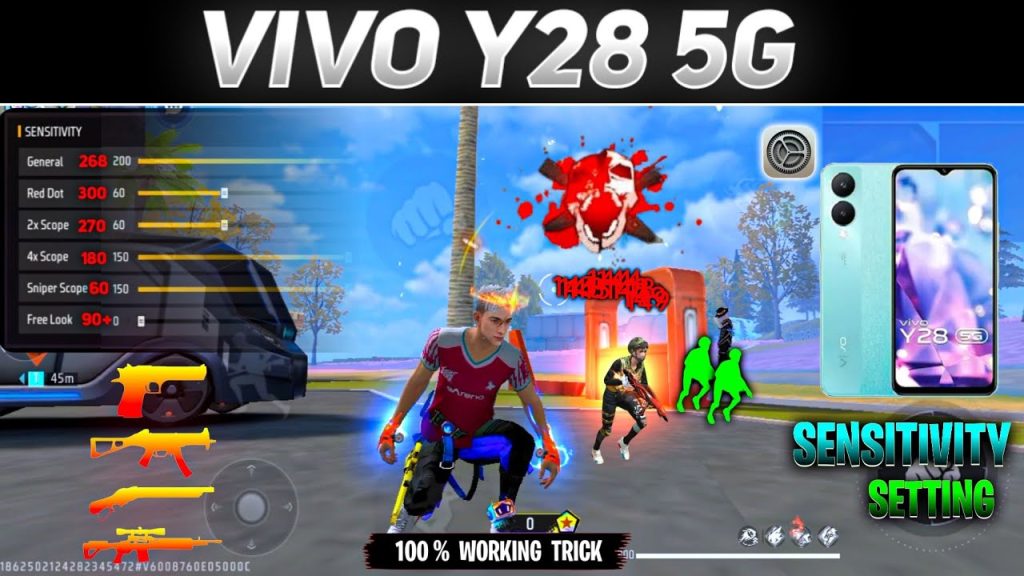
For scope (2x, 4x, etc.), keep them lower (40–50) to avoid overshooting. The goal is to snap to the head in one motion, not multiple tiny corrections.
Step 3: Calibrate Gyro Sensitivity for Vertical Aim
Now go to the ‘Gyroscope’ tab. Set ‘Gyro General’ to 30–35 and ‘Gyro Red Dot’ to 40–45. This means a slight tilt upward will move your crosshair to head level. For one tap headshot settings, many pros use 45–50 on gyro red dot. Test in Training mode: tilt your phone up and see if your crosshair jumps to head height from chest level.
Step 4: Configure Vivo Game Space for Performance
Vivo phones have a built-in game booster called ‘Game Space’. Open it, add Free Fire, and enable ‘Boost Mode’ and ‘Eagle Eye View’ for smoother touch response. Turn off notifications and set ‘Touch Sensitivity’ to High. This reduces input lag, making your gyro movements instant. For more on this, see our aim sensitivity settings guide.
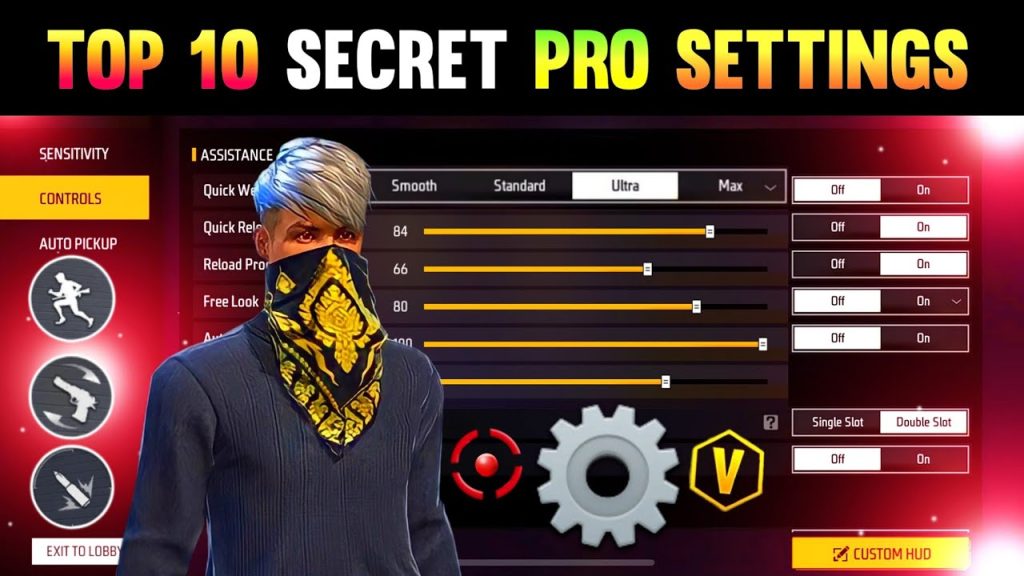
If your Vivo has a ‘Game Frame Rate’ option, set it to ‘High’ or ‘Ultra’ for 60 FPS. Consistent frames help you predict recoil and headshot angles.
Step 5: Practice in Training Mode and Clash Squad
Head to Training Mode, grab an M4A1 or AK with a red dot. Stand still and practice flicking to the dummy’s head using only gyro. Do 10 reps, then move and repeat. Once comfortable, try Clash Squad (ranked) against real players. Record your gameplay to see if you’re overshooting or undershooting. Adjust gyro sensitivity by ±2 until it feels natural. You might also want to check our crouch shot sensitivity settings — crouching while firing reduces recoil and keeps your aim on the head.
Common Pitfalls
- Over-sensitive gyro: If your crosshair flies past the head, lower gyro red dot by 5 points. Smooth, small tilts are better than jerky ones.
- Ignoring DPI settings: Vivo phones have different DPI scales. If your game looks too zoomed or small, adjust display DPI in Developer Options (set between 400–480). A balanced sensitivity guide can help you find the sweet spot.
- Forgetting to update: After each Free Fire patch, sensitivity values might reset or behave differently. Always check our post-patch sensitivity settings to stay updated.
Where to Next
You’ve got your auto headshot setup for Vivo. Now, fine-tune by exploring our one tap headshot settings and aim sensitivity settings. Join the Free Fire community on Reddit or Discord to share your sensitivity codes. Happy headshotting!



