If you’re rocking a gaming phone like ASUS ROG Phone 6, Red Magic 8 Pro, or Black Shark 5, you already have the hardware edge. But raw power isn’t enough — you need the right Free Fire sensitivity settings to turn that 165Hz display and ultra-low touch latency into headshots. This guide is for anyone with a dedicated gaming phone who wants to dial in their aim, reduce recoil, and dominate in Clash Squad or Battle Royale. By the end, you’ll have a personalized sensitivity profile that makes your phone feel like an extension of your reflexes.
We’re going step by step from general sensitivity to ADS and gyroscope. No blanket numbers — I’ll show you how to test and adjust based on your phone’s touch sampling rate and personal comfort. Whether you’re a thumb player or a claw grip demon, these tweaks will unlock your gaming phone’s full potential.
What You’ll Need
- A gaming phone with a high refresh rate (90Hz or higher) and touch sampling rate above 360Hz
- Free Fire app installed and updated
- A stable internet connection (ping below 30ms is ideal)
- Access to the Training Ground from the Free Fire lobby
- 10–15 minutes of uninterrupted time to test and tweak
Step 1: Access the Sensitivity Settings
Open Free Fire and tap the gear icon in the top-right corner of the lobby. Go to the “Sensitivity” tab. This is where all the magic happens. On gaming phones, you might also see an option to enable “High Frame Rate” — make sure it’s on because it reduces input lag.
Step 2: Set General Sensitivity
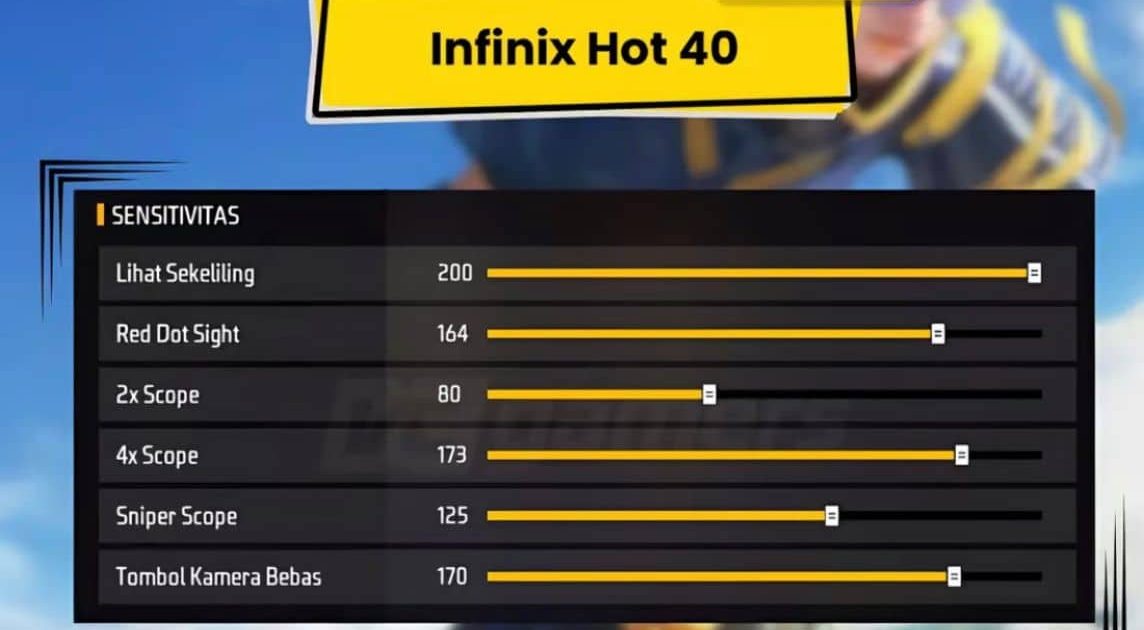
The General slider affects hip-fire camera movement. On a gaming phone with a fast display, start at 90 and move up to 100 if you feel it’s sluggish. I recommend 95 as a baseline — it’s fast enough to flick but not so twitchy that you overshoot. Remember, this is personal. If you need more control, lower it to 85. Check out our guide on the perfect sensitivity for more universal tips.
Step 3: Adjust Red Dot and 2x Scope
For close quarters combat, your red dot and 2x scope settings are crucial. Start with red dot at 75 and 2x at 65. If you run and gun a lot, bump them up by 5-10 points. Gaming phones with high touch sampling can handle higher values without jitter. For aggressive plays, our close range settings recommend even higher values. Test in Training Ground against moving bots.
Step 4: Enable and Tune Gyroscope (Optional)
If your gaming phone has a gyro sensor, use it. Gyro gives you fine-tuned aim control for long-range sprays. Go to the Gyroscope tab and turn it on. Start with 40 for general and 50 for red dot. The beauty of gyro is you can tilt your phone for micro-adjustments. Our gyroscope sensitivity guide dives deeper into this. Remember to calibrate your phone’s gyro first from the settings menu.
Step 5: Configure ADS Sensitivity for Each Scope
ADS (aim down sight) sensitivity should be lower than general for precision. I use: 4x scope – 50, Sniper scope – 30, Free Look – 70. For 8GB RAM phones like the Red Magic 7, you can push a little higher because there’s less frame drop. Tactical players often prefer lower ADS values for holding angles. The key is consistency — set and forget once you find the sweet spot.
Step 6: Test and Fine-Tune in Training Ground
Load the Training Ground and pick up an M4A1 or SCAR. Shoot at the 40m target without compensating. If the crosshair jumps wildly, your sensitivity is too high. If it barely moves, it’s too low. Adjust in increments of 5. Also test hip-fire tracking on running bots. Spend at least 10 minutes here — your no recoil sensitivity is within reach. Once you’re comfortable, take it into a real match.
Common Pitfalls
- Copying a pro’s settings blindly: Your phone’s touch sampling rate and screen size differ. What works on a Red Magic 8 might feel terrible on a Black Shark 5 Pro. Always start with a baseline and tweak from there.
- Ignoring your phone’s touch sampling rate: Gaming phones often have 360Hz to 720Hz touch sampling. A higher rate allows you to use higher sensitivities without lag. If your phone has lower sampling, reduce sensitivity by 10 points to avoid overshoot.
- Not testing with your primary weapon: People test with a pistol or a random AR. Always test with the gun you use most (e.g., M4, AK, or M1887). Recoil patterns vary, so adjust accordingly.
Where to Next
You’ve got the basics down. Next, check our guides on custom free fire sensitivity settings for advanced profiles, or stable free fire sensitivity settings if you want consistent aim across all matches. Remember, the perfect sensitivity is a journey — keep tweaking as you improve. See you on the battlefield!



