So you’ve got a Vivo phone and you’re ready to dominate Free Fire. But your aim feels off, your crosshair is either too twitchy or too sluggish. Don’t worry – we’ve all been there. This guide is for Vivo users who want to dial in the perfect sensitivity settings without spending hours in the training ground. By the end, you’ll have a set of numbers you can copy, test, and tweak to match your playstyle.
Whether you’re a casual player or grinding ranked, these settings will give you a solid foundation. We’ll cover general sensitivity, advanced DPI tweaks, and even touch on battery-saving optimizations. Plus, we’ll link to other helpful guides like the best free fire sensitivity settings for drag shot and free fire sensitivity settings for casual players. Let’s get your aim game-ready.
What You’ll Need
- A Vivo phone (any model from V7 to X series works).
- Free Fire or Free Fire Max installed (latest version).
- A steady internet connection (Wi-Fi preferred for consistent inputs).
- 10 minutes of free time to test settings in training ground.
- Optional: a DPI checker app if you plan to adjust system DPI.
Step 1: Reset Your Current Settings
Before we start, let’s clear any old settings that might interfere. Open Free Fire, go to Settings > Sensitivity, and tap “Reset to Default”. This gives you a clean slate.
Now head to the training ground so you can test changes in real time. It’s easier to fine-tune with a live target.
Step 2: Set Your General Sensitivity
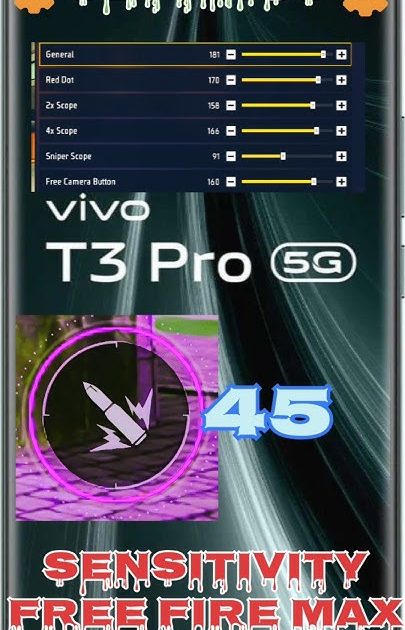
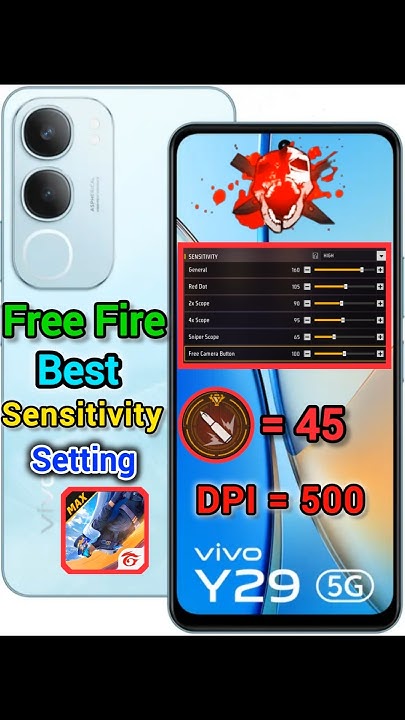
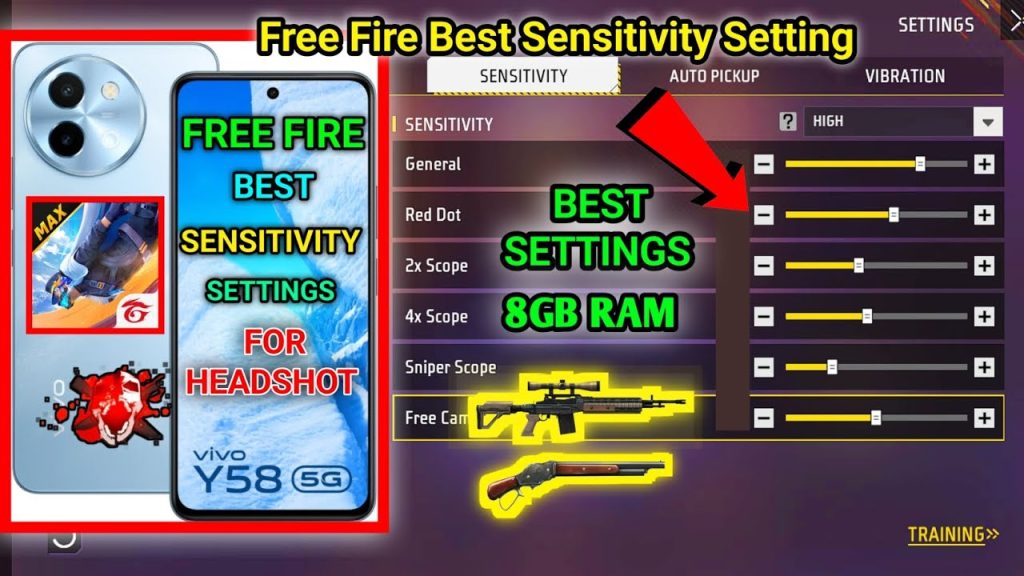
For Vivo phones, start with these general values (they work well on most Vivo displays):
- General: 85–90
- Red Dot: 75–80
- 2x Scope: 70–75
- 4x Scope: 65–70
- Sniper Scope: 40–45
- Free Look: 60–65
These numbers give you a fast but controllable aim. If you prefer a slower feel, drop them by 5 points. Vivo’s touch response is usually sharp, so lower sensitivities can help with accuracy. For assault rifle mains, check out the free fire sensitivity settings for assault rifle guide for AR-specific tweaks.
Step 3: Adjust Your DPI (Optional but Powerful)
Some Vivo models let you change the system DPI, which affects pointer speed outside the game. But inside Free Fire, we can use the in-game DPI setting (if available) or adjust via Game Space. If your Vivo has Game Space, set the touch sensitivity to “Custom” and increase it by 1 notch. This makes your taps more responsive without adding lag.
For those wanting extreme precision, the free fire max sensitivity settings with dpi guide dives deeper into DPI numbers. But a simple rule: higher DPI = faster flicks, lower DPI = steadier aim.
Step 4: Fine-Tune with HUD and Claw Setup
Your sensitivity isn’t complete without a solid HUD. If you play with 2 or 3 fingers (claw), you’ll need a layout that doesn’t block your view. Experiment with button placements until they feel natural.
We’ve got a dedicated guide on free fire sensitivity settings and hud combo that pairs perfectly with these numbers. Also, if you use a claw grip, check out the related claw combo guide.
Step 5: Test in Training Ground and Ranked
Spend 5 minutes in training ground. Shoot at moving targets, practice drag shots, and check your crosshair placement. If your aim overshoots, lower sensitivity by 5. If it feels sluggish, increase by 5.
Once comfortable, jump into a classic or ranked match. Play for a few rounds and adjust based on real combat. For drag shot specialists, the best free fire sensitivity settings for drag shot will help you refine further.
Common Pitfalls
- Copying Pro Settings Blindly: What works for a streamer with a gaming phone might not work on your Vivo. Always start from defaults and adjust gradually.
- Ignoring Battery Optimization: High sensitivity can drain battery faster. If you’re concerned about battery life, check out the free fire sensitivity settings for battery saving guide to find a balance.
- Not Testing in Real Matches: Training ground is good, but in-game lag and pressure affect your aim. Always run a few real matches before finalizing.
Where to Next
You’ve now got a solid sensitivity foundation for your Vivo. But don’t stop here – explore other aspects like movement, weapon mastery, and team coordination. And if you ever switch phones, check out the free fire sensitivity settings for samsung galaxy or oppo guides. Happy hunting!



