If you’re grinding Free Fire scrims, you know that stock sensitivity won’t cut it. Scrim matches are faster, more coordinated, and every split-second counts. This guide is for players who already have the basics down but need that extra edge in competitive lobbies. By the end, you’ll have a custom sensitivity profile that balances speed for flick shots and control for spray transfers — all tested in real scrim conditions.
We’re not just throwing numbers at you. We’ll walk you through why each setting matters in a scrim context, how to adjust for your phone’s refresh rate (especially if you have a 120Hz display), and where to test without wasting time. Plus, we’ll link to related guides so you can dive deeper into specific areas like sensitivity settings for pro players or movement sensitivity settings.
What You’ll Need
- Free Fire or Free Fire Max installed on your device.
- At least 15 minutes of uninterrupted training ground time.
- A buddy or second account to test in a custom room (optional but helpful).
- The latest version of the game — check the app store for updates before starting.
- Knowledge of how to change sensitivity settings (if not, check that guide first).
Step 1: Reset Your Sensitivity to Default
Before you tweak anything, reset your sensitivity to default. This clears out any previous experiments and gives you a clean slate. Scrim settings need to be deliberate; you don’t want leftover noise from a past setup.
Step 2: Adjust General Sensitivity
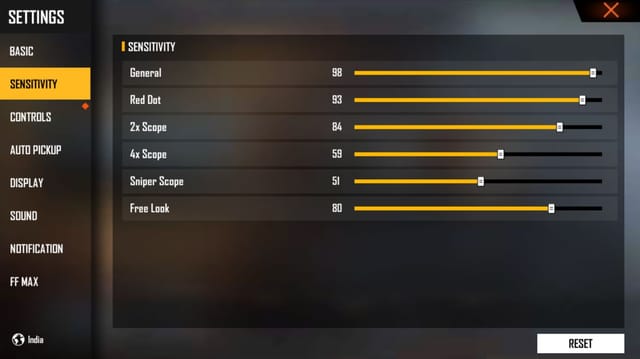
General sensitivity controls your overall look speed. For scrims, you want it high enough to react to flanks but not so high that you overshoot. Start at 85-90 if you have a 90Hz+ phone; drop to 75-80 for 60Hz screens. Play a few rounds in training ground and adjust by 5 points until you can track a moving target smoothly without jittering.
Step 3: Fine-Tune Red Dot and 2x Scope
In scrims, your primary weapon is usually an AR with a red dot or 2x scope. Set red dot sensitivity between 70-80 and 2x scope between 85-95 — the higher zoom needs more speed to compensate. Test spray control on the wall at 50m. If your crosshair drifts, lower it by 5; if you can’t react fast enough, raise it. For long range sensitivity, you’ll want lower values (50-60) for 4x and sniper scopes.
Step 4: Set Your Movement and Sniper Sensitivities
Movement sensitivity affects how fast you can look while running, sliding, or jumping. For scrims, keep it slightly lower than general (70-80) to avoid dizzying movements during close-range fights. Sniper scope sensitivity should be around 40-50 for AWM and Dragunov — high enough to drag scope but low enough for stable aim. Check out the sniper scope sensitivity and movement sensitivity settings guides for more refined numbers.
Step 5: Test in Training Ground and Scrims
Now it’s time to stress-test. Hop into training ground for 10 minutes: practice flick shots, wall sprays, and tracking moving bots. Then play at least 2 scrim matches. Don’t change settings mid-game; note what felt off and adjust afterwards. These settings have been sensitivity settings tested on Android and proven effective in real scrims.
Common Pitfalls
- Copying pro settings blindly: Your phone’s touch latency, screen size, and refresh rate are unique. Always start from default and adjust in your own device.
- Ignoring DPI: Some players change DPI via developer options. If you do, divide your sensitivity by the DPI factor — otherwise you’ll be way too fast.
- Over-adjusting after one bad game: Scrim losses happen for many reasons. Stick with a setup for at least 5 matches before making changes. Muscle memory takes time.
Where to next? Dive into the full sensitivity settings for pro players guide for more advanced tweaks, or check out the long range sensitivity page to dominate open-field fights. If you switch devices often, learn how to share your sensitivity settings easily. And if you’re on a 120Hz screen, don’t miss the dedicated 120Hz sensitivity guide.