If you’re rocking a 4GB RAM phone, you know the struggle: you want crisp, flick-shots, but the game stutters and your aim goes haywire. This guide is for you – the casual or competitive Free Fire player who wants to dial in sensitivity settings that work with your device’s limitations, not against them. By the end, you’ll have a tailored set of values that keep your crosshair steady, your FPS decent, and your kill count climbing.
We’re not just throwing numbers at you – we’ll walk through the why behind each setting, how to adjust graphics first to free up RAM, and a few extra tricks to squeeze out that extra smoothness. No need to copy pro sensitivity settings blindly (your phone isn’t a ROG Phone). Let’s get you aiming like a pro on a budget.
What You’ll Need
- A 4GB RAM Android phone (or iPhone with similar RAM)
- Free Fire or Free Fire Max installed
- Stable internet connection (Wi-Fi preferred)
- Optional: Game booster app (like Game Turbo or Game Space)
- A few minutes in the Training Room to test settings
Step 1: Optimize Graphics Before Sensitivity
Sensitivity settings mean nothing if your game is running at 15 FPS. First, go to Settings → Graphics and set the following: Quality: Smooth, FPS: Ultra (or High if Ultra isn’t available). Enable High FPS Mode if present. This reduces GPU load and gives you a cleaner baseline for aiming. If you see a “Stable FPS” option, turn it ON – it prevents frame drops during intense fights.
If you have a game booster, enable performance mode to prevent thermal throttling. These steps alone can fix 80% of your aim issues. For more details, check out our stable FPS settings guide for additional tweaks.
Step 2: Reset Your Sensitivity to Default
If you’ve been messing with settings, start fresh. Go to Settings → Sensitivity → Reset. This clears any conflicting values. Don’t worry – you’ll input the optimized numbers in the next step. Starting from a clean slate prevents old, lag-inducing presets from interfering.
Step 3: Input the 4GB RAM Optimized Sensitivity Numbers
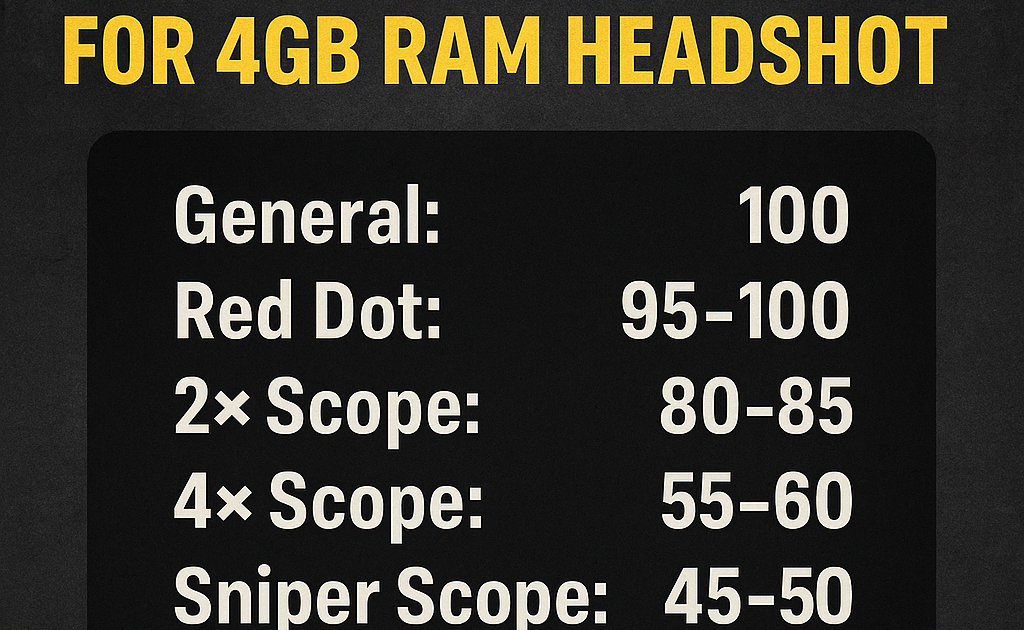
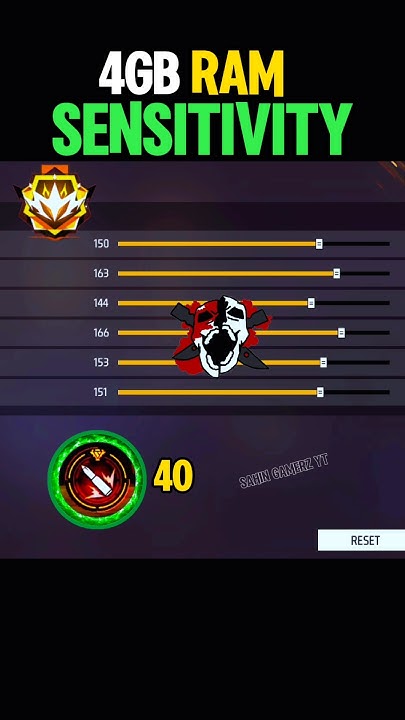
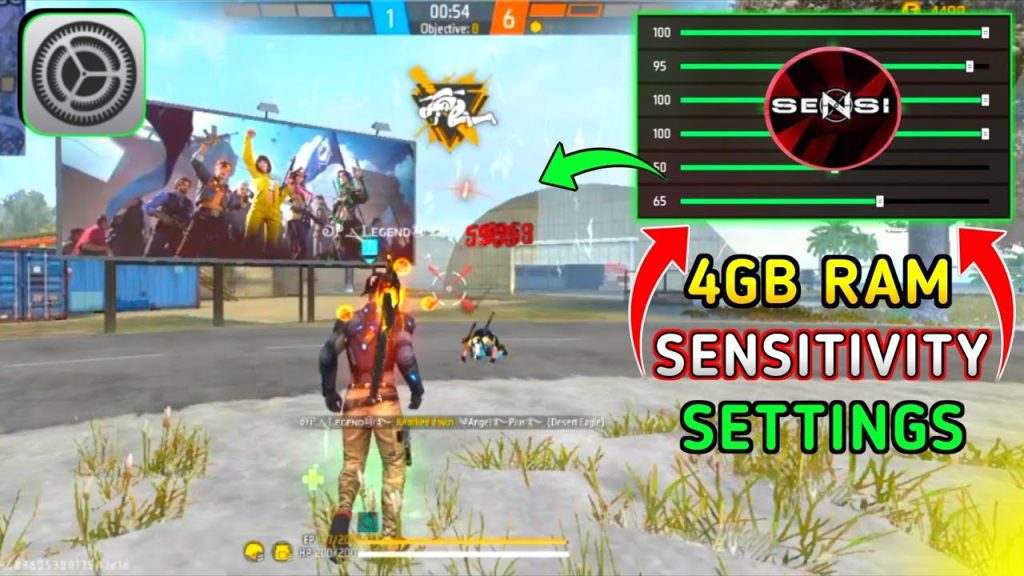
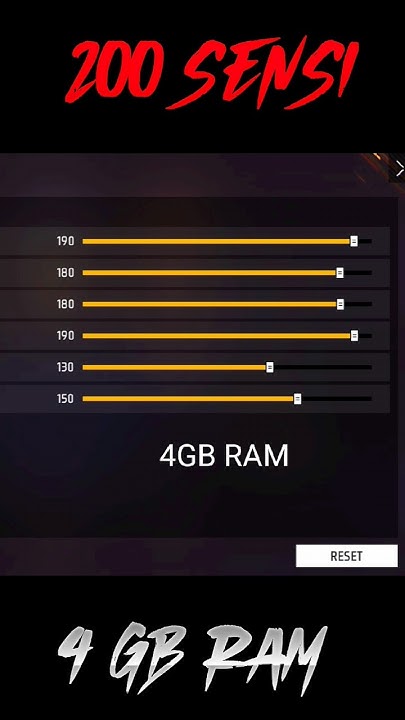
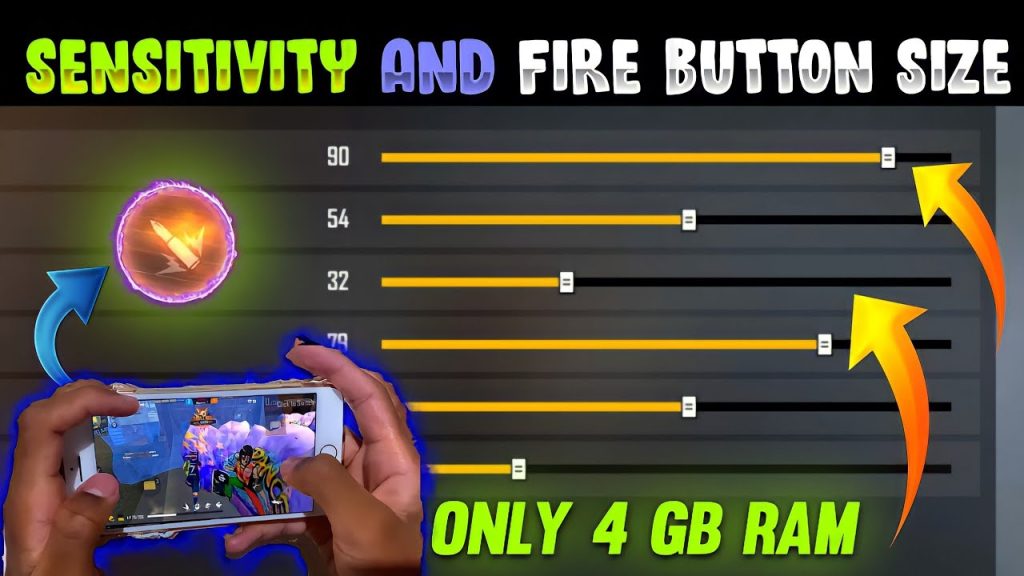
Here are the values that strike the best balance between speed and control on a 4GB device. Copy them exactly, then test in the Training Room. Adjust +/-5 if it feels too fast or too slow.
- General: 80
- Red Dot: 75
- 2x Scope: 70
- 4x Scope: 55
- Sniper Scope: 40
- Free Look: 60
Why these numbers? Lower scope magnification = higher sensitivity for quick close-range flicks, while higher scopes get tighter for long-range precision. This combo minimizes excessive camera movement that can cause lag spikes. For a deeper dive, see our how to set sensitivity guide.
Step 4: Fine-Tune Gyroscope (Optional)
Gyro can make micro-adjustments easier, but it also adds CPU load. If you have 4GB RAM, use gyro sparingly. Enable it in Settings → Gyroscope, then set these values: General: 40, Red Dot: 35, 2x: 30, 4x: 20, Sniper: 10, Free Look: 30. If your phone feels warm, turn gyro off entirely.
Step 5: Test and Adjust in Training Room
Hop into the Training Room. Practice flicking to stationary targets, then moving targets. If your aim overshoots, lower General sensitivity by 5. If it feels sluggish, increase by 5. Also adjust your fire button size to 50% and transparency to 70% so it doesn’t block your view. The goal is a setup that feels natural without causing frame drops.
Common Pitfalls
- Skipping graphics optimization – high graphics eat RAM and ruin sensitivity. Always set to Smooth + Ultra FPS first.
- Blindly copying pro sensitivity numbers – pros use high-end devices. Our weak processor settings page explains why lower values work better for 4GB phones.
- Forgetting to save – after changing sensitivity, tap the checkmark. Many players exit and lose their tweaks.
Where to Next?
Now that your sensitivity is dialed in, master your aim with our pro sensitivity settings for advanced techniques, or try our camera control sensitivity guide for smoother scanning. If you want even more fine-tuning, the max sensitivity for android settings can push your limits – but remember, 4GB RAM has its ceiling. Happy hunting!



