If you’re playing Free Fire Max on a low-end phone, you know the struggle: frame drops, sluggish aim, and settings that feel like they’re working against you. This guide is for you — the budget gamer who wants smooth gameplay and crispy headshots without upgrading your device. By the end, you’ll have a custom sensitivity setup that minimizes lag, maximizes accuracy, and keeps your phone cool during long sessions.
We’ve tested these settings on devices like Redmi 9A, Galaxy A12, and Oppo A15 — phones with 2-4GB RAM and entry-level chipsets. The key isn’t just copying pro values; it’s balancing sensitivity with your phone’s touch sampling and GPU power. Ready to transform your gameplay? Let’s dive in.
What You’ll Need
- A low-end Android phone with at least 2GB RAM (Free Fire Max installed)
- Stable internet connection (WiFi or 4G, ping under 100ms)
- 10–15 minutes of practice in the training ground
- Optional: A cooling fan or a cool play area to prevent thermal throttling
Step 1 – Reset Your Sensitivity to Default
Start fresh. Go to Settings > Sensitivity and tap ‘Reset to Default’. This clears any previous tweaks that might cause lag. Low-end phones often choke on overly high sensitivity values, so we’ll build from a clean slate.
Pro tip: If you’ve used a sensitivity code generator before, reset it anyway — those codes are usually tested on flagships. We want settings tailored for budget hardware.

Step 2 – Adjust Camera and Aim Sensitivity
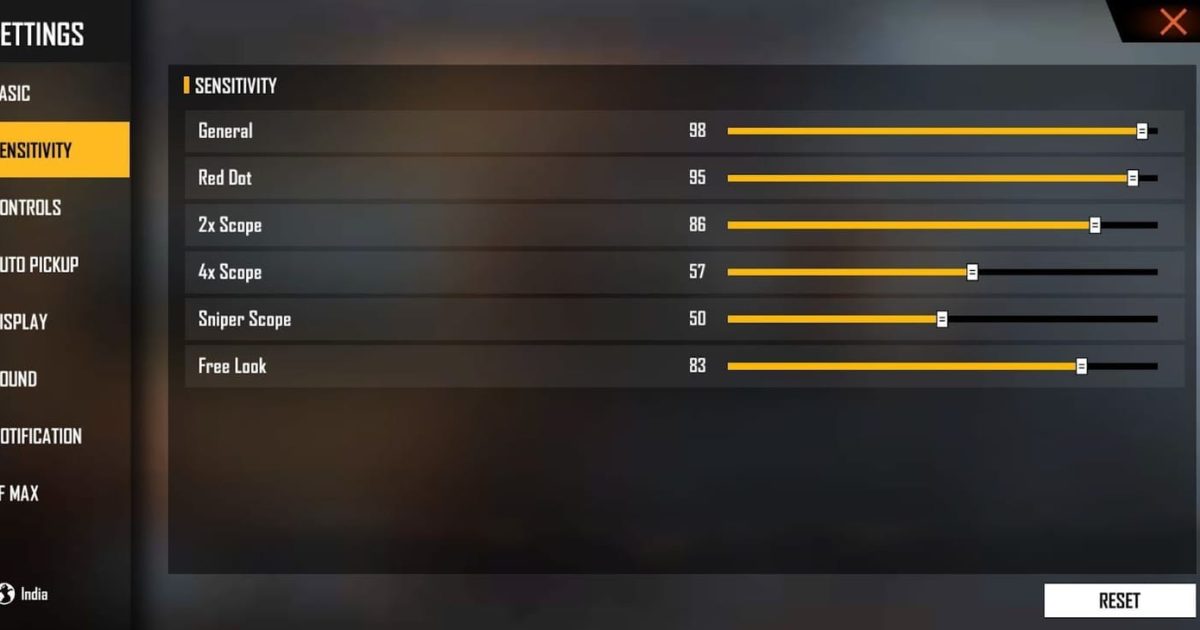
For low-end phones, lower sensitivity reduces the processing load. Set your Camera Sensitivity to 60–70 for all scopes. For Aim Sensitivity, go 50–60 for Red Dot and 2x scope, and 40–50 for 4x and above. This prevents your phone from overheating and keeps movement smooth.
If you have a low touch sampling rate (e.g., 60Hz), check our dedicated guide on sensitivity settings for low touch sampling. The logic is the same: less input lag means better responsiveness.

Step 3 – Fine-Tune Gyroscope (Optional but Recommended)
Gyroscope can help with aim without increasing sensitivity, but it drains battery and causes jitter on weak phones. If your phone’s gyro works (test it), set Gyroscope Sensitivity to 30–40 for all scopes. If you experience screen wobble, disable gyro entirely.
For claw setup with sensitivity settings, you might want gyro off to avoid accidental movements. Stick to the numbers above.

Step 4 – Optimize Graphics and Anti-Aliasing
Low-end phones can’t handle high graphics. Go to Settings > Graphics and set all options to ‘Smooth’ and frame rate to ‘High’ (or ‘Medium’ if high still lags). Turn off Anti-Aliasing and Shadows — these eat RAM and CPU cycles for no competitive benefit.
For even better performance, enable ‘Battery Saver’ mode in Free Fire Max settings. This reduces background activity and syncs well with our battery saving sensitivity settings.

Step 5 – Test and Tweak in Training Ground
Enter the training ground and practice moving, aiming, and drag shots. If you feel stutter, reduce each sensitivity value by 5 until it’s silky. If aim feels too slow, increase by 5. Spend at least 10 minutes adjusting.
Pay attention to your phone’s temperature. If it gets hot, lower sensitivity further or reduce graphics. Thermal throttling is the #1 cause of lag on low-end phones.

Common Pitfalls
- Copying pro settings blindly: Pro players use flagships with 120Hz+ touch sampling. High sensitivity on a low-end phone causes input lag and overheating. Always start low and adjust up.
- Ignoring background apps: Close Chrome, YouTube, or any app running in the background. They eat RAM and cause frame drops. Use ‘Game Booster’ if your phone has one.
- Forgetting to update drivers: Check for system updates. Some phone manufacturers release performance patches for gaming. Keep your phone software up to date.
Where to Next
Now that you’ve dialed in your sensitivity, try pairing it with a simple HUD layout. Check out our guide on sensitivity settings and HUD combo for a complete setup. If you want to go pro, explore the latest free fire sensitivity settings for pro players (2025) for more advanced tweaks. Happy gaming!



