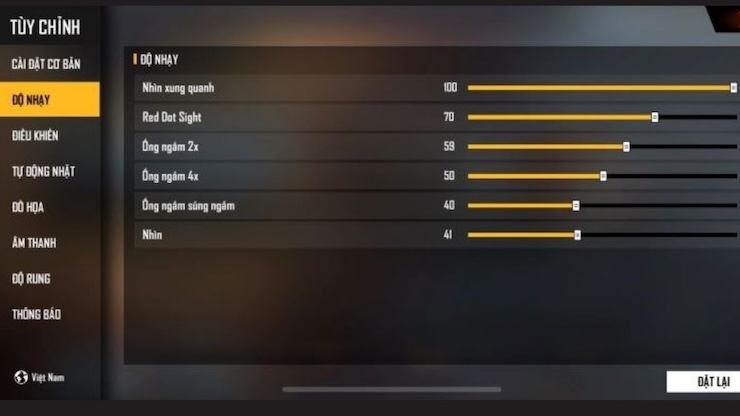
If you’re playing Free Fire in Vietnam, you know how competitive the server can be. Everyone’s looking for that edge to climb ranks and land more headshots. This guide is for Vietnamese players who want to fine-tune their sensitivity settings to match local conditions—like device variety (Oppo, Vivo, Samsung) and playstyle preferences (drag shot, quick scope, or gyro). By the end, you’ll have a custom sensitivity profile that feels right for your phone and helps you react faster in intense fights.
We’ll walk you through adjusting general sensitivity, scope sensitivity, and gyroscope settings, plus share a few codes you can copy. No prior experience needed—just follow the steps, test in the training ground, and tweak until it clicks. Let’s get your aim on point.
What You’ll Need
- A phone running Free Fire or Free Fire Max (any model).
- At least 30 minutes of free time to test settings in the training ground.
- A stable internet connection (4G or Wi-Fi).
- Optional: a second device to record your gameplay for later review.
- Optional: a sensitivity code from a pro player for reference.
Step 1: Access the Sensitivity Menu
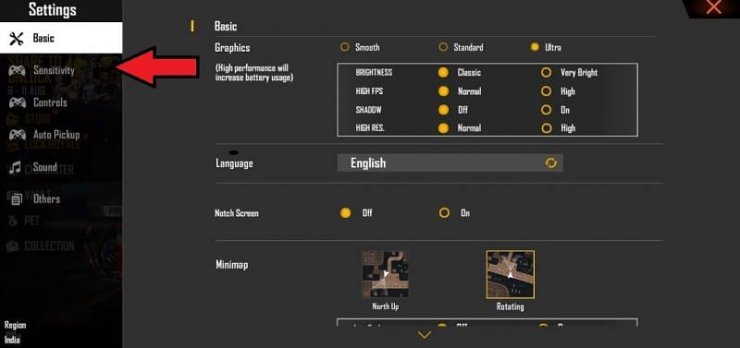
Open Free Fire and tap the gear icon in the top-right corner to open Settings. Navigate to the ‘Sensitivity’ tab. You’ll see sliders for General, Red Dot, 2x Scope, 4x Scope, Sniper Scope, and Free Look. Below that, there’s a Gyroscope section. Take a screenshot of your current settings so you can revert if needed.
Step 2: Set General Sensitivity Based on Your Device
For most phones in Vietnam (Oppo, Vivo, Samsung mid-range), a good starting point is General Sensitivity between 85 and 90. If you have a low-end phone with touch sampling issues, start lower (70-80) to avoid overcorrection. Tap the slider and adjust. For devices with high touch sampling (like gaming phones), you can go 90-100. Check our guide on low touch sampling settings if your phone feels laggy.
Step 3: Optimize Scope Sensitivities for Close and Long Range
Red Dot and 2x Scope should be slightly lower than General (e.g., 75-80) for better control during spray. 4x Scope and Sniper Scope should be even lower (40-50) for stability when sniping. If you prefer quick scoping, use our quick scope settings as a baseline. For drag shot lovers, our drag shot settings can help you land those flick shots.
Step 4: Enable and Tweak Gyroscope (Optional)
If your phone has a gyro sensor, turning it on can improve aim without moving your thumb. Set Gyroscope to 80-100 for all scopes. For beginners, start at 50 and increase gradually. This works great with our gyro combo settings. Remember to calibrate your gyro in the phone settings first.
Step 5: Test in Training Ground and Save Your Code
Head to the Training Ground and practice with different weapons. Adjust sliders if you over-aim or under-aim. Once satisfied, go back to Settings > Sensitivity and tap ‘Copy Code’. Save it somewhere safe. You can also use our saved sensitivity code to load a preset quickly. If you ever mess up, learn how to restore sensitivity settings.
Common Pitfalls
- Setting sensitivity too high: Many players copy pro settings without adapting to their phone. High sensitivity on a low touch-sampling device causes overcorrection. Start low and increase slowly.
- Ignoring gyroscope calibration: If gyro feels off, your phone’s gyro might need calibration. Check your device settings for ‘gyro calibration’ before tweaking in-game.
- Not testing in real matches: Training ground is great, but movement and lag differ in BR or Clash Squad. Play a few unranked matches to see if settings hold under pressure.
Where to Next
Now that your sensitivity is dialed in, you can focus on other aspects of your game. If you’re aiming for Heroic rank, try our heroic rank sensitivity settings. For more control, check out our guides on claw setup and DPI settings. Remember, consistency is key—stick with these settings for at least a week before making big changes. Happy gaming, Vietnam!