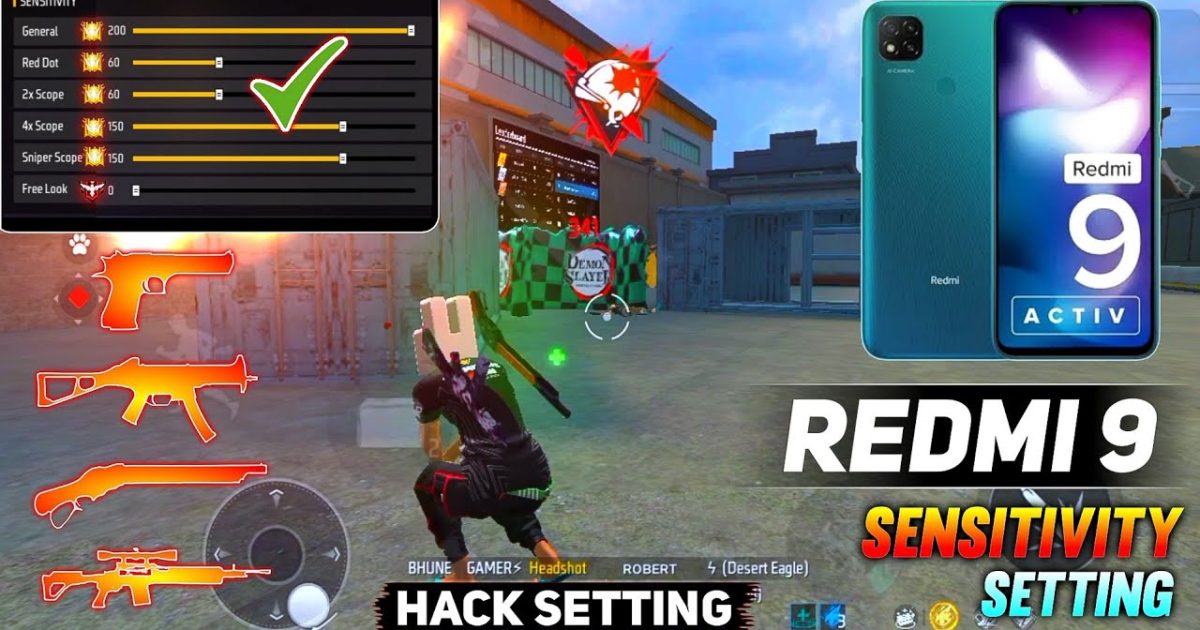
If you’re rocking a Redmi phone and want to land more headshots in Free Fire, you’ve come to the right place. This guide is for Redmi users who want to fine-tune their sensitivity settings to get that sweet auto headshot – the kind where your reticle just snaps to the enemy’s dome. By the end of this post, you’ll have a proven sensitivity config, know exactly how to apply it, and understand the little tweaks that make Redmi screens extra responsive. No nonsense, just results.
Auto headshot isn’t really automatic – it’s about muscle memory and settings that let your crosshair glide to the head without overcorrecting. Redmi phones have touchscreens that can be a bit different from other brands, so we’ve tailored these numbers for Redmi Note 10, Redmi Note 12, Redmi 12, and similar models. You’ll be popping heads in no time – just follow each step carefully.
What You’ll Need
- A Redmi phone (any model, but tested on Redmi Note 10/12 and Redmi 12)
- Free Fire installed and updated to the latest version (v1.98.0 or later)
- Patience – you’ll need to test in the training ground or a few casual matches
- A stable internet connection (ping below 100ms ideal)
- Optional: a screen recorder to review your aim later
Step 1: Access the Sensitivity Settings
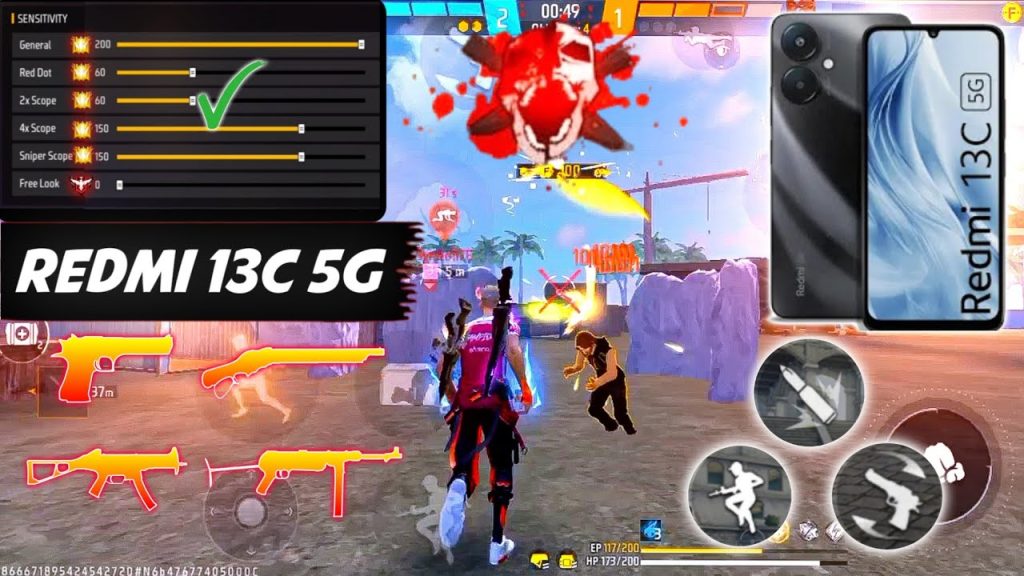
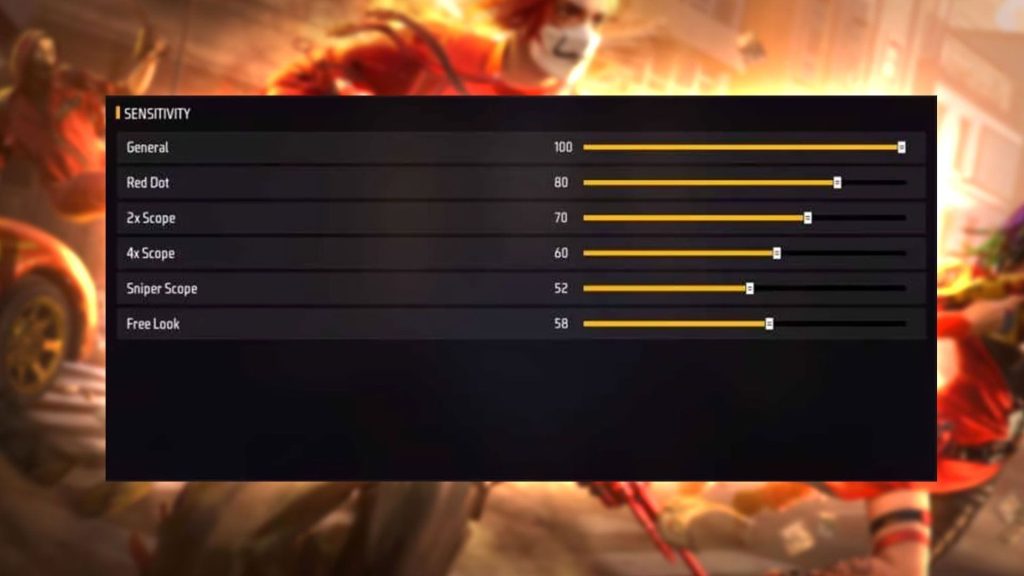
Open Free Fire, tap the gear icon in the top‑right corner of the lobby, then go to ‘Sensitivity’ under the ‘Controls’ tab. You’ll see sliders for General, Red Dot, 2x Scope, 4x Scope, Sniper Scope, and Free Look. Don’t touch Free Look – we’re focusing on aim sensitivity.
Step 2: Set the General Sensitivity
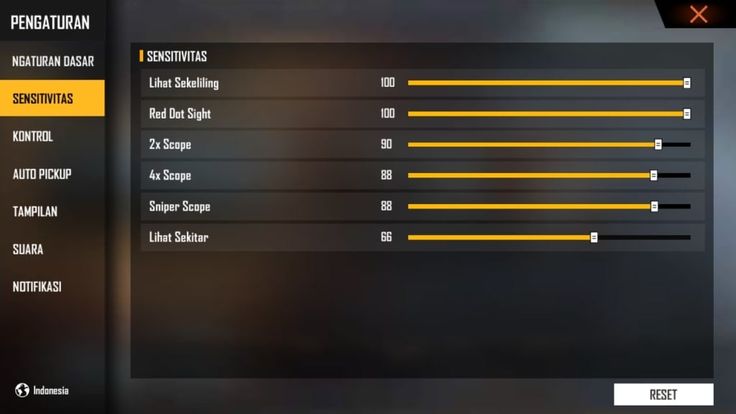
Set your General sensitivity to 90–95. This is the master speed for all scopes. On Redmi, a slightly higher general sensitivity helps with quick flicks to the head without being uncontrollable. If you find it too twitchy, dial it back to 88. Write this down: General = 92 (start point).
Step 3: Fine‑Tune Red Dot and Scope Sensitivities
For auto headshot, the Red Dot scope is your best friend. Set Red Dot sensitivity between 75 and 80. This gives you a snappy response when aiming at the upper chest/head area without overshooting. For 2x scope, go 65–70; 4x scope, 45–50; Sniper scope, 25–30. The lower scope values prevent micro‑shake during long‑range headshots.
Step 4: Adjust the Fire Button and ADS Settings
Go back to ‘Controls’ and tap ‘Customize’. Move the fire button to a comfortable spot where your thumb naturally rests. Increase its size to 55% (or medium). Also enable ‘Fast ADS’ in the settings – this makes your scope snap faster when you tap the aim button. Very important for headshots!
Step 5: Enable Gyroscope (If Your Redmi Supports It)
Many Redmi phones have a gyroscope. Go to ‘Sensitivity’ and turn on ‘Gyroscope’. Set gyro sensitivity to 40–50 for general and 25–30 for scope. Gyro helps you micro‑adjust your aim to the head without dragging your thumb. If you prefer not to use gyro, check out our step-by-step sensitivity guide that covers non‑gyro setups.
Step 6: Test and Tweak in Training Ground
Hit the Training Ground and practice on the moving dummies. Try to land only headshots. If your crosshair goes past the head, lower the sensitivity by 2–3 points. If it falls short, increase by 2–3. Repeat until you can consistently flick to the head. This personal adjustment is key – no one‑size‑fits‑all setting works for everyone.
Common Pitfalls
- Setting sensitivity too high: You’ll over‑flick and miss headshots. Start lower and work up. A high general sensitivity (above 95) on Redmi can cause jitter due to the touch sampling rate. Stick to 90–92.
- Ignoring the fire button placement: If your thumb can’t reach the fire button without shifting your grip, your aim will suffer. Spend time customizing your HUD layout to match your hand size.
- Forgetting to update Free Fire: Each update may change sensitivity feel. Re‑test after major patches and adjust accordingly. Also, if you have a Redmi with 120Hz display, enable it in your phone settings for smoother aim.
Where to Next
You’ve got your sensitivity dialed in, but the grind doesn’t stop there. Check out our popular sensitivity configs from top players if you want to copy the pros. If you’re into aggressive play, our settings for aggressive playstyle will help you combine movement with headshots. And don’t forget to master recoil with our sensitivity for spray control so that your first shot lands on the head and the rest stay on target. For Redmi users on older phones, we also have a guide on auto headshot settings for Oppo – many of those tips apply to Redmi too. Happy headshot hunting!



